Snippets
A snippet is a piece of code ready to insert in a code editor of a Virtual User: a JSR223 script, the condition of an If or a While action, a K6 script or a Playwright spec.
- OctoPerf snippets come ready-made with the platform, for every language: reading a variable, a counter, a date format, a K6 check, and so on.
- Workspace snippets are yours: the code your team writes again and again, written once and shared by every member of the workspace, in all its projects.
The Snippets page is in the Design menu, after SLA Profiles.
Snippets list
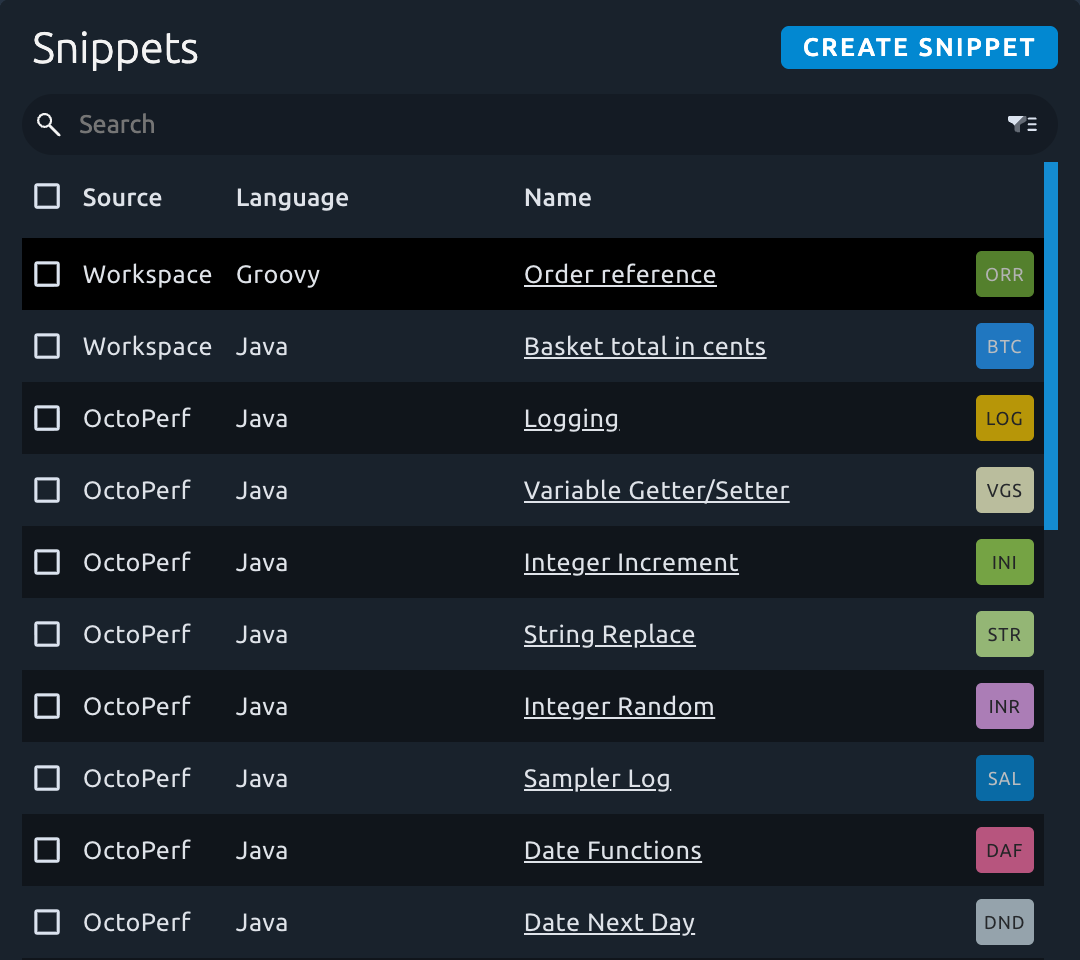
One list shows the snippets of the workspace first, then the OctoPerf ones:
| Column | Description |
|---|---|
| Source | Workspace for a snippet of your workspace, OctoPerf for a ready-made one. |
| Language | The language of the snippet: only the code editors of this language offer it. |
| Name | The name of the snippet. Click it to open the snippet. |
The search and the other features of the list are described in the section about lists.
Create a snippet
Click Create Snippet. The new snippet takes the first free name among Snippet 1, Snippet 2, and so on. Fill its form, then save it:
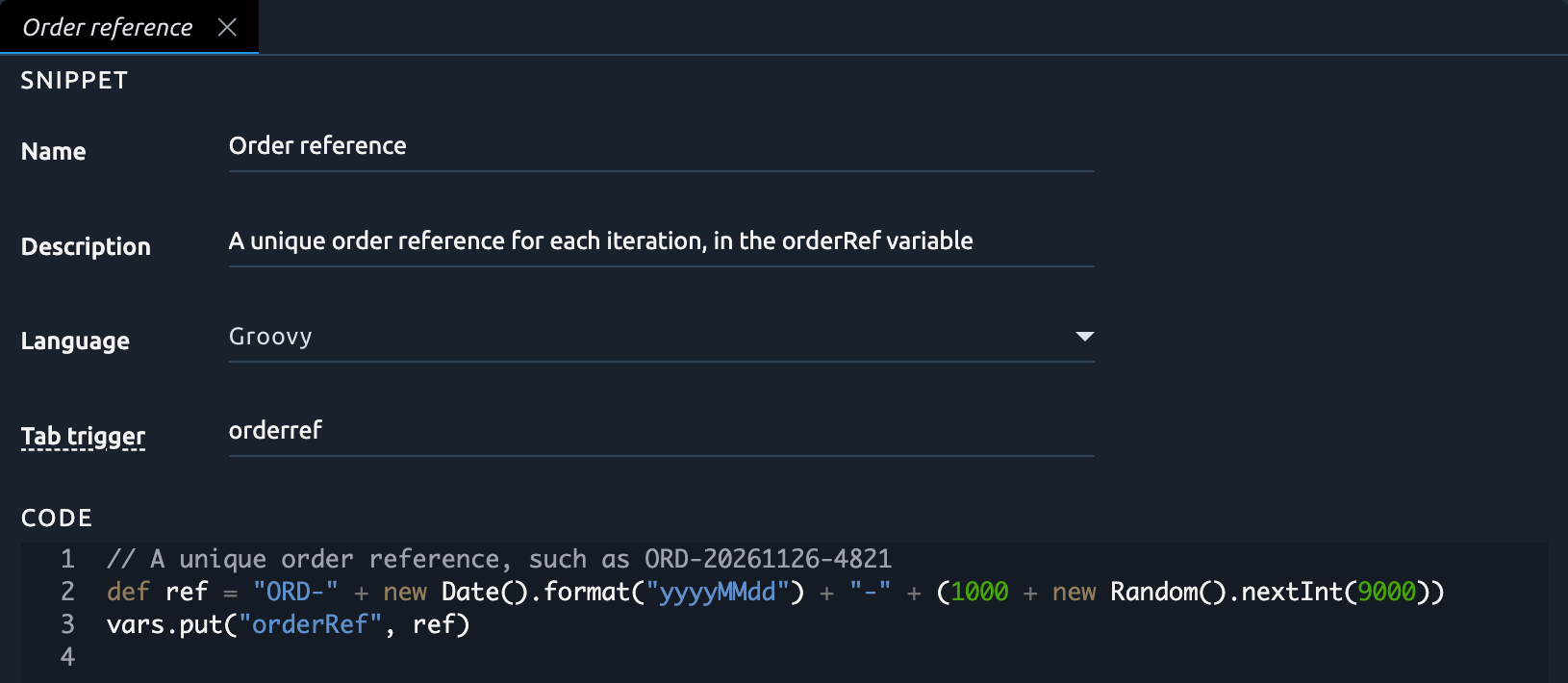
| Field | Description |
|---|---|
| Name | Required. Two snippets of a workspace never share a name, whatever the case and the spaces around it. |
| Description | What the snippet does, for the other members of the workspace. |
| Language | The editors that offer the snippet, see below. |
| Tab trigger | Optional, a word without spaces, such as token. Type it in an editor of the snippet's language, then press Tab: the word is replaced by the code of the snippet. |
| Code | The code inserted, up to 65,536 characters. |
To change a workspace snippet, click its name in the list, change its form and save it.
Tip
You can also create a snippet from a code editor: write the code where you use it, then save it with Save Selection as Snippet, see Snippets in the code editors.
Unique name
A name another snippet of the workspace already bears is refused: the form says which snippet uses it, and cannot be saved until you pick another name.

The names of the OctoPerf snippets do not count: a workspace snippet can bear the same name as one of them.
Languages
| Language | Offered by |
|---|---|
| Groovy | The JSR223 actions, pre-processors and post-processors written in Groovy. |
| Java | The JSR223 actions, pre-processors and post-processors written in Java. |
| JavaScript | The JSR223 actions, pre-processors and post-processors written in JavaScript. |
| Groovy condition | The condition of the If and While actions, when Condition as Variable Expression is on (the recommended syntax). |
| JavaScript condition | The condition of the If and While actions, when Condition as Variable Expression is off. |
| K6 | The K6 Script actions. |
| Playwright | The Playwright Spec actions. |
Tab trigger
Typing a tab trigger then Tab in an editor of the snippet's language inserts the snippet. The tab triggers also show in the completion of the editor, Ctrl+Space.
When a workspace snippet and an OctoPerf snippet of the same language share a tab trigger, the workspace snippet wins: give a snippet of yours the trigger of an OctoPerf snippet to replace it in your workspace.
OctoPerf snippets
The OctoPerf snippets are read-only for everyone: one opens to read its code, and cannot be changed nor deleted. To adapt one, copy its code into a new workspace snippet.
Delete snippets
Select the snippets to delete in the list, then click Delete Snippets, or use Delete in the menu of a snippet's row. Only workspace snippets are deleted.
Deleting a workspace deletes its snippets too.
Who can edit snippets
The rights follow the role of each member in the workspace:
| Role | Workspace snippets | OctoPerf snippets |
|---|---|---|
| Admin, Tester | Create, change and delete | Read |
| Test executor, Viewer | Read: a snippet opens read-only | Read |
A member who only reads sees neither Create Snippet, nor Delete, nor Save Selection as Snippet in the code editors. They still insert any snippet in their editors.
With an AI agent
Through the MCP Server, an agent lists the snippets of a workspace, picks one, fills in its placeholders and writes the code into a Virtual User. It can also create, change and delete the workspace snippets, with your rights.