Configuring the board and issue workflow
Once your connection to Jira is validated, the Performance test configuration section appears. This is where you choose which board OctoPerf works with, which issues are involved, and what happens to those issues when your tests run.
Tip
If you make changes in Jira (new board, renamed columns, new issues) while configuring your notification, select Reload JIRA data to refresh the available options.
Selecting the board
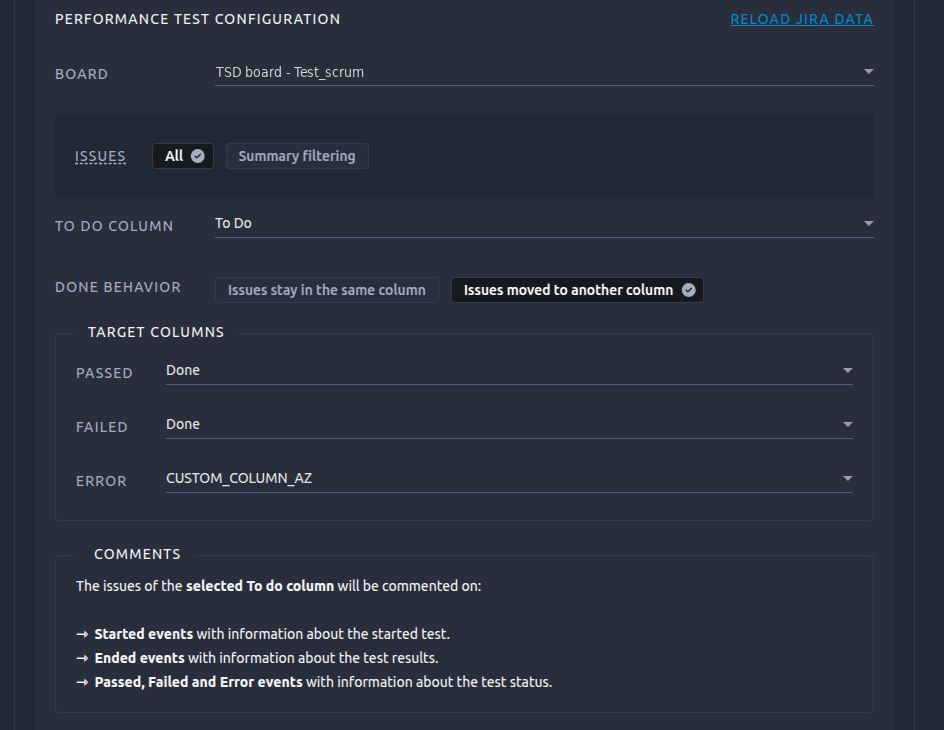
Pick the Board OctoPerf should work with. Each entry is shown as board name - project name so you can tell similar boards apart.
Selecting a board loads the columns and target columns available for that board.
Choosing which issues are involved
The Issues setting controls which issues on the board OctoPerf will comment on and move:
- All: every issue in the selected column is involved. No filtering is applied.
- Summary filtering: only issues whose summary (the issue title) matches the word you type are involved.

Use Summary filtering when you only want a specific set of issues to be updated, for example issues named after your performance campaign.
How the summary search works
The filter performs a Jira text search on the issue summary, so it follows Jira's own search rules:
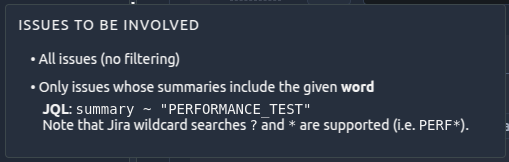
- It is a word search: your text must match a whole word in the summary, or the beginning of a word.
- The wildcards
*(any number of characters) and?(a single character) are supported. For example,PERF*matches any summary containing a word starting with "PERF". - Special characters such as
[,]or!are ignored by Jira's search.
Info
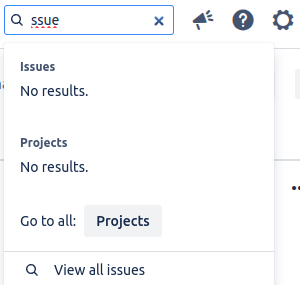
Because this is a word search, partial matches from the middle of a word are not found. For example, searching for ssue will not find an issue named "Issue". You would search for Issue or Iss* instead. This is how Jira search works, not an OctoPerf limitation.
Choosing the source column
The To do column is the column that holds the issues relevant to your load test. OctoPerf comments on (and, optionally, moves) the issues found in this column.
Deciding what happens to issues
The Done behavior setting decides what happens to your issues once a test reaches a conclusion:
- Issues stay in the same column: issues are commented on but never moved.
- Issues moved to another column: issues are moved to a target column depending on the test outcome.
When you choose to move issues, you select a target column for each relevant outcome:
- Passed: where issues go when a test finishes successfully,
- Failed: where issues go when a test finishes with a failure,
- Error: where issues go when a test could not run.
A target column only appears for outcomes you have enabled in the Test events selector at the top of the notification.
Note
Target columns are built from the moves already available on your board's issues. Your board must therefore contain at least one issue, otherwise OctoPerf cannot offer any target column. No administrator access is required.
What gets commented and moved
OctoPerf tells you exactly what will happen based on the events you selected:
-
Comments: the issues in the selected To do column are commented on with information about the test:
- Started events add information about the test that started,
- Ended events add information about the test results,
- Passed, Failed and Error events add information about the test status.
-
Moving (only when Issues moved to another column is selected):
- issues move to the Passed column on a passed test,
- issues move to the Failed column on a failed test,
- issues move to the Error column on an error.
Warning
Issue moving is triggered only by the Passed, Failed and Error events. If none of these events is selected, your issues will be commented on but never moved.
Troubleshooting
- "Some data no longer exist JIRA side": an item you previously selected (board, column or target column) has changed or been removed in Jira. Select Reload JIRA data and pick the options again.
- "Your board does not have any available issue": add at least one issue to your board in Jira, then reload. Target columns are derived from the moves available on existing issues.