MCP Server
The OctoPerf MCP server lets any Model Context Protocol - aware AI agent drive your OctoPerf account - import Virtual Users, edit them, validate, run load scenarios, and read back metrics - all from a chat or IDE, without leaving the agent.
It is exposed at https://api.octoperf.com/mcp.
What it does
The MCP server is a thin, stateless bridge between an LLM agent and the OctoPerf REST API. Every tool call is authenticated as you: there are no service identities and no API keys - and resolves to a regular OctoPerf API call. Anything you can do from the web UI as your user, the agent can do on your behalf when you authorize it.
Concretely, the server exposes around 190 tools grouped into the following areas:
- Account: report which OctoPerf account the agent is working as, whether it administers the platform, and the role it holds on each workspace - so the agent can say "I am doing this as you" before a sensitive operation
- Discovery: list workspaces, projects, scenarios, Virtual Users, Docker providers
- Workspace management: create a workspace, rename it, list its members, add one by e-mail, change a role, remove a member
- Virtual User import: bring in recordings from HAR, JMX, Postman, Playwright, WebDriver, URL lists, or previously exported archives
- Commercial tool migration: survey a LoadRunner or NeoLoad project before committing to it, import it, and read back what could not be converted automatically - a BlazeMeter test is migrated the same way
- Virtual User edit: rename, re-tag, patch the action tree via JSON Patch, manage variables, HTTP servers, correlation rules and project files
- SLA profiles: list, read, create a profile pre-filled with the platform's default thresholds, retune it, delete it, and attach it to or detach it from a Virtual User
- Validation: kick off a functional check, read back the per-action validation index, drill into failing requests / responses, fetch HTTP bodies
- Scenario composition: read and re-point a scenario's user profiles - which Virtual User plays, on which provider and location - and configure the Set Up and Tear Down options
- Bench run: start a scenario, monitor progress, stop a running run, read Docker launch logs
- Scheduling: run a scenario once at a given time or on a recurring cron, then list, pause, resume and delete the scheduled jobs
- Analysis: list and read bench reports, fetch the value series behind any chart / table / summary / top report item, expand error rows, run trend reports, export one or several reports as PDF, and import a JMeter results archive to get a report out of it
- Report templates and comparison: list templates, create one from an existing report, edit it, apply it to another report, and build a comparison report over two to four finished results
- Report item editing: ask which sample types and metrics a given report allows, discover the available filter keys and values, and validate a report item before saving it
- Monitoring: create a monitor for any supported target (Linux, Windows, the databases, the web / application servers, JMX, Prometheus, New Relic, SLA), pick the agent that runs it, refine the collected counters and applications, organize them into named folders, set alert thresholds, read the whole configuration back, and test the connection
- Notifications: configure the channels a test notifies (email, Slack, Teams, Google Chat, Webex, HTTP webhook, Jira), scope them with filters, preview which ones a scenario matches, and send a test message
- On-premise infrastructure: create a private on-premise provider, manage its locations, get the agent install command for a machine, and inspect the installed agents and the resulting capacity
Each tool returns a deep-link to the matching page in the OctoPerf UI so the agent can hand you a clickable URL when it summarizes a result.
Info
Test results recorded before OctoPerf 17.0.0 need their data to be updated before a report can be read. The report tools detect it: instead of returning empty values, they say the result is not up to date and point at the tool that runs the update, and report listings say which results need one. See Updating report data.
Public HTTP downloads
The MCP server also serves a small set of public, unauthenticated markdown files under /mcp/public/**, so any agent host can bootstrap an OctoPerf project before it has IdP credentials:
| URL | Body |
|---|---|
https://api.octoperf.com/mcp/public/AGENTS.md |
Cross-vendor agent guide - drop at the root of a project |
https://api.octoperf.com/mcp/public/skills/auto-correlation.md |
Skill: fix replay failures caused by dynamic values (CSRF, sessions) |
https://api.octoperf.com/mcp/public/skills/validation-triage.md |
Skill: triage a Virtual User with many validation failures |
https://api.octoperf.com/mcp/public/skills/scenario-diagnosis.md |
Skill: investigate a poor or failing scenario run |
https://api.octoperf.com/mcp/public/skills/real-browser-probe.md |
Skill: convert a JMeter VU to Playwright and compose a hybrid load + UX-probe scenario |
https://api.octoperf.com/mcp/public/skills/scheduling.md |
Skill: schedule scenarios (one-shot / cron) with the right UTC + Unix cron semantics |
https://api.octoperf.com/mcp/public/skills/bench-reports.md |
Skill: pick the right tool per report item, decode metric semantics, read trends |
https://api.octoperf.com/mcp/public/skills/report-item-editing.md |
Skill: change what a report item measures - selectable metrics, filter keys, validation |
https://api.octoperf.com/mcp/public/skills/export-bench-report-pdf.md |
Skill: export a bench report as PDF (submit print task, poll, download) |
https://api.octoperf.com/mcp/public/skills/async-polling.md |
Skill: polling cadence and terminal conditions for async tasks (validations, runs, ...) |
https://api.octoperf.com/mcp/public/skills/scenario-composition.md |
Skill: build a scenario - load shapes, one engine per Virtual User type, Set Up / Tear Down, and what says the run passed |
https://api.octoperf.com/mcp/public/skills/sla.md |
Skill: SLA profiles - threshold bands and severities, and the attach step without which nothing fires |
https://api.octoperf.com/mcp/public/skills/monitoring.md |
Skill: monitor servers during a test - pick a reachable agent, create, configure counters |
https://api.octoperf.com/mcp/public/skills/notifications.md |
Skill: wire a channel to test events, scope it with filters, send a test message |
https://api.octoperf.com/mcp/public/skills/workspace.md |
Skill: what a workspace scopes, members and their four roles, and the deletion policy |
https://api.octoperf.com/mcp/public/skills/onpremise-agent.md |
Skill: size an on-premise provider and install one agent per machine |
https://api.octoperf.com/mcp/public/skills/loadrunner-migration.md |
Skill: migrate a LoadRunner script and its scenario, then work the unconverted list |
https://api.octoperf.com/mcp/public/skills/neoload-migration.md |
Skill: migrate a NeoLoad project, then work the unconverted list |
https://api.octoperf.com/mcp/public/skills/blazemeter-migration.md |
Skill: migrate a BlazeMeter test, then work the unconverted list |
https://api.octoperf.com/mcp/public/skills/har-recording.md |
Skill: record a HAR the import can name properly, and use a container timeline |
https://api.octoperf.com/mcp/public/skills/jtl-import.md |
Skill: import a JMeter results archive and read the report it produces |
These files are also available in OctoPerf Claude Plugins repository
JSON schemas
The entity schemas used to build patch_* payloads (JSON Schema 2020-12, one oneOf branch per polymorphic subtype) are served the same way, as plain JSON under /mcp/public/schema/. These are the HTTP fallback for clients that call tools but don't read MCP resources — the body is identical to the matching octoperf://schema/* resource:
| URL | Schema |
|---|---|
https://api.octoperf.com/mcp/public/schema/vu.json |
Virtual User action tree |
https://api.octoperf.com/mcp/public/schema/scenario.json |
Scenario + user profiles |
https://api.octoperf.com/mcp/public/schema/bench-report.json |
Bench report items |
https://api.octoperf.com/mcp/public/schema/bench-report-template.json |
Report template items |
https://api.octoperf.com/mcp/public/schema/sla-profile.json |
SLA profile thresholds |
https://api.octoperf.com/mcp/public/schema/variables.json |
Variable subtypes |
https://api.octoperf.com/mcp/public/schema/correlation-rules.json |
Correlation rules |
https://api.octoperf.com/mcp/public/schema/injection-rules.json |
Injection rule subtypes |
https://api.octoperf.com/mcp/public/schema/loadrunner-assessment.json |
LoadRunner project survey |
https://api.octoperf.com/mcp/public/schema/neoload-assessment.json |
NeoLoad project survey |
Connect a client
This section walks through connecting popular Model Context Protocol clients to the OctoPerf MCP server.
Any MCP client
The server speaks Streamable HTTP at https://api.octoperf.com/mcp and authenticates with OAuth 2.1 (Dynamic Client Registration - no API key, no manual client setup). Any MCP-aware client can connect with just that URL: paste it wherever the client expects a remote / HTTP MCP server, pick the HTTP transport, and complete the browser login on first use.
The sections below cover the most common clients. Anything not listed here - Windsurf, Cline, Continue.dev, Zed, Goose, JetBrains AI Assistant, LibreChat, ... - follows the same pattern: add the URL, choose the HTTP transport, authorize in the browser. Where a client supports a project context file, point it at the agent guide.
Claude.ai (Custom Connector)
See Anthropic's Get started with custom connectors using remote MCP for the canonical Claude.ai flow.
Adding the connector
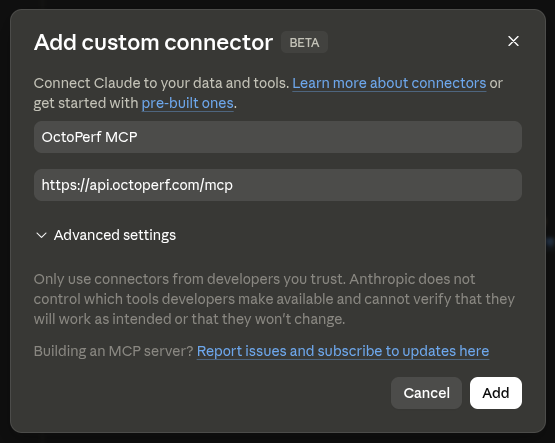
- Open Customize → Connectors in claude.ai (Pro/Max). On Team/Enterprise plans, an Owner does the same from Organization settings → Connectors.
- Click the + button, then Add custom connector.
- Paste
https://api.octoperf.com/mcpas the connector URL and click Add. - Claude opens a browser tab to OctoPerf. Log in with your usual credentials.
- The connector appears in the list as OctoPerf MCP and is available in every new conversation.
Configuring the allowlist
Claude.ai web: file upload / download requires a domain allowlist (org admin).
Several OctoPerf tools (upload_project_file, download_project_file, download_bench_result_file, the PDF leg of export_bench_report_pdf, download_bench_report_pdfs, plus any Playwright trace / HAR / JTL pull) return a short-lived presigned URL pointing at the OctoPerf REST API.
Claude's sandbox fetches that URL to ingest the bytes, and egress is gated by an org-level admin setting: Claude.ai → Organization Settings (Admin only) → Capabilities → Domain allowlist → Additional allowed domains. Add octoperf.com (or *.octoperf.com to also cover an on-prem deployment) once for the whole org; the dropdown can stay on None (no preset list needed), the manual entry alone is enough.
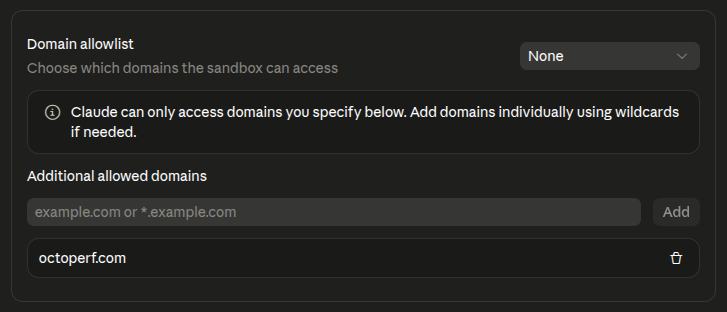
Only a workspace admin can edit this list - non-admin members of the org inherit it. If your org doesn't have an admin slot to flip this (or you're on a personal Claude.ai account where the setting lives under your own account), the file tools will keep failing on Claude.ai web and Desktop.
Chatting with Claude
In a chat, ask Claude something like "list my OctoPerf workspaces" and it will call the matching MCP tool and render the result.
You should also tell Claude to read the content of the agent guide. It acts as a knowledge base that informs the AI about your project context, ensuring that follows OctoPerf project's standards.
Info
If your usage is file-heavy (frequent CSV uploads, downloading bench result files, exporting PDFs, pulling Playwright traces) and the allowlist is out of reach, Claude Code is the better client: it runs the fetches itself via local shell commands, so no sandbox allowlist applies and uploads / downloads work out of the box. Cursor, Continue.dev and the MCP Inspector are also unaffected.
Claude Code
The recommended setup uses the official OctoPerf plugin distributed through the OctoPerf/octoperf-claude-plugins marketplace. It registers the MCP server, installs the agent guide, and adds twenty workflow shortcuts (auto-correlation, validation triage, scenario diagnosis, scenario composition, bench-report reading, report item editing, PDF export, real-browser probe, scheduling, async polling, SLA profiles, monitoring, notifications, workspaces, on-premise agent, HAR recording, JTL import, LoadRunner migration, NeoLoad migration, BlazeMeter migration) in one step.
From any Claude Code prompt:
/plugin marketplace add OctoPerf/octoperf-claude-plugins
/plugin install octoperf@octoperf
The first tool call opens a browser tab to OctoPerf. Log in with your usual credentials - the login authorizes Claude Code as a connected agent. After that, every future tool call reuses the cached token transparently.
Once installed, ask Claude Code something like "list my OctoPerf workspaces", "why is my last scenario run failing?", or "auto-correlate this Virtual User" and the matching workflow runs automatically.
Manual setup (without the plugin)
If you prefer registering only the MCP server (no workflow shortcuts, no agent guide), see Anthropic's Connect Claude Code to tools via MCP for the full reference, then run:
claude mcp add --transport http octoperf https://api.octoperf.com/mcp
All flags (--transport, --scope, ...) must come before the server name. To remove the server later:
claude mcp remove octoperf
Open a Claude session and type /mcp to connect to the newly added OctoPerf MCP Server.
You can download the agent guide manually.
You can also install the workflow shortcuts by hand by downloading them from https://api.octoperf.com/mcp/public/skills/<name>.md into .claude/skills/octoperf-<name>/SKILL.md (or ~/.claude/skills/... to enable them globally). The plugin above does the same thing for you.
Claude Desktop
See Anthropic's Connect Claude Desktop to tools via MCP for the canonical Claude Desktop flow. Open claude_desktop_config.json (via Settings → Developer → Edit Config) and add an entry under mcpServers:
{
  "mcpServers": {
    "octoperf": {
      "url": "https://api.octoperf.com/mcp"
    }
  }
}
Restart Claude Desktop. The first tool call opens a browser tab for OAuth login; the bearer token is cached afterwards.
Codex
See OpenAI's Model Context Protocol guide for the full Codex reference, then register the server:
codex mcp add octoperf --url https://api.octoperf.com/mcp
Then authenticate:
codex mcp login octoperf
Codex opens a browser tab to OctoPerf. Log in with your usual credentials - the login authorizes Codex as a connected agent. The token is cached afterwards, so every future tool call reuses it transparently. To remove the server later:
codex mcp remove octoperf
Codex reads an AGENTS.md file at the root of your project natively, so download the agent guide there:
curl -o AGENTS.md https://api.octoperf.com/mcp/public/AGENTS.md
In a session, ask Codex something like "list my OctoPerf workspaces" and it will call the matching MCP tool and render the result.
ChatGPT
ChatGPT can reach the OctoPerf MCP server as a custom connector (remote MCP). Availability and the exact location of the setting depend on your plan and OpenAI's rollout (custom MCP connectors / Developer mode are still evolving), so follow OpenAI's current Connectors in ChatGPT documentation for the canonical flow.
- In ChatGPT, open Settings → Connectors (you may need to enable Developer mode to add a custom MCP server).
- Add a connector with the URL
https://api.octoperf.com/mcp. - Authorize in the browser when prompted; the token is cached afterwards.
Info
Like Claude.ai, ChatGPT runs tools in a sandbox. File tools that return a presigned *.octoperf.com URL (upload_project_file, download_project_file, download_bench_result_file, the PDF leg of export_bench_report_pdf, download_bench_report_pdfs, Playwright trace / HAR / JTL pulls) may be blocked by the host's egress policy. For file-heavy use, prefer Codex or another local client, which run the fetches themselves.
Gemini CLI
See Google's MCP servers with the Gemini CLI for the full reference, then register the server:
gemini mcp add --transport http octoperf https://api.octoperf.com/mcp
Open a Gemini session and authenticate:
/mcp auth octoperf
Gemini opens a browser tab to OctoPerf. Log in with your usual credentials - the login authorizes Gemini as a connected agent and the token is cached afterwards. To remove the server later:
gemini mcp remove octoperf
Gemini CLI reads a GEMINI.md context file at the root of your project, so download the agent guide there:
curl -o GEMINI.md https://api.octoperf.com/mcp/public/AGENTS.md
In a session, ask Gemini something like "list my OctoPerf workspaces" and it will call the matching MCP tool and render the result.
GitHub Copilot (VS Code)
MCP servers are available to Copilot in agent mode (VS Code 1.101 or later). See Add and manage MCP servers in VS Code for the full reference.
Create (or edit) .vscode/mcp.json in your workspace and add the server (alternatively, run MCP: Add Server from the Command Palette and pick HTTP):
{
  "servers": {
    "octoperf": {
      "type": "http",
      "url": "https://api.octoperf.com/mcp"
    }
  }
}
When the server starts, VS Code discovers the OAuth configuration automatically and opens a browser tab to OctoPerf. Log in with your usual credentials - the login authorizes Copilot as a connected agent and the token is cached afterwards.
Copilot reads custom instructions from .github/copilot-instructions.md, so download the agent guide there:
curl -o .github/copilot-instructions.md https://api.octoperf.com/mcp/public/AGENTS.md
Open Copilot Chat in agent mode and ask something like "list my OctoPerf workspaces" - Copilot calls the matching MCP tool and renders the result.
Cursor
See Cursor's Model Context Protocol documentation for the full reference. The quickest path is the one-click deep link:
To add it by hand, create (or edit) .cursor/mcp.json in your project - or ~/.cursor/mcp.json to enable it for every project:
{
  "mcpServers": {
    "octoperf": {
      "url": "https://api.octoperf.com/mcp"
    }
  }
}
Cursor opens a browser tab to OctoPerf on the first tool call. Log in with your usual credentials - the login authorizes Cursor as a connected agent and the token is cached afterwards.
Cursor has no fixed context filename, so save the agent guide as a project rule under .cursor/rules/ (or attach it to the chat as context):
curl -o .cursor/rules/octoperf.md https://api.octoperf.com/mcp/public/AGENTS.md
In a chat, ask Cursor something like "list my OctoPerf workspaces" and it will call the matching MCP tool and render the result.
Mistral Vibe
Mistral Vibe (formerly Le Chat) connects to the OctoPerf MCP server as a Custom MCP Connector. See Mistral's MCP connectors documentation for the canonical flow.
- In Mistral Vibe, open the Work sidebar and go to Context → Connectors, then click + Add Connector and switch to the Custom MCP Connector tab.
- Set Title to
OctoPerf MCP(Vibe derives a reference likeoctoperf_mcp) and Server tohttps://api.octoperf.com/mcp. - Set Authentication Method to OAuth2.1 and leave Visibility on Private (or share it with your workspace).
- Submit the form. Vibe opens a browser consent flow to OctoPerf - log in with your usual credentials. The connector then shows a green Connected status and the token is cached afterwards.
Enable the OctoPerf MCP connector in a conversation, then ask something like "list my OctoPerf workspaces" and Vibe will call the matching MCP tool and render the result. You can also point Vibe at the agent guide (via Context → Instructions) so it follows your project's conventions.
Info
Some MCP capabilities aren't supported yet. Per Mistral's documentation, custom connectors currently focus on tool calls and don't yet support dynamic tool discovery, resources or prompt templates. This has no impact on OctoPerf, which is driven entirely by its tool catalogue.
Vibe Code (the CLI) can't connect yet. Mistral's coding agent Vibe Code also speaks MCP (servers declared in config.toml), but the CLI does not yet support MCP servers that authenticate with OAuth - it only handles a static Authorization header or API key. Since the OctoPerf MCP server is OAuth 2.1 only, the connector works from Vibe (the chat) but not from the Vibe Code CLI for now.
Where to go next
- Self-hosted setup: deploy the MCP server alongside an OctoPerf Enterprise instance, configure the bundled OAuth IdP.
- Connected Apps: review and revoke the agents you authorized.
- OAuth Clients (admin): audit and clean up registered OAuth clients on a self-hosted instance.