Connecting to Jira
Before OctoPerf can update your board, it needs to connect to your Jira instance. The connection details you provide depend on whether you use Jira Cloud or Jira Data Center.
Choosing a connection type
The Type field lets you pick how OctoPerf authenticates with Jira:
- Cloud: for Jira Cloud (Atlassian-hosted). Uses your account email and an API token.
- Data Center - Basic: for self-hosted Jira, using a username and password.
- Data Center - Access Token: for self-hosted Jira, using a Personal Access Token only.
The fields displayed below the Type selector change automatically based on your choice.
The address (URL)
Whatever type you choose, you must provide the base URL of your Jira instance:
- For Jira Cloud, this looks like
https://your-company.atlassian.net, - For Jira Data Center, this is the address where your Jira server is reachable.
The address must start with http or https and point to a valid host. Addresses such as localhost are not accepted.
Jira Cloud
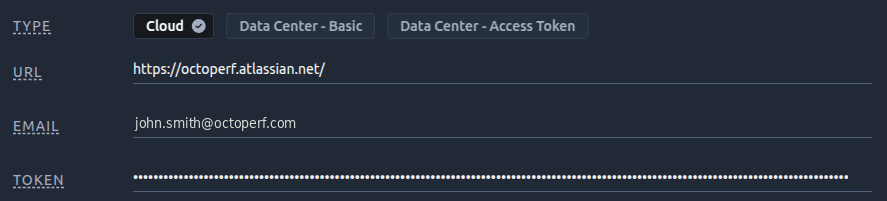
For Jira Cloud, provide:
- The URL of your instance (ending in
.atlassian.net), - The Email of your Atlassian account,
- An API token generated from your Atlassian account.
Creating a Jira Cloud API token
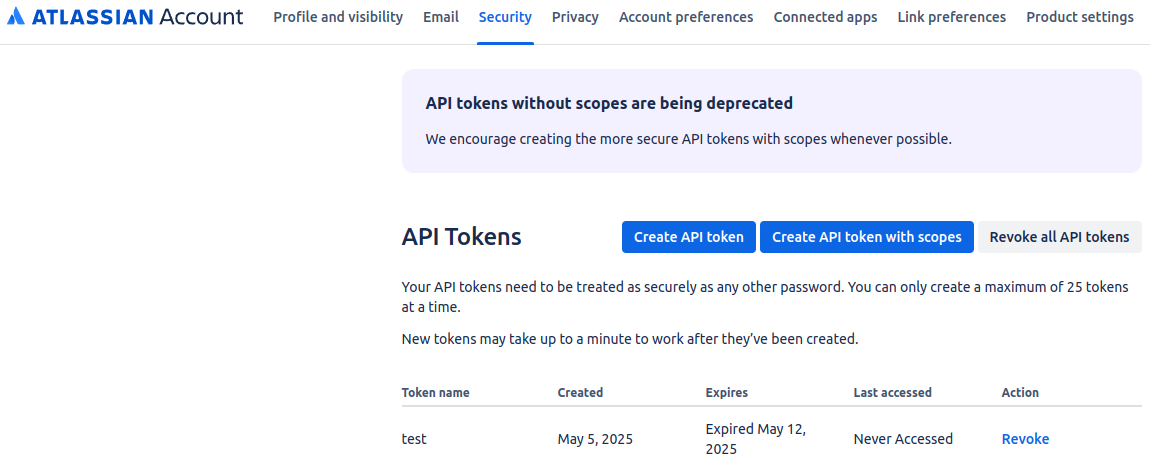
Jira Cloud no longer accepts a password for this kind of integration, so you need an API token instead:
- Sign in to your Atlassian account and open your account security settings.
- Open the API tokens section.
- Select Create API token, give it a name, and confirm.
- Copy the generated token and paste it into the Token field in OctoPerf.
Note
The token is only shown once by Atlassian, so copy it immediately. Treat it like a password.
Jira Data Center
Jira Data Center is the self-hosted version of Jira (previously called Jira Server). It offers two ways to authenticate.
Data Center - Basic
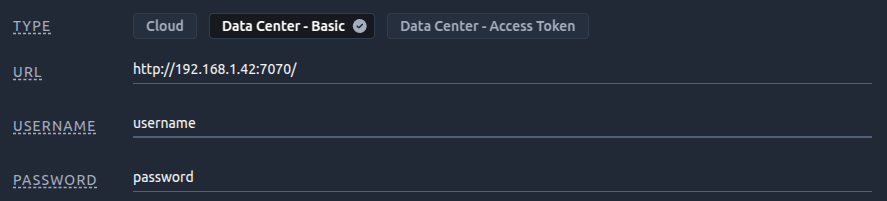
Provide:
- The URL of your Jira server,
- Your Username,
- Your Password.
Data Center - Access Token
This option uses a Personal Access Token instead of a username and password. Provide:
- The URL of your Jira server,
- The Token (your Personal Access Token).

Creating a Personal Access Token
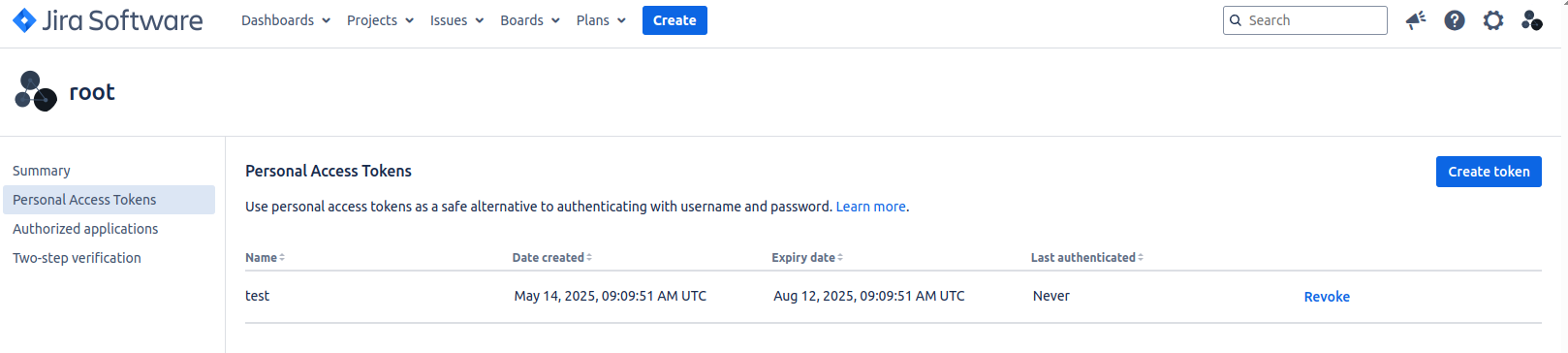
- In Jira, open your profile and go to the Personal Access Tokens section.
- Select Create token, give it a name and, if prompted, an expiry.
- Copy the generated token and paste it into the Token field in OctoPerf.
Checking the connection
Your credentials are treated as secrets: OctoPerf encrypts them and never displays them again once saved.
Use the Check connection button to confirm your details are correct:
- Connection is not validated: you have not tested the connection yet. Select the button to check it.
- Unable to connect with the given info: the address or credentials are incorrect. Double-check them and try again.
- Connection invalid / Please fill your connection information: one or more required fields are still empty.
Note
The board configuration only appears once the connection has been successfully validated. See Configuring the board and issue workflow.