Results Table Report Item
The results table provides overall statistics for each container or request.
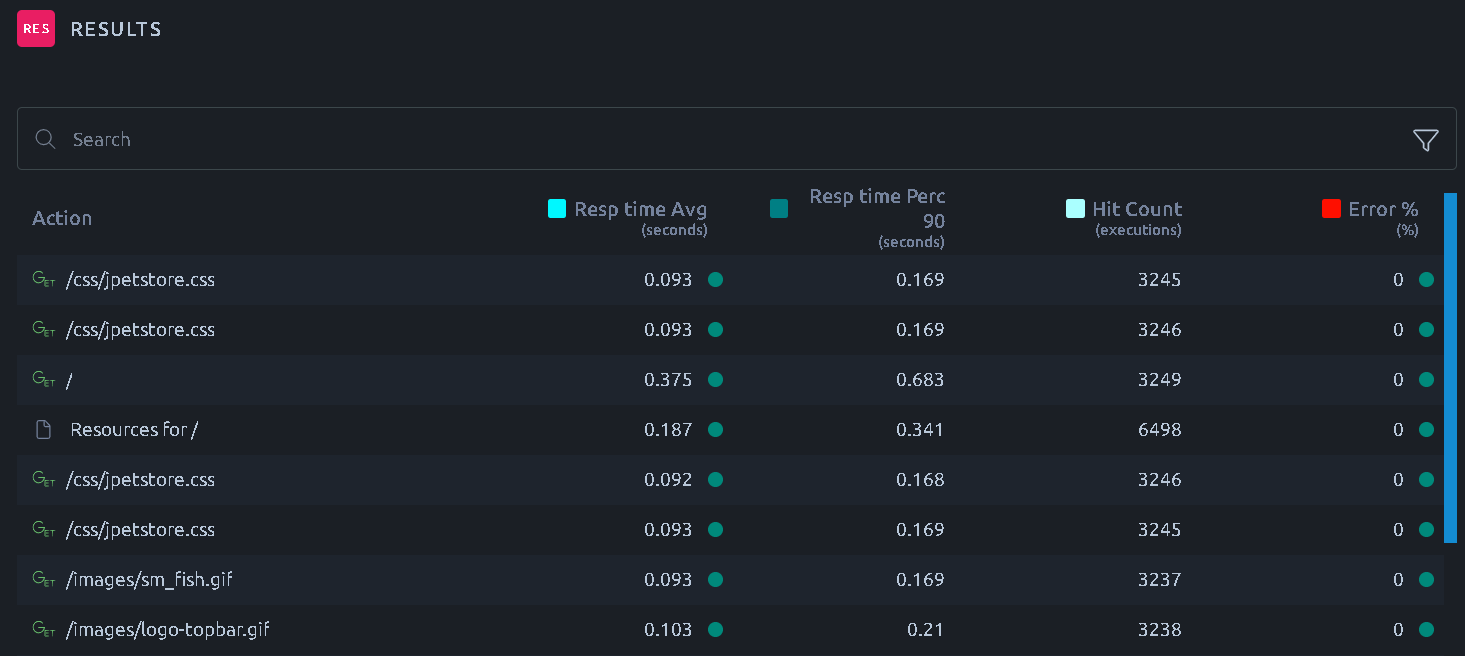
Several metrics are available, please report to the Hit Metrics Availability table.
Note
To customize a specific column, please refer to the documentation page about the legend and metrics.
Info
When displaying statistics for HTTP requests, you may have two rows for each request if you selected Download Resources in your Virtual User.
- A row that displays statistics for the HTTP request itself:

- A row that displays statistics for all the HTTP request resources (Images, scripts, CSS files, etc.):

Default report
The default report of a test shows a Results Table - Requests, with one row per request. When the Virtual Users of the test record containers, a Results Table - Containers comes first, with one row per container. The actions of a Playwright script, a navigation, a click or an assertion, are containers: a Playwright test always gets both tables.
Create Line Chart
The Create Line Chart button of a row creates a line chart of the metrics of the table, for this row only, and inserts it below the table.
Web Vitals
On the rows of the Playwright actions that loaded a page, a Web Vitals button sits next to Create Line Chart. It creates a line chart of the Core Web Vitals of that action, LCP, INP and CLS, and inserts it below the table.
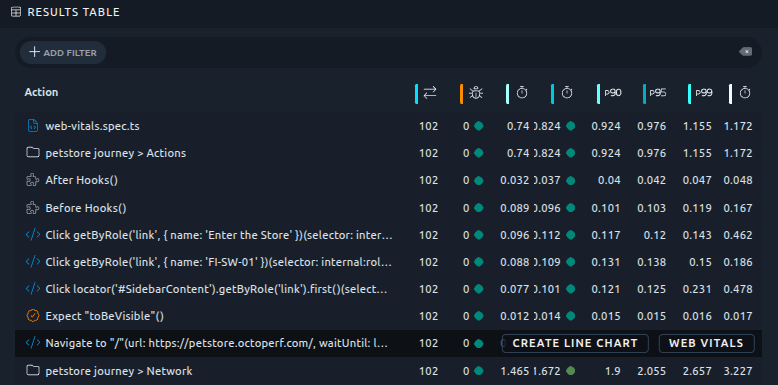
During a running test, the button shows up once the first iteration of the Virtual User has ended.
Note
Create Line Chart and Web Vitals are only offered on the report of a single test.
Export
To export the table please refer to the dedicated documentation page.