Advanced Execution Scenario
An advanced runtime scenario is a collection of user profiles (A simple scenario only has a single user profile). User profiles allow you to easily compose a test with a mix of:
- Virtual users,
- Test locations (including cloud and on premise),
- Load policies,
- Behaviors (like cache or cookies),
- etc...
The edition page lets you configure each one of these parameters:
User profiles
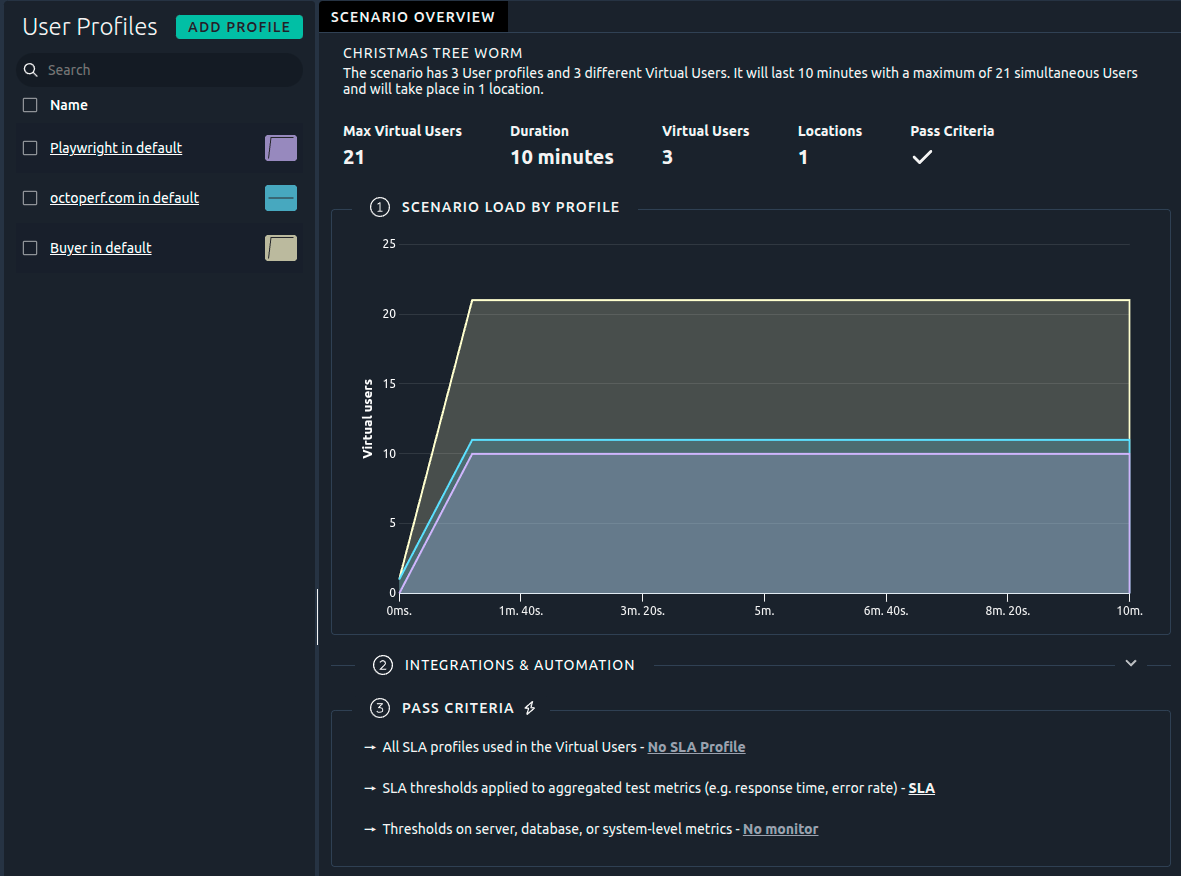
The scenario page uses a layout with the list on the left and edition on the right. The list features all the usual possibilities as described in the dedicated section about lists.
Each user profile of the list shows:
- In the status column, the problems found by the scenario check,
- In the Type column, the icon of the type of its Virtual User (JMeter, K6, Playwright, Selenium...), as in the list of Virtual Users. Its tooltip names the type, and a click opens the user profile on its Virtual User step.
This way, you see at a glance which engine runs each user profile of a scenario that mixes them.
Actions
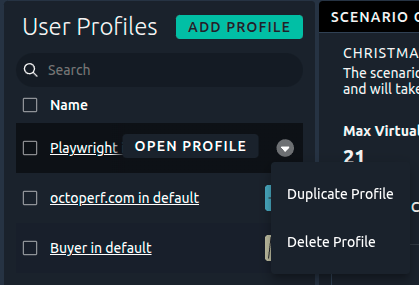
| Name | Action |
|---|---|
| Add Profile | Adds a new user profile to the current scenario. |
| Edit | Edit this user profile. |
| Duplicate | Create an exact copy of this user profile. |
| Delete | Permanently removes this user profile. |
Edit user profile
To Edit a user profile, you can click Edit in the list or click on a user profile in the Stacked Profiles graph:
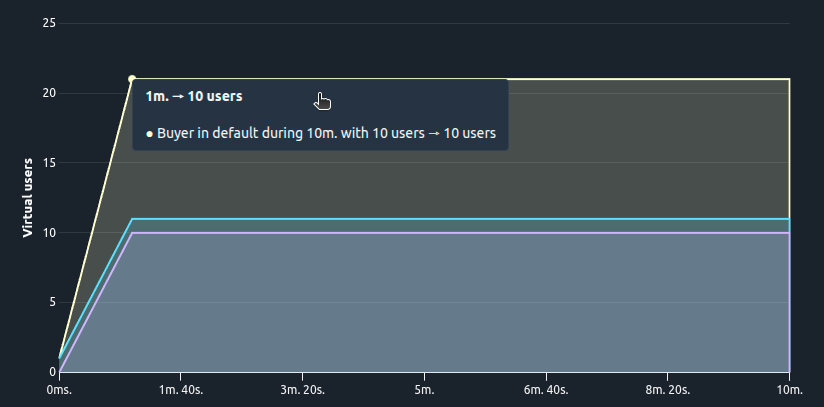
This will allow you to Edit all the following settings:
| Setting | Description | Example |
|---|---|---|
| VU | Defines the virtual user profile attached to this userload. | Buyer |
| Location | Geo location where the virtual users are running. It can be a Cloud or On-Premise location. | EU West (Ireland) |
| Strategy | Lets you define user load strategy (number of concurrent users and duration). | 1000 vus, 1h |
| Name | Change the display name of this user profile. | Buyer in Ireland |
| Device | Defines the virtual user's browser settings (like cookies and cache management) and the network simulation settings. | As Recorded |
| DNS | Domain Name System settings. | Clear cache OFF |
| JMeter | JMeter runtime properties and JMeter Test Logs file generation settings. | OFF |
| Memory | Memory override settings. | default |
Apply changes
This option is available from inside the profile edition screen:

It allows you to apply configurations from one profile to others. To apply it to several profiles, select them and use the drop down menu under Target user profiles:
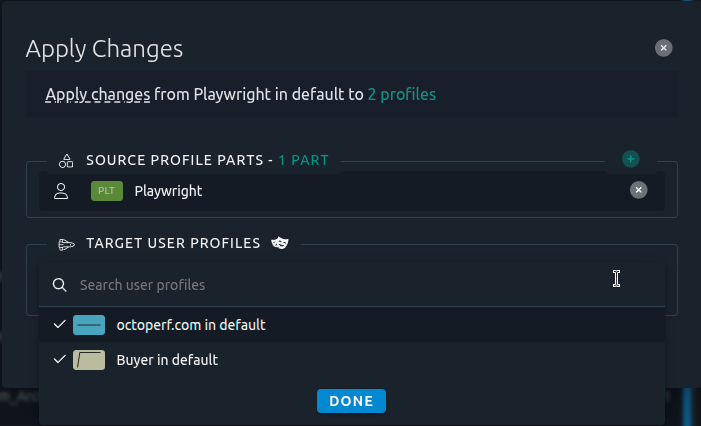
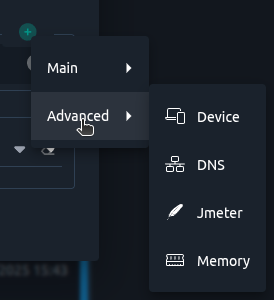
The replacement can be done on all of the sub-sections of the user profile. The default option depends on which tab of the user profile was opened when you clicked on apply all. But you can click the green plus button to add any other to the list.
Warning
This operation cannot be undone. If you are unsure, make a duplicate copy of your entire runtime profile first.
Scenario check
Each time you save the scenario, OctoPerf runs the scenario check on every user profile. As in a simple scenario, the Scenario Check panel at the bottom of the screen lists the problems, and a line next to the scenario name counts them by severity: a click on a count opens the panel on them.
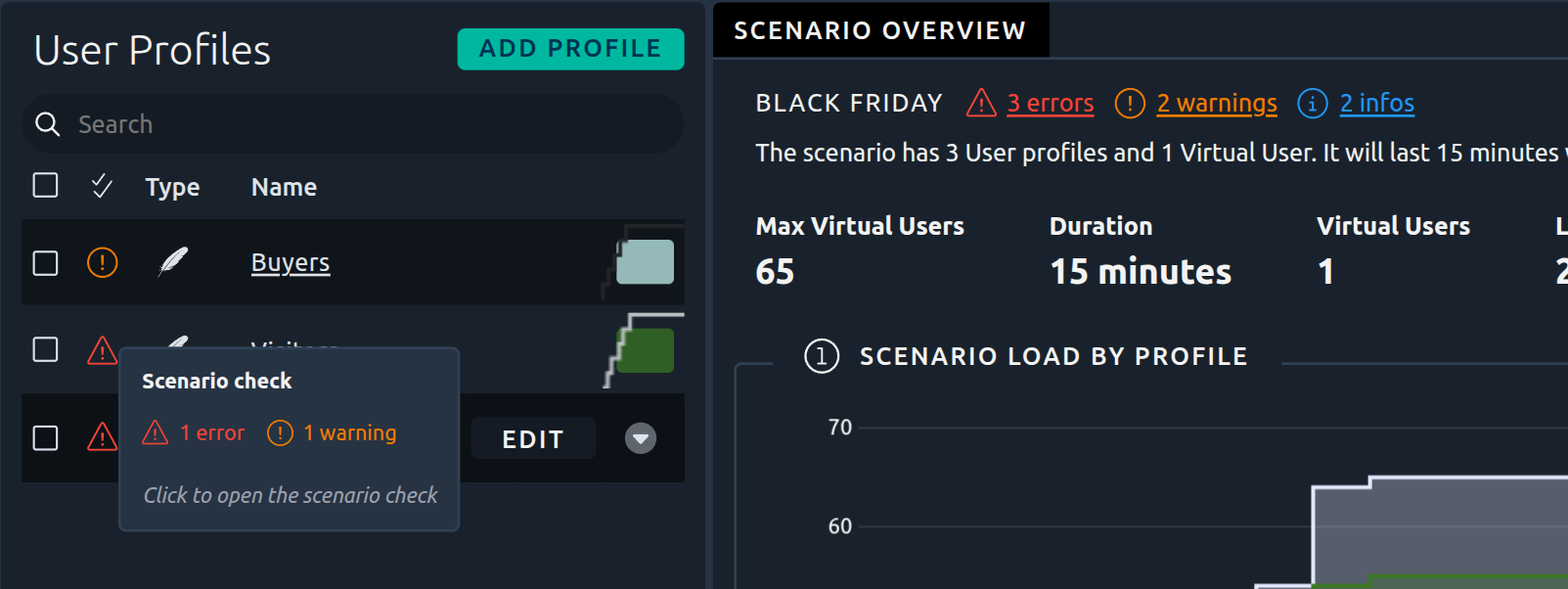
The problems also show on the user profiles:
- In the status column of the user profiles list, and left of the profile name in each profile tab, an icon: its tooltip counts the problems of that profile, and a click opens the panel on them, with a This profile / Whole scenario toggle. A user profile with no problem shows a discreet check mark,
- In a profile tab, an icon on the header of each of the four steps where a problem is fixed, and on the Integrations & Automation step of the scenario overview: a click opens the panel on the problems of that step, with a This step / Whole scenario toggle.

Fix it opens the tab of the user profile on the step to change, or the provider, the server, the Virtual User or the subscriptions at fault.
The check also compares the user profiles with each other: it warns about identical user profiles and user profiles that share a name, and tells you when two user profiles could be merged.
Info
A user profile whose form is invalid shows its invalid icon left of its name instead.
Launch test

A simple click on the Launch test button will open a window with the test starting wizard.