Scenario Check
The scenario check reviews a scenario before it runs. It looks for the settings that would make a test fail, stop early or behave differently from what you expect: a missing Virtual User, a location with no agent, a load that never ends, a server the load generators cannot reach, a subscription too small for the load...
Most problems are tied to the user profile to fix; a few concern the whole scenario. Each one comes with a short explanation and the list of its fixes. This page explains each problem in more detail, with the steps to fix it.
When the check runs
The scenario check runs:
- In the Check Runtime step of the launch wizard,
- In the scenario editor, each time you save the scenario,
- Before any test starts, whatever starts it: the web interface, the REST API, the Maven plugin, the CI integrations, JIRA, the scheduler and the MCP server.
The check runs nothing and consumes no credit.
Severities
Each problem has one of three severities:
| Severity | Meaning | Blocks the launch? |
|---|---|---|
| Error | The test would fail, never start or never end. | Yes |
| Warning | The test may fail or give results you do not expect, depending on your infrastructure. | No |
| Info | The test runs, but differently from what the settings suggest. | No |
A scenario with an Error never starts. The launch is refused before any credit is consumed, and the refusal names the user profile and the problem, for example:
Scenario cannot run: Buyer in Paris: No agent running in this location
Warnings and Infos never block the launch: read them, and launch the test once you know what to expect.
Where the problems show
Check Runtime step
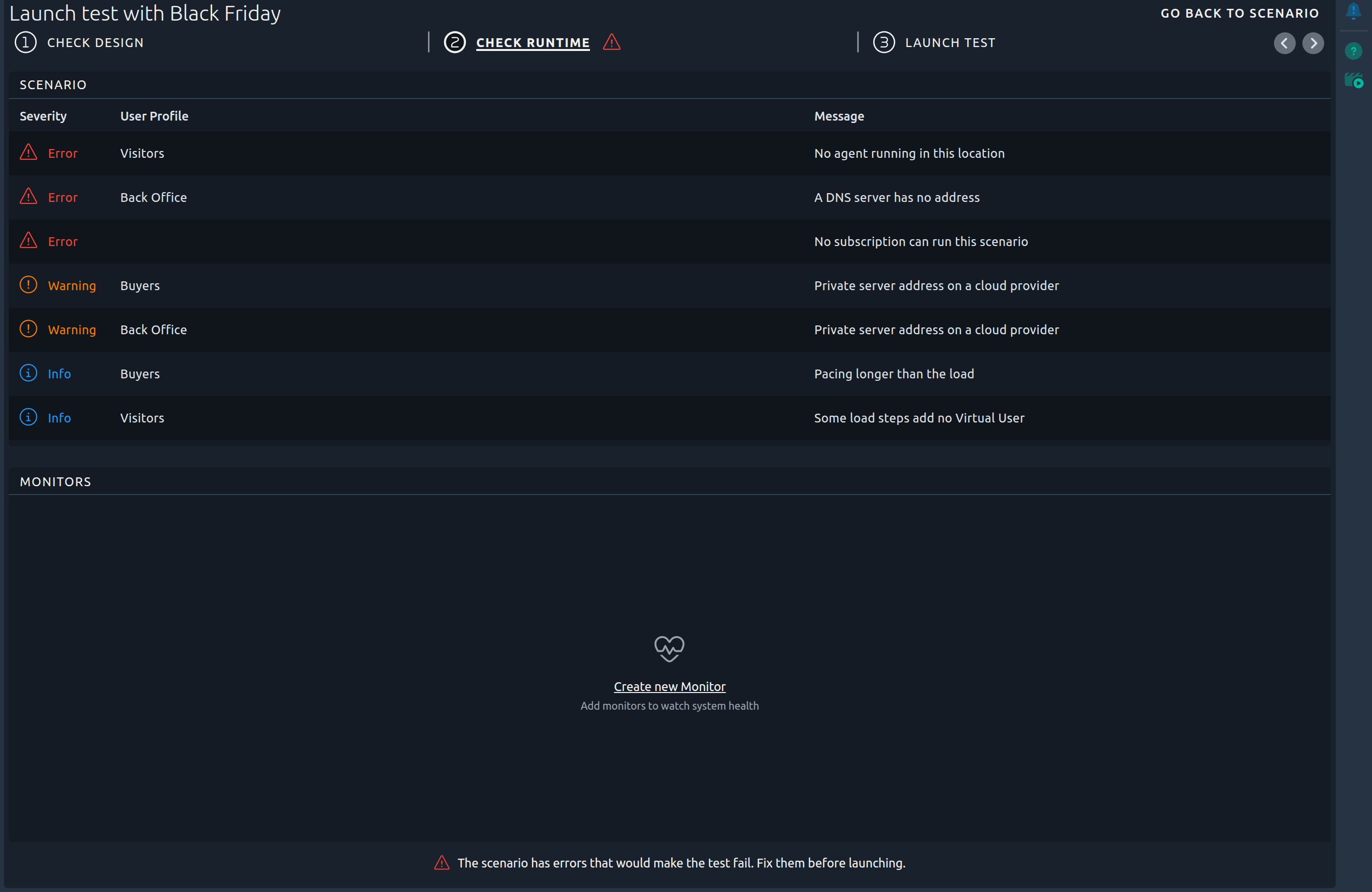
The Scenario block of the Check Runtime step lists the problems found, the worst first, with their Severity, the User Profile at fault and the Message. A problem that concerns the whole scenario, such as No subscription can run this scenario, has no user profile.
Click a row, or its Inspect button, to open the problem details.
Scenario Check panel
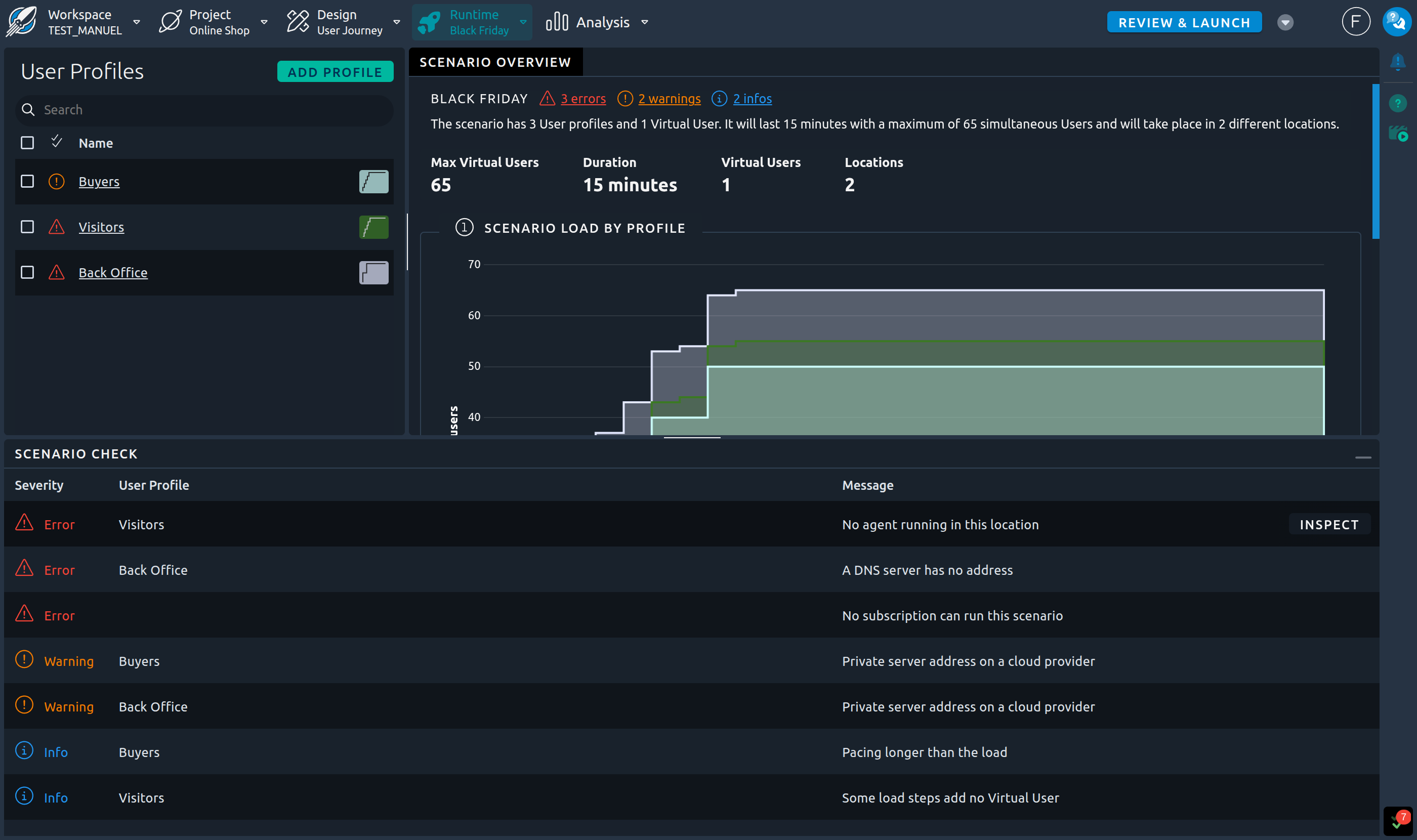
In the scenario editor, the Scenario Check panel at the bottom of the screen lists the same problems as the Check Runtime step. Open it with the green double check mark at the bottom right of the editor: its counter shows the number of problems, in the color of the worst severity, as for the events.
Click a row, or its Inspect button, to open the problem details.
The indicators described below open the panel on the problems they count. If the panel is already open, it is highlighted for a moment to show where the problems are listed. When it is opened from a user profile or a step, a toggle in its title bar switches between This profile (or This step) and Whole scenario.

Next to the scenario name
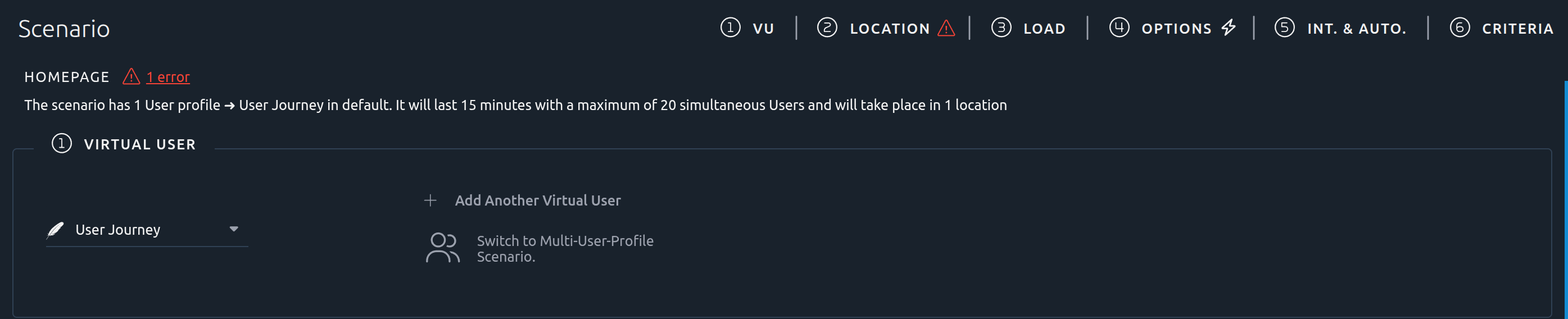
In the scenario editor, a line next to the scenario name counts the problems by severity, for example 1 error · 12 warnings. Click a count to open the Scenario Check panel, scrolled to the first problem of that severity.
On the steps and the user profiles

An icon shows on the header of each step where a problem is fixed:
- In a simple scenario, on the steps of the page and their short headers,
- In an advanced scenario, on the four steps of a profile tab, and on the Integrations & Automation step of the scenario overview.
Click the icon to open the Scenario Check panel on the problems of that step, with the This step choice selected.
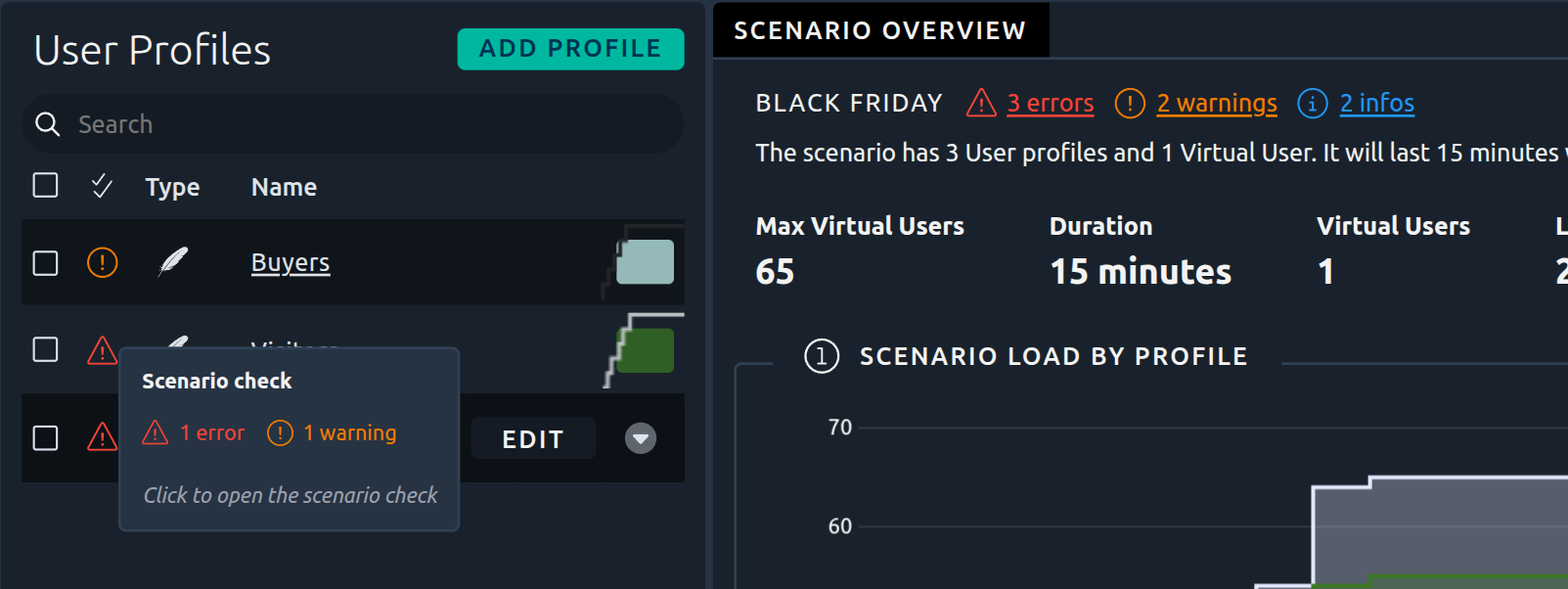
In an advanced scenario, the list of user profiles has a status column, and each profile tab shows an icon left of the profile name. The icon tooltip counts the problems of that profile, and a click opens the panel on them, with the This profile choice selected. A user profile with no problem shows a discreet check mark instead.
Info
A user profile whose form is invalid shows its invalid icon there instead.
Problem details
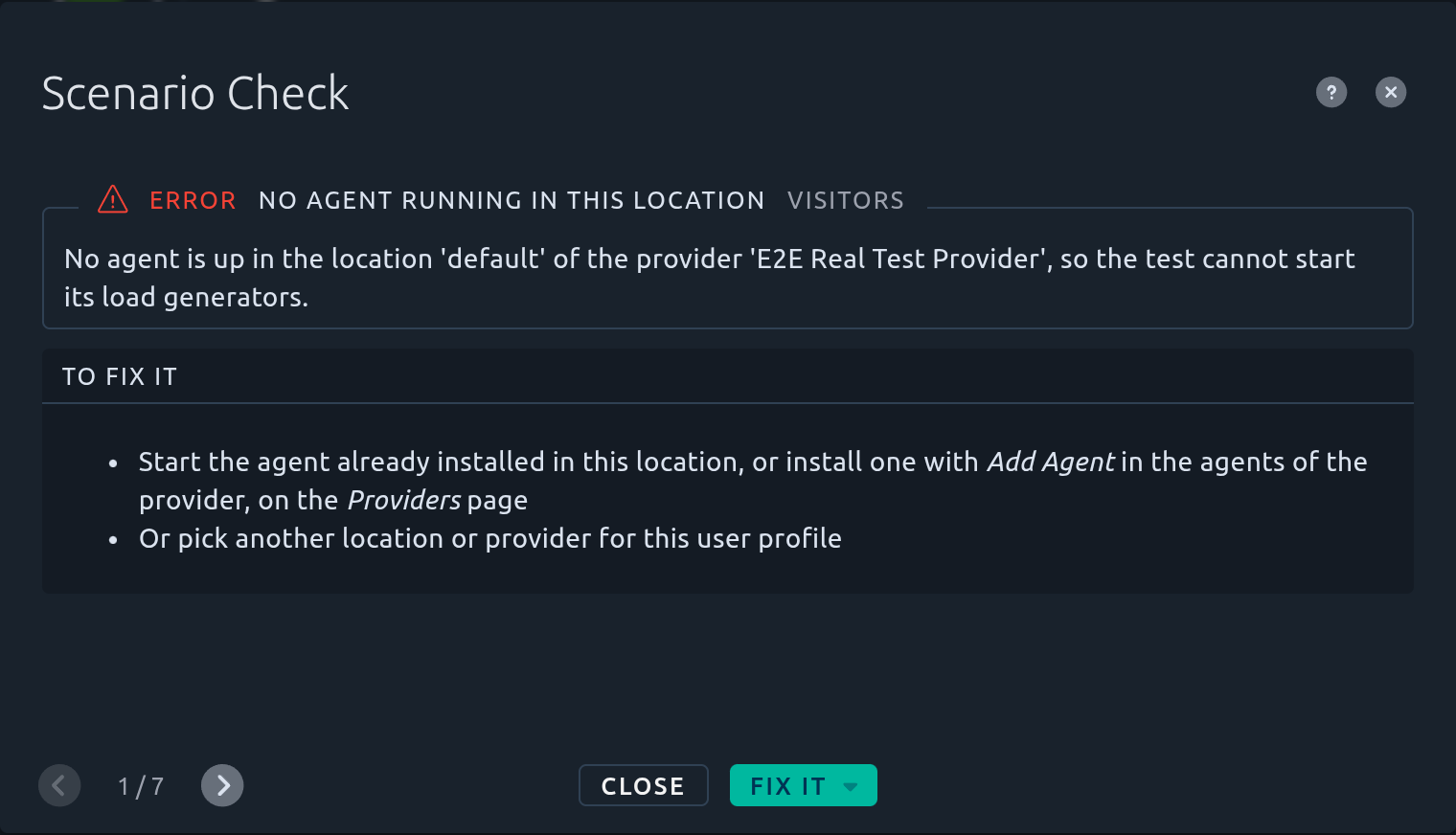
The details of a problem show, in a frame, its severity, its title and the user profile at fault, around an explanation with the figures of your scenario. The list of fixes, To fix it, comes below. For an Info, it is named To change it: the test runs as is, and the list says how to make it run the way you probably meant.
Previous and Next go through the other problems. The help icon opens the section of this page that explains the problem.
Fix it
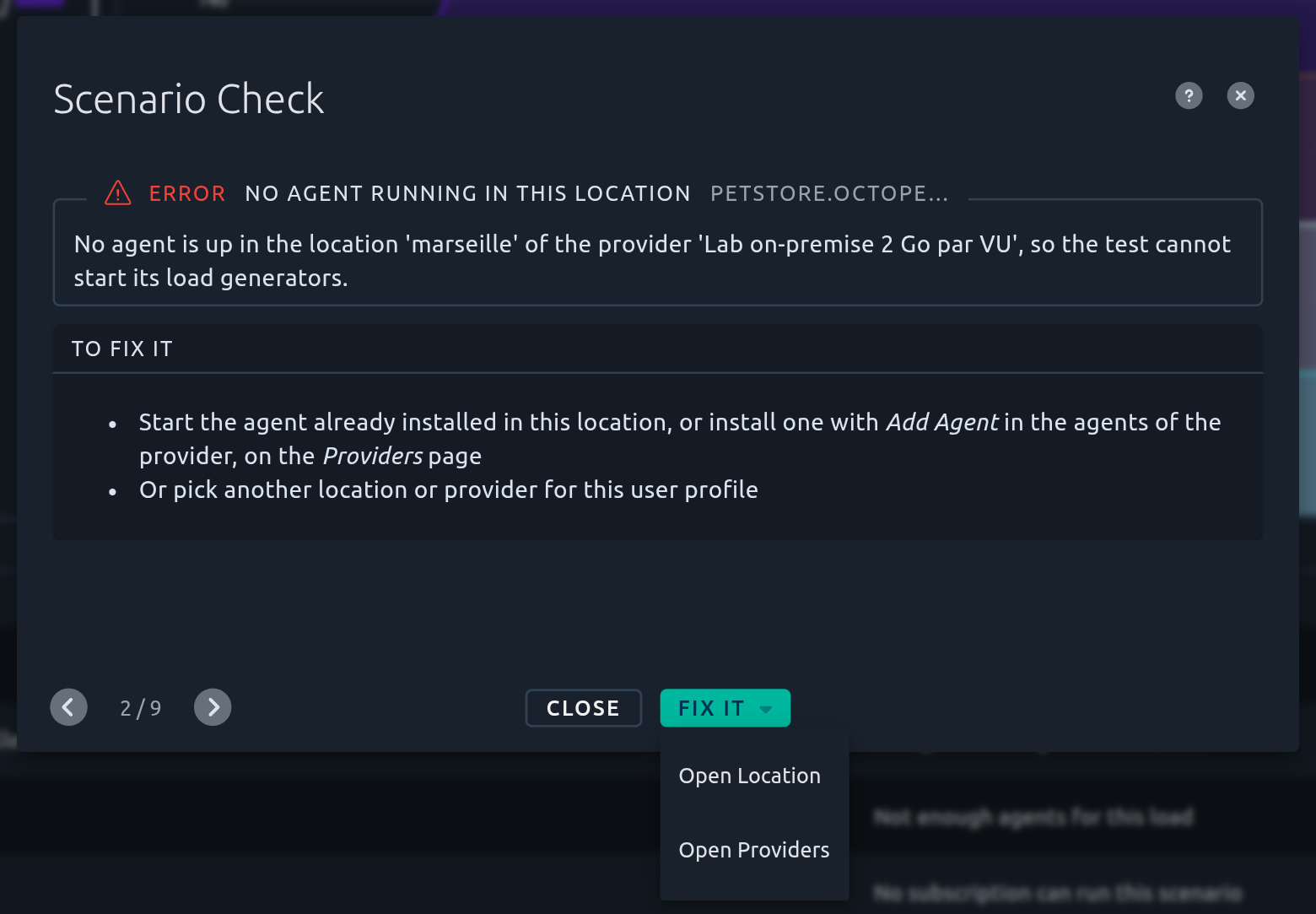
The button right of Close, in the problem details, opens the page where the problem is fixed:
- The step of the user profile: Open Virtual User, Open Location, Open User Load, Open Options or Open Integrations & Automation. In a simple scenario the page scrolls to the step; in an advanced scenario the tab of the profile opens on that step,
- When the fix is made elsewhere: Open Provider or Open Providers, Open Server, Edit Virtual User, or Open Subscriptions.
When a problem has a single fix, the button shows its name. When it has several, Fix it opens a menu.
Open Options opens the Options step on the option to fix: Name, Policies, Set Up or Tear Down, DNS, Script (K6) or Memory, as named in the To fix it list.
Info
Open Provider opens the provider on the step to change. If you are not allowed to edit providers, Open Providers opens the list of providers instead: ask your administrator to make the change.
The check runs again after each save, so the problem disappears once fixed.
Problem index
Every problem the scenario check reports, in the order of this page. Click a problem to read what it means and how to fix it.
| # | Problem | Severity | Fix it opens |
|---|---|---|---|
| 1.1 | No Virtual User selected | Error | Virtual User step |
| 1.2 | Virtual User not in this project | Error | Virtual User step |
| 1.3 | No provider selected | Error | Location step |
| 1.4 | Provider unavailable | Error | Location step, or the Providers page |
| 1.5 | Location not offered by the provider | Error | Location step, or the Locations step of the provider |
| 2.1 | Memory per Virtual User out of range | Error | Options step (Memory) |
| 2.2 | The load has no Virtual User | Error | User Load step |
| 2.3 | Set Up or Tear Down repeats forever | Error | Options step (Set Up or Tear Down) |
| 2.4 | A Fragments Virtual User cannot run | Error | Virtual User step |
| 2.5 | Engine does not match the Virtual User | Error | Virtual User step |
| 2.6 | Live reporting has no address | Error | Integrations & Automation step |
| 2.7 | A DNS server has no address | Error | Options step (DNS) |
| 3.1 | No agent ready in this location | Error | Location step, or the Providers page |
| 3.2 | Not enough capacity on the agents | Error | User Load step, the Options step (Memory), or the Memory step of the provider |
| 3.3 | Agents busy right now | Warning | Location step, or the Providers page |
| 3.4 | Agents sharing a machine | Warning | Location step, or the Providers page |
| 3.5 | Agent memory declared too low | Info | Location step, or the Memory step of the provider |
| 4.1 | Not enough dedicated IPs | Warning | Location step, or the Providers page |
| 4.2 | Server on a local or private address | Error Warning | Location step, or the server |
| 4.3 | IP spoofing on this provider | Error Warning | Location step, or the server |
| 5.1 | The load never ends | Error | User Load step, or the Options step (Policies) |
| 5.2 | Iterations outlast the test | Error Info | Options step (Policies), or the User Load step |
| 5.3 | Pacing longer than the load | Info | Options step (Policies), or the User Load step |
| 5.4 | Load steps inconsistent | Info | User Load step |
| 6.1 | K6 entrypoint not found | Error | Options step (Script), or the Virtual User (Edit Virtual User) |
| 6.2 | K6 needs at least one iteration | Error | Options step (Policies) |
| 6.3 | K6 iterations ignore the ramp-up | Info | User Load step, or the Options step (Policies) |
| 7.1 | Identical to another user profile | Warning | User Load step |
| 7.2 | Name shared with another user profile | Warning | Options step (Name) |
| 7.3 | Could be merged with another user profile | Info | User Load step |
| 8.1 | No subscription can run this scenario | Error | The Subscriptions page |
1. References
These problems come from a user profile that points to a Virtual User, a provider or a location that is missing or out of reach.
1.1 No Virtual User selected
Error
What it means. The user profile has no Virtual User to run.
Why it matters. The load generators of this user profile would have nothing to execute.
How to fix it.
- Open the Virtual User step of the user profile,
- Select a Virtual User,
- Save the scenario.
Fix it opens the Virtual User step.
1.2 Virtual User not in this project
Error
This problem has two titles:
- Virtual User not in this project: the Virtual User of the user profile was deleted, or moved to another project,
- Set Up or Tear Down not in this project: a Set Up or Tear Down Virtual User of the user profile was deleted, or moved to another project.
Why it matters. A scenario can only run the Virtual Users of its own project.
How to fix it.
- For the Virtual User: select a Virtual User of this project in the Virtual User step,
- For a Set Up or Tear Down: select a Virtual User of this project in the Set Up or Tear Down option of the user profile.
Fix it opens the Virtual User step.
1.3 No provider selected
Error
What it means. The user profile has no provider to start its load generators.
Why it matters. Without a provider, OctoPerf does not know where to run the test.
How to fix it.
- Open the Location step of the user profile,
- Select a provider and a location,
- Save the scenario.
Fix it opens the Location step.
1.4 Provider unavailable
Error
This problem has three titles:
- This OctoPerf provider is no longer offered: OctoPerf stopped offering this cloud provider. Nobody can enable it again,
- Provider not shared with this workspace: the provider exists, but is not shared with the workspace of this project,
- The provider no longer exists: the provider was deleted.
Why it matters. The test cannot start load generators on a provider it cannot reach.
How to fix it.
- Pick another provider in the Location step of the user profile,
- Or, for a provider not shared with the workspace: open the provider on the Providers page and enable Share Provider across Workspaces, or ask your administrator to do it.
Fix it opens the Location step, or the Providers page.
1.5 Location not offered by the provider
Error
What it means. The user profile runs in a location that its provider does not offer, usually because the location was removed from the provider.
Why it matters. The test cannot start load generators in a location the provider does not have.
How to fix it.
- Select one of the locations of the provider in the Location step,
- Or add the location to the provider, in its Locations step.
Fix it opens the Location step, or the Locations step of the provider.
2. Configuration
These problems come from a setting of the user profile that cannot work.
2.1 Memory per Virtual User out of range
Error
What it means. The Memory option of the user profile gives each Virtual User an amount of memory outside the allowed range:
| Virtual User | Allowed memory per Virtual User |
|---|---|
| JMeter, K6 | 4 to 32 MB |
| Playwright, Selenium | 512 to 4096 MB |
Why it matters. Too little memory makes the load generators run out of memory; too much wastes machines and slows the test startup.
How to fix it.
- Open the Options step of the user profile, then the Memory option. It shows the current value in red, for example 64 Mb / VU, with the allowed range below it,
- Move the slider to a value in the allowed range. The slider starts on the nearest limit of the range: releasing it there sets that limit,
- Save the scenario.
Until the value is back in range, the Memory option shows an error in the options menu and the user profile cannot be saved.
Fix it opens the Options step on its Memory option.
2.2 The load has no Virtual User
Error
What it means. The load of the user profile never goes above 0 Virtual Users.
Why it matters. The test would start load generators that run nothing.
How to fix it.
- Open the User Load step of the user profile,
- Give the load a number of Virtual Users,
- Save the scenario.
Fix it opens the User Load step.
2.3 Set Up or Tear Down repeats forever
Error
This problem has two titles: Set Up repeats forever and Tear Down repeats forever.
What it means. The Set Up or Tear Down Virtual User of the user profile loops with no end.
Why it matters.
- An endless Set Up keeps the main Virtual User from ever starting: the test never gets past it,
- An endless Tear Down keeps the test from ever ending.
How to fix it.
- Open the Options step of the user profile, then the Set Up or Tear Down option,
- Set VU End to Max iterations or VU duration (see Virtual user end),
- Save the scenario.
Fix it opens the Options step on its Set Up or Tear Down option.
2.4 A Fragments Virtual User cannot run
Error
What it means. The user profile runs a Fragments Virtual User. A Fragments Virtual User only holds actions that other Virtual Users reuse: it cannot be launched on its own.
Why it matters. The test would have no complete user journey to execute.
How to fix it.
- Open the Virtual User step of the user profile,
- Select a Virtual User that uses these fragments,
- Save the scenario.
Fix it opens the Virtual User step.
2.5 Engine does not match the Virtual User
Error
What it means. The user profile runs its Virtual User with the wrong engine, for example a JMeter Virtual User with a K6 engine. It usually happens when the Virtual User of the profile was replaced by one of another kind.
Why it matters. Each kind of Virtual User (JMeter, Playwright, Selenium, K6) needs its own engine: the test would fail at startup.
How to fix it.
- Select the Virtual User again in the Virtual User step, so that the engine of the user profile follows,
- Or select a Virtual User that matches the engine of the user profile.
Fix it opens the Virtual User step.
2.6 Live reporting has no address
Error
What it means. A listener of the Live Reporting (InfluxDB, Graphite, Dynatrace, Datadog or Elasticsearch) has no server address.
Why it matters. Its metrics would go nowhere.
How to fix it.
- Open the Integrations & Automation step, then Live Reporting,
- Give the address of the server of the listener, or remove the listener,
- Save the scenario.
Fix it opens the Integrations & Automation step.
2.7 A DNS server has no address
Error
What it means. One of the DNS servers listed in the DNS option of the user profile is blank.
Why it matters. The load generators could not resolve the names of the tested servers.
How to fix it.
- Open the Options step of the user profile, then the DNS option,
- Give the address of the DNS server, or remove it,
- Save the scenario.
Fix it opens the Options step on its DNS option.
3. Agents and capacity
These problems concern on-premise providers. A cloud provider starts its machines itself, so it never reports them.
To find them, the check places the load generators of the scenario on the agents that are up, the way a test does. It places all the user profiles of the scenario together: when several user profiles run in the same location of the same provider, the first ones placed take room on the agents, and the next ones only get what is left. The memory of an agent is what the agent itself reports: the RAM of its machine, or for an agent on Kubernetes the memory of the nodes of its cluster. The settings of the provider only size the load generators: a load generator never takes more than the Amount of memory per agent in MB of the provider, times the percentage set in its Memory usage.
The last two problems concern the configuration of the agents themselves, whatever the load: the Providers page reports them too, without a scenario.
3.1 No agent ready in this location
Error
The test cannot start its load generators in the location of the user profile. This problem has two titles, each with its own cause.
No agent running in this location
What it means. No agent is up in the location of the user profile: there is no machine to run the load generators.
How to fix it.
- Start the agent already installed in this location (see Start an agent),
- Or install a new one with Add Agent, in the agents of the provider on the Providers page,
- Or pick another location or provider in the Location step.
Tip
An agent that is installed but does not show in the agents list is covered in the troubleshooting section.
No memory reported by the agents in this location
What it means. An agent is up in the location, but it reports no memory, so no load generator can run on it. The page of the agent, opened from the agents of the provider on the Providers page, shows no Total in its Memory usage. It typically happens with an agent on Kubernetes when the cluster has no metrics server, or when none of its nodes accepts new pods.
How to fix it.
- On Kubernetes, check that the metrics server answers (
kubectl top nodes) and that the nodes accept pods, - On a Docker host, restart the agent,
- Or pick another location or provider in the Location step.
Fix it opens the Location step, or the Providers page.
3.2 Not enough capacity on the agents
Error
The load generators of the user profile cannot fit on the agents of the location, even with no other test running. This error blocks the launch: the test does not start.
When other user profiles of the scenario run in the same location, the message names them: the load does not fit next to them. The location may be large enough for each user profile alone, but not for all of them at once. For example:
The agents in the location 'paris' of the provider 'Lab on-premise 2 Go par VU' do not have enough memory for this load next to the other user profile of this scenario in this location ('petstore.octoperf.com in paris'), even with no other test running: all the 2 load generators (82176 MB) would find no room on any of the 2 agents.
This problem has three titles, each with its own cause.
Not enough agents for this load
What it means. The agents are up, but there are not enough of them for the load: some load generators would find no room. The message says how many, and whether the agents lack memory or already run as many load generators as the provider allows.
How to fix it.
- Install more agents in this location,
- Or lower the number of Virtual Users in the User Load step,
- Or lower the memory of a Virtual User: Per Virtual User, Per Heavy Virtual User or Per Browser-Based Virtual User in the Memory usage of the provider, or the Memory option of the user profile,
- Or, when every agent already runs as many load generators as allowed: raise Max JMeter containers in the Memory usage of the provider,
- Or, when the message names other user profiles of the scenario: move some of these user profiles to another location, in their Location step.
One Virtual User needs more than an agent
What it means. A single Virtual User of this user profile needs more memory than the largest agent has. It typically happens with browser-based Virtual Users (Playwright, Selenium) on small machines.
How to fix it.
- Install agents with more memory,
- Or lower the memory of a Virtual User, in the Memory usage of the provider or the Memory option of the user profile.
Load generators too big for the agents
What it means. The agents have less memory than the provider declares. The provider's Amount of memory per agent in MB is set higher than the real memory of its machines, so the load generators are sized for machines that do not exist.
How to fix it.
- Open the provider on the Providers page, then its Memory step,
- Set Amount of memory per agent in MB to the RAM of the agents (the smallest one if they differ),
- Save the provider.
Or install agents with more memory.
Fix it opens the User Load step, the Options step on its Memory option, or the Memory step of the provider.
3.3 Agents busy right now
Warning
The load generators fit on the agents of the location when they are idle, but not with the memory free right now. This warning does not block the launch, but a test launched now fails right away: it does not wait for the agents to free up.
When other user profiles of the scenario run in the same location, part of the memory of the agents goes to them, and the message names them. In that case, you can also move some of these user profiles to another location, in their Location step.
This problem has two titles, each with its own cause.
Agents busy with other tests
What it means. Other tests use these agents right now. The message gives their number of load generators and the memory they take, plus the memory taken outside OctoPerf, if any.
How to fix it.
- Launch the test once the other tests are over,
- Or install more agents in this location.
Not enough free memory on the agents
What it means. No other test runs on these agents, but their memory is taken outside OctoPerf: by the system and the other programs of the machines, or by the other workloads of the Kubernetes cluster.
How to fix it.
- Free up memory on the machines of the agents,
- Or install more agents in this location,
- Or lower the number of Virtual Users in the User Load step.
Fix it opens the Location step, or the Providers page.
3.4 Agents sharing a machine
Warning
What it means. Several agents that are up run on the same machine. The message names them, for example:
silver_devon_herman and tan_chloe_shields run on the same machine. Each one reports the whole memory of the machine, so the tests count it 2 times and can start more load generators than it holds.
The check compares the agents of all the providers of the workspace: an agent of another location or of another provider is named with it, for example (location lyon) or (provider Cloud Paris). The agents of a machine may show different IP addresses in the agents list: the check recognizes them anyway. Agents on Kubernetes are not concerned.
Why it matters. Each agent reports the whole memory of its machine, so a machine with two agents counts twice. The scenario check and the test place more load generators on it than it can hold: the test may stay stuck while starting, or its load generators run short of memory. A second agent on a machine adds no capacity.
How to fix it.
- Keep one agent per machine: on the machine, remove the others with
sudo docker rm -f <agent name>. The name of an agent is the name of its container, shown in the agents list, - The removed agents show as down, then leave the Providers page within an hour (see Stop an agent).
To add capacity, install the new agent on another machine.
Fix it opens the Location step, or the Providers page. In the Sanity Check dialog of the Providers page, there is no Fix it: the problem is fixed on the machine.
3.5 Agent memory declared too low
Info
What it means. The provider declares much less memory per agent than its agents have. For example:
The provider declares 4096 MB per agent, but its smallest agent in the location 'default' of the provider 'Private On-Prem' has 64174 MB: this user profile starts 4 load generators where a single one would do, each paying its own base memory.
The Amount of memory per agent in MB of the provider sizes the load generators (see Memory usage), whatever the real memory of the agents. The scenario check reports it when the load of the user profile starts more load generators with the declared memory than with the real memory of the agents: a small load that fits in one load generator either way is not reported. The Providers page reports it, without a scenario, when the declared memory is less than half the memory of the smallest agent of the location. Agents on Kubernetes are not concerned.
Why it matters. The test runs, but splits the load into more load generators than needed. Each one takes its own base memory, and the agents can reach their maximum number of JMeter containers while most of their memory stays free.
How to change it.
- Open the provider on the Providers page, then its Memory step,
- Set Amount of memory per agent in MB to about the RAM of the agents, as the message suggests (the smallest one if they differ),
- Save the provider.
The opposite, a value higher than the RAM of the agents, is an error: see Load generators too big for the agents.
Fix it opens the Location step, or the Memory step of the provider. In the Sanity Check dialog of the Providers page, it opens the Memory step of the provider.
4. Network
4.1 Not enough dedicated IPs
Warning
This problem concerns cloud providers that give dedicated IPs. It has two titles:
- No dedicated IP in this location: the provider gives dedicated IPs, but none in the location of the user profile,
- Not enough dedicated IPs: the load generators need more machines than the dedicated IPs of the location allow.
Why it matters. The machines past the dedicated IPs start with random IPs, which the tested servers may block when they only accept known addresses. This warning does not block the launch: when the tested servers accept any address, you can launch the test as is.
How to fix it.
- Allocate dedicated IPs (more of them) to this location with Manage Dedicated IPs, in the menu of the provider on the Providers page (see Allocation),
- Or, for a location without dedicated IP, run the user profile from a location that has some,
- Or lower the number of Virtual Users in the User Load step, so that fewer machines are needed.
Fix it opens the Location step, or the Providers page.
4.2 Server on a local or private address
Error Warning
This problem concerns user profiles that run on a cloud provider. The check only looks at the servers that the Virtual Users of the profile actually call. It has two titles.
The server address is localhost
Error
What it means. A server of the Virtual User has a local address, such as localhost or 127.0.0.1.
Why it matters. On a cloud machine, a local address is the load generator itself: the requests would never reach the tested server.
Private server address on a cloud provider
Warning
What it means. A server of the Virtual User has a private address, such as 10.0.0.12 or 192.168.1.20.
Why it matters. Cloud machines usually cannot reach a private network. The requests fail, unless your network is open to the machines of the provider.
How to fix it (both).
- Give the server an address the machines of the provider can reach, in the server settings,
- Or make sure the machines of the provider reach that network (see the IP ranges of the cloud providers),
- Or run the user profile on an on-premise provider installed next to the server.
Fix it opens the Location step, or the server.
4.3 IP spoofing on this provider
Error Warning
This problem concerns a server that uses IP spoofing in a user profile that runs on a cloud provider. It has two titles.
IP spoofing impossible on this provider
Error
What it means. Requests to the server are sent from a fixed source address, which no machine of the provider has. Cloud machines started by OctoPerf have a single address of their own.
Why it matters. Every request to this server would fail.
IP spoofing may fail on this provider
Warning
What it means. Requests to the server are sent from a source address that the machines of this provider may not have.
Why it matters. These requests fail, unless the machines of the provider have that address.
How to fix it (both).
- Remove the IP Spoofing of the server,
- Or run the user profile on an on-premise provider whose agents have that address.
Fix it opens the Location step, or the server.
5. Load and pacing
5.1 The load never ends
Error
What it means. The load of the user profile has no duration, and no Max iterations ends it.
Why it matters. The Virtual Users loop until the test is stopped by the watchdog, 20 minutes after its load ends: the test runs for nothing and consumes your credits.
How to fix it.
Fix it opens the User Load step, or the Options step on its Policies option.
5.2 Iterations outlast the test
Error Info
The load of the user profile has no duration, so its Virtual Users run their Max iterations whatever the time they take. The test is still stopped by the watchdog, 20 minutes after its load ends. This problem has two titles.
Iterations outlast the test
Error
What it means. The iterations, with their pacing, take longer than the test is allowed to run. For example, 100 iterations paced to at least 30 seconds take 50 minutes.
Why it matters. The test would be stopped before its iterations end.
How to fix it.
- Lower Max iterations in the Policies option,
- Or shorten the Pacing in the Policies option,
- Or lengthen the load in the User Load step.
The test ends with its iterations
Info
What it means. The test runs until its iterations end, but no longer than the time the watchdog allows. If the iterations take longer, the test is stopped.
How to change it. Set End to Load duration in the Policies option to run for the duration of the load instead.
Fix it opens the Options step on its Policies option, or the User Load step.
5.3 Pacing longer than the load
Info
What it means. Each iteration is paced to last longer than the whole load. For example, a pacing of 10 minutes with a load of 5 minutes.
Why it matters. Each Virtual User runs a single iteration, which is rarely what you want.
How to change it.
Fix it opens the Options step on its Policies option, or the User Load step.
5.4 Load steps inconsistent
Info
This problem has three titles:
- Some load steps add no Virtual User: a Stress load climbs in more steps than it has Virtual Users, for example 5 Virtual Users in 10 steps. Some steps add none. Use at most as many steps as Virtual Users,
- Load points out of time order: the points of a Custom load are not sorted by time. Sort them by time,
- Load points with negative values: some points of a Custom load have a negative time or number of Virtual Users. Make every value zero or more.
Why it matters. The load the test runs differs from the curve you drew.
Fix it opens the User Load step.
6. K6
These problems concern user profiles that run a K6 Virtual User.
6.1 K6 entrypoint not found
Error
What it means. The Entrypoint of the user profile names a script that is not an enabled script of the Virtual User: it was renamed, disabled or deleted.
Why it matters. K6 would have no script to start.
How to fix it.
- Select another Entrypoint in the Script option of the user profile,
- Or enable, or rename, the script of that name in the Virtual User.
Fix it opens the Options step on its Script option, or the Virtual User (Edit Virtual User).
6.2 K6 needs at least one iteration
Error
What it means. Max iterations is set to 0 or less.
Why it matters. K6 refuses to run a test of no iteration: it would fail at startup.
How to fix it.
- Set Max iterations to 1 or more in the Policies option,
- Or set End to Load duration there, to follow the load.
Fix it opens the Options step on its Policies option.
6.3 K6 iterations ignore the ramp-up
Info
What it means. With Max iterations, K6 starts all the Virtual Users at once, and each runs its number of iterations. The ramp-up of the load is ignored. The iterations still running when the load ends are cut; for a load with no duration, they are cut after 10 minutes.
Why it matters. The test does not follow the load curve you defined.
How to change it.
- Set End to Load duration in the Policies option to follow the load,
- For a load with no duration: give the load a duration in the User Load step.
Fix it opens the User Load step, or the Options step on its Policies option.
7. User profiles
These problems compare the user profiles of an advanced scenario with each other. They often appear after a user profile was duplicated and left unchanged.
7.1 Identical to another user profile
Warning
What it means. The user profile is identical to one or more others, except for its name: same Virtual User, provider, location, load and options. Each of these user profiles gets its own warning, which names the others.
Why it matters. They run the same load side by side, and the report splits it between them: you read several parts of one load instead of the whole.
How to fix it.
- Keep one of them, and give it, in its User Load step, the Virtual Users of all of them added up. For example, three identical user profiles of 20 Virtual Users become one of 60,
- Delete the others,
- Save the scenario.
Fix it opens the User Load step.
7.2 Name shared with another user profile
Warning
What it means. Several user profiles show the same name. The name shown is the name you gave to the user profile or, when it has none, its Virtual User and its location, such as Login in Paris. The message says which case applies:
- 'Login' is also the name of 1 other user profile: you gave the same name to several user profiles,
- This user profile has no name, so it is shown as 'Login in Paris', like 2 other user profiles: these user profiles have no name of their own, and run the same Virtual User from the same location.
Why it matters. The scenario editor, the report and the analysis cannot tell these user profiles apart: you cannot know which one a result comes from.
How to fix it.
- Open the Options step of each of these user profiles, then the Name option,
- Give each of them its own User Profile Name,
- Save the scenario.
Info
Two identical user profiles without a name get both this warning and Identical to another user profile. Merging them into one fixes both.
Fix it opens the Options step on its Name option.
7.3 Could be merged with another user profile
Info
What it means. The user profile runs the same Virtual User as one or more others, from the same provider and location and with the same options: only their loads differ.
Why it matters. The test runs as configured, but the report shows these user profiles apart while they simulate the same users.
How to change it.
- Merge them into one user profile whose load adds up theirs: draw it with Define Custom Load, in the User Load step, then delete the others. For example, a load of 10 Virtual Users from the start and another of 20 Virtual Users after 5 minutes become one load of 10, then 30 Virtual Users,
- Or keep them apart, to read each load on its own in the report.
Fix it opens the User Load step.
8. Subscription
8.1 No subscription can run this scenario
Error
What it means. None of your subscriptions can run the scenario as configured. This problem concerns the whole scenario: it shows with no user profile.
The message lists, for each subscription, what stops it:
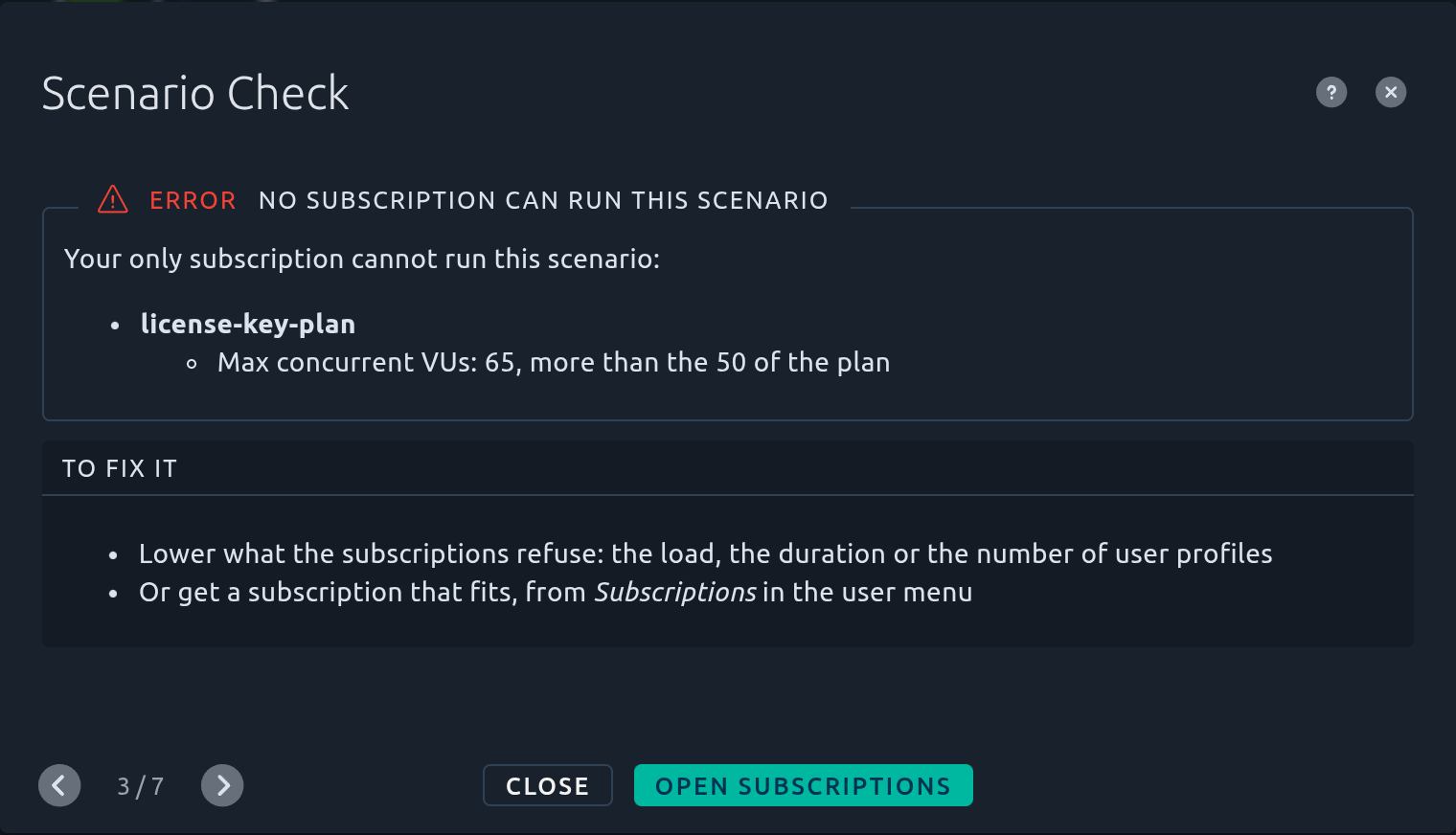
When you have a single subscription, the message starts with Your only subscription cannot run this scenario. When you have none, it says You have no subscription to run tests with.
A subscription can be stopped by:
| Reason | The subscription cannot run the scenario because... |
|---|---|
| Status | it is not active, |
| Expired on | it has expired, |
| User profiles | the scenario has more user profiles than the plan allows, |
| Providers | the scenario runs on a kind of provider the plan does not include, |
| Memory per Virtual User, Memory per Real-Browser VU | the user profiles give each Virtual User more memory than the plan allows, |
| Total duration | the test lasts longer than the plan allows, |
| Max concurrent VUs | the scenario runs more Virtual Users at once than the plan allows, |
| Max Real-Browser VUs | the scenario runs more browser-based Virtual Users than the plan allows, |
| Remaining tests | the subscription has not enough tests left, |
| Tests limit | the run takes more tests than the plan allows at once. |
Why it matters. A test needs a subscription to run: the Launch test step offers none, and the launch is refused.
How to fix it.
- Lower what the subscriptions refuse: the load in the User Load step, the duration, or the number of user profiles,
- Or get a subscription that fits, from Subscriptions in the user menu (see Subscribe to new plan).
Info
The check looks at the subscriptions of the user who runs it, including the ones shared with them: another user may get a different result on the same scenario. A launch started from the REST API, a CI integration or the scheduler picks a subscription that fits by itself, and is refused when none does.
Fix it opens the Subscriptions page.
Glossary
- Agent
- A program installed on one of your machines that runs load generators for an on-premise provider. One agent runs per machine.
- Dedicated IP
- A fixed IP address that a cloud provider gives to the machines it starts, so that the tested servers can accept them. See Dedicated IPs.
- IP spoofing
- A server setting that sends requests from a chosen source address instead of the address of the machine. See IP Spoofing.
- Load generator
- The program that runs the Virtual Users of a test. A test starts as many load generators as its load needs, and each one needs memory on an agent or a cloud machine.
- Location
- Where the load generators of a user profile run, among the locations of its provider: for instance
Parisfor a cloud provider, or a group of agents for an on-premise provider. It is selected in the Location step, and the locations of a provider are set in its Locations step. - Pacing
- The minimum duration of each iteration of a Virtual User. See Pacing.
- Provider
- Where the load generators run: an OctoPerf cloud provider, or a provider of your own made of agents. It is selected in the Location step.
- Set Up / Tear Down
- Virtual Users that run before (Set Up) or after (Tear Down) the main Virtual User of a user profile, for instance to prepare or clean up test data. See Setup/Teardown.
- User profile
- A part of a scenario: one Virtual User, run from one location with its own load and options. A simple scenario has a single user profile, an advanced scenario several.
- Watchdog
- The safety net that stops a test still running 20 minutes after the end of its load, so that a test that never ends does not consume your credits forever.