Jira notifications
A Jira notification lets OctoPerf update your Jira board automatically as your load tests run. Instead of manually reporting test progress, OctoPerf can comment on your issues and move them across columns depending on the outcome of each test.
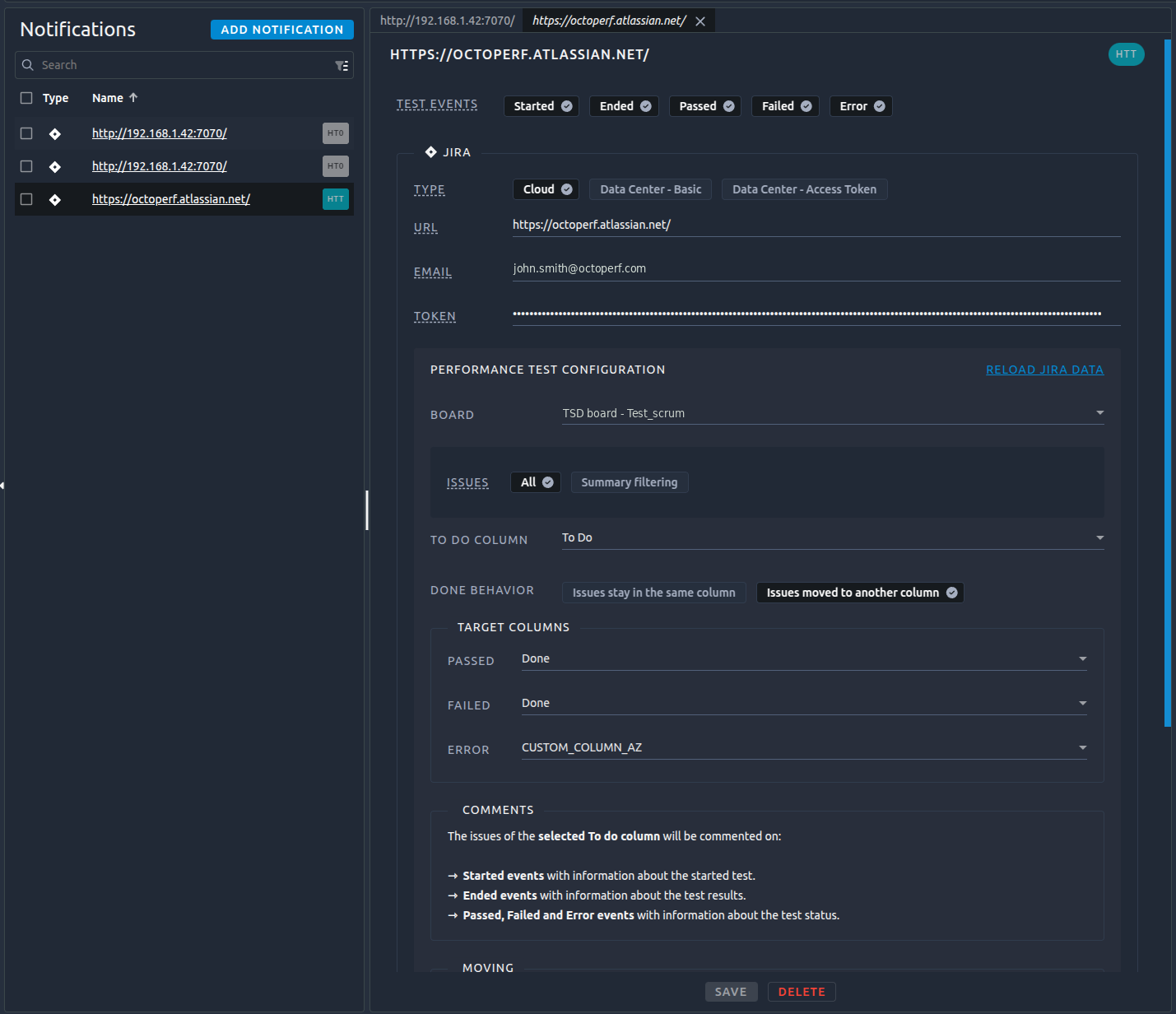
What it does
Once configured, a Jira notification can:
- Comment on issues in a chosen column with details about the test (start, results and status),
- Move issues to a target column depending on whether the test passed, failed or errored.
This keeps your team's board in sync with your performance testing activity, which is especially useful alongside scheduled tests.
Supported platforms
OctoPerf works with both Jira offerings:
- Jira Cloud: the hosted version provided by Atlassian (your address ends in
.atlassian.net), - Jira Data Center: the self-hosted version you run on your own servers (previously known as Jira Server).
The information you provide to connect depends on the platform you use. This is explained in detail on the Connecting to Jira page.
| Platform | Address | Credentials |
|---|---|---|
| Jira Cloud | ends in .atlassian.net |
Email + API token |
| Jira Data Center (Basic) | your own server address | Username + Password |
| Jira Data Center (Access Token) | your own server address | Personal Access Token |
How to set it up
Setting up a Jira notification is a two-step process:
- Connect to Jira: choose your platform, enter your address and credentials, then check the connection.
- Configure the board and issue workflow: select the board and column to work with, choose which issues are involved, and decide how issues are commented and moved.
Note
The board configuration only appears once your connection has been successfully validated.