Maintenance (Administration)
OctoPerf offers maintenance tasks that clean up orphaned data: data whose parent is gone, such as the dedicated IPs of a provider that no longer exists. These tasks never run on their own. A platform administrator launches each run from the Maintenance page, chooses whether it deletes anything, then reads its report.
Open the page from the user menu, in the Administration section, between Scheduled Jobs and Workspaces. Only platform administrators can see it.
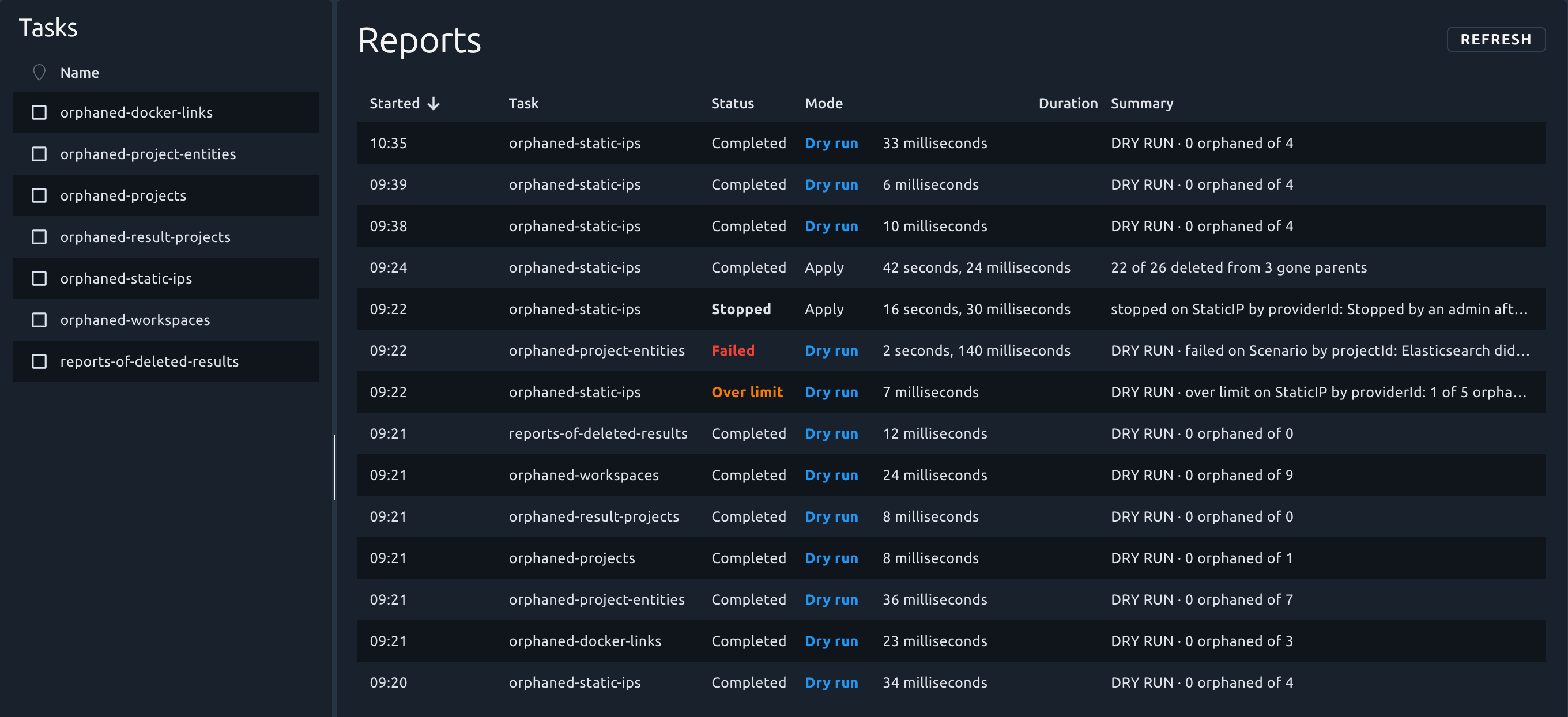
The page has three parts: the tasks on the left, the reports of their runs in the center, and the Settings panel at the bottom.
Tasks
The left table lists the maintenance tasks:
| Task | What a run does |
|---|---|
orphaned-workspaces |
Deletes the workspace members whose user account no longer exists, then the workspaces left without any member, with their projects. |
orphaned-projects |
Deletes the projects whose workspace no longer exists. |
orphaned-project-entities |
Deletes what the projects that no longer exist still hold, such as their Virtual Users and scenarios. |
orphaned-result-projects |
Deletes the copies of projects kept with test results when no test result uses them any more, once they are a day old. |
reports-of-deleted-results |
Removes the test results that no longer exist from the reports, so that the members of the project can open these reports again. |
orphaned-docker-links |
Stops sharing a provider with a workspace when no user is a member of both that workspace and the workspace of the provider. A provider always stays in its own workspace. |
orphaned-static-ips |
Deletes the dedicated IPs whose provider no longer exists, and logs each one with its address, region, zone and cloud identifiers, so that you can release it from your cloud account. Run it after orphaned-docker-links, which can delete providers. |
- Point at the name of a task to read what a run of it does.
- Click a task to show only its reports. Click it again to go back to the reports of every task.
- Run, shown when you point at a task, opens the settings of a new run: see Run a task.
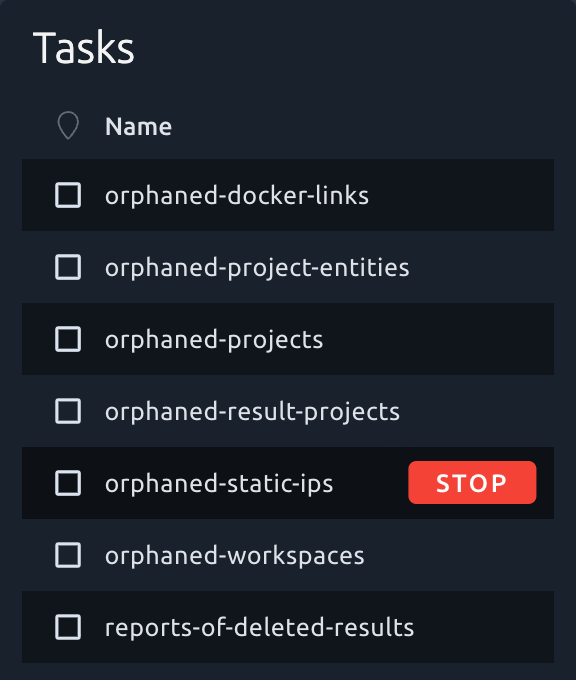
- A task that is running shows a spinning icon on its row: point at the icon to read when the run started. Stop then replaces Run: see Stop a run.
Run a task
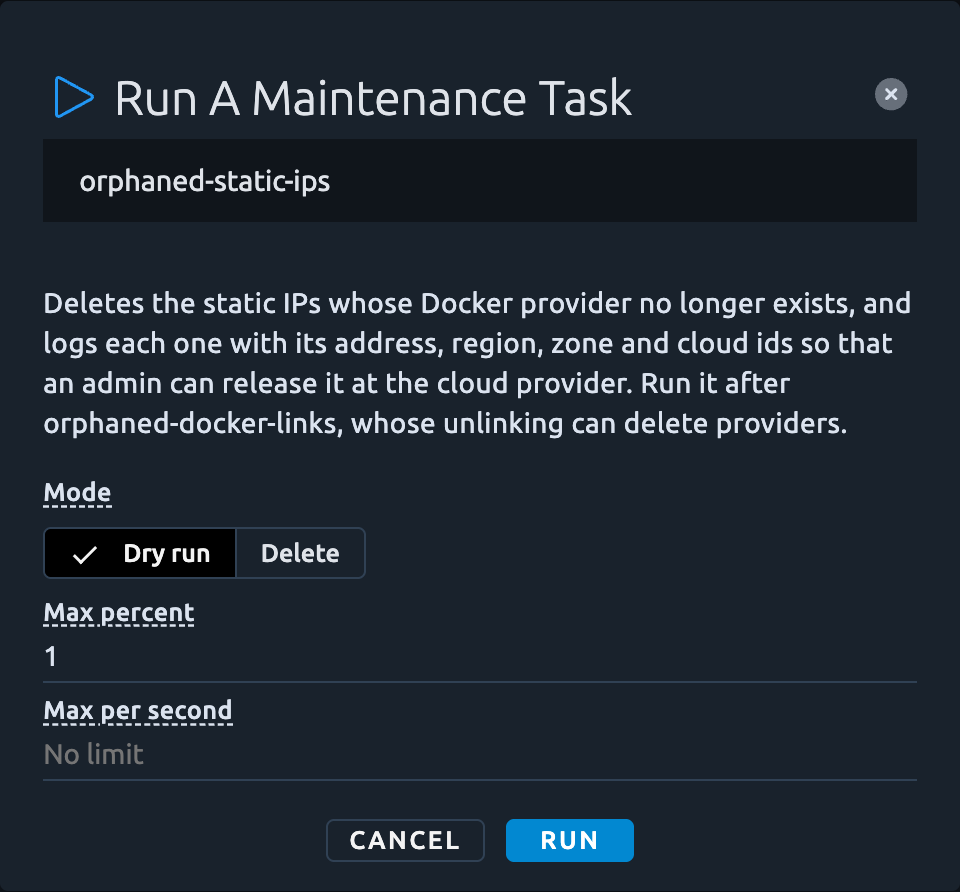
Point at a task and click Run. A dialog opens with the description of the task and the settings of the run, filled with safe values:
| Setting | What it does |
|---|---|
| Mode | Dry run, the default, counts what the cleanup would delete and deletes nothing. Delete deletes it. |
| Max percent | The share of the examined items the run may delete, 1 by default, from 0 to 100. When the cleanup finds more, it stops and deletes nothing: its report says Over limit. |
| Max per second | The most items the run deletes per second, 0.5 or more. Leave it empty for no limit. |
Click Run to start the task in the background. A run in Delete mode asks you to confirm first. When OctoPerf refuses the run, because the same task is already running for instance, the dialog stays open and says why.
To clean up safely:
- Run the task as a Dry run, and read its report: how many items it would delete, and from how many missing parents.
- Once the counts look right, run it again in Delete mode, with the same Max percent.
- If the report says Over limit and the orphans are expected, after a bulk deletion for instance, run it again with a higher Max percent.
The page does not follow a run by itself: click Refresh to see whether it is still running, and to read its report once it is done.
Stop a run
Point at a running task and click Stop, then confirm. The run stops before its next deletion: what it already deleted stays deleted, and its report says Stopped.
Reports
The center table lists the last 100 reports, newest first, or the reports of the task you selected. Each run of a task gives one report. Click Refresh to load the latest ones.
| Column | What it shows |
|---|---|
| Started | When the run started. |
| Task | The task that ran. |
| Status | Completed, Over limit, Stopped or Failed: see below. |
| Mode | Dry run, in blue, when the run only counted. Apply when it changed the data, as a cleanup run in Delete mode does. |
| Duration | How long the run took. |
| Summary | What the run did, in one line. For example, 22 of 26 deleted from 3 gone parents. |
What needs your attention
- Over limit, in orange: the run found more orphans than its Max percent allows, so it deleted nothing. This protects your data when something else went wrong. Read its report, then, if the orphans are expected, run the task again with a higher Max percent.
- Failed, in red: the run stopped on an error. Point at it to read the error.
- Stopped, in bold: an administrator stopped the run. What it deleted before is listed in its report.
The number of missing parents behind the orphans tells you where they come from:
- Many orphans behind few parents usually come from one bulk deletion, such as a removed workspace and everything it held.
- As many parents as orphans suggests a leak: data that should have been deleted along with its parent, one item at a time. Report it to the OctoPerf support.
Reports are kept 7 days by default. You can change that in the Settings panel.
Open a report
Click a report, or point at it and click Open, to read it in full: the description of the task, the status, Dry run for a run that only counted, when the run started and how long it took, the error of a failed run, then the summary and the details of the run. For a cleanup, the details give one line per kind of data it looked at: what it deleted or would delete, what it spared, and why it stopped.
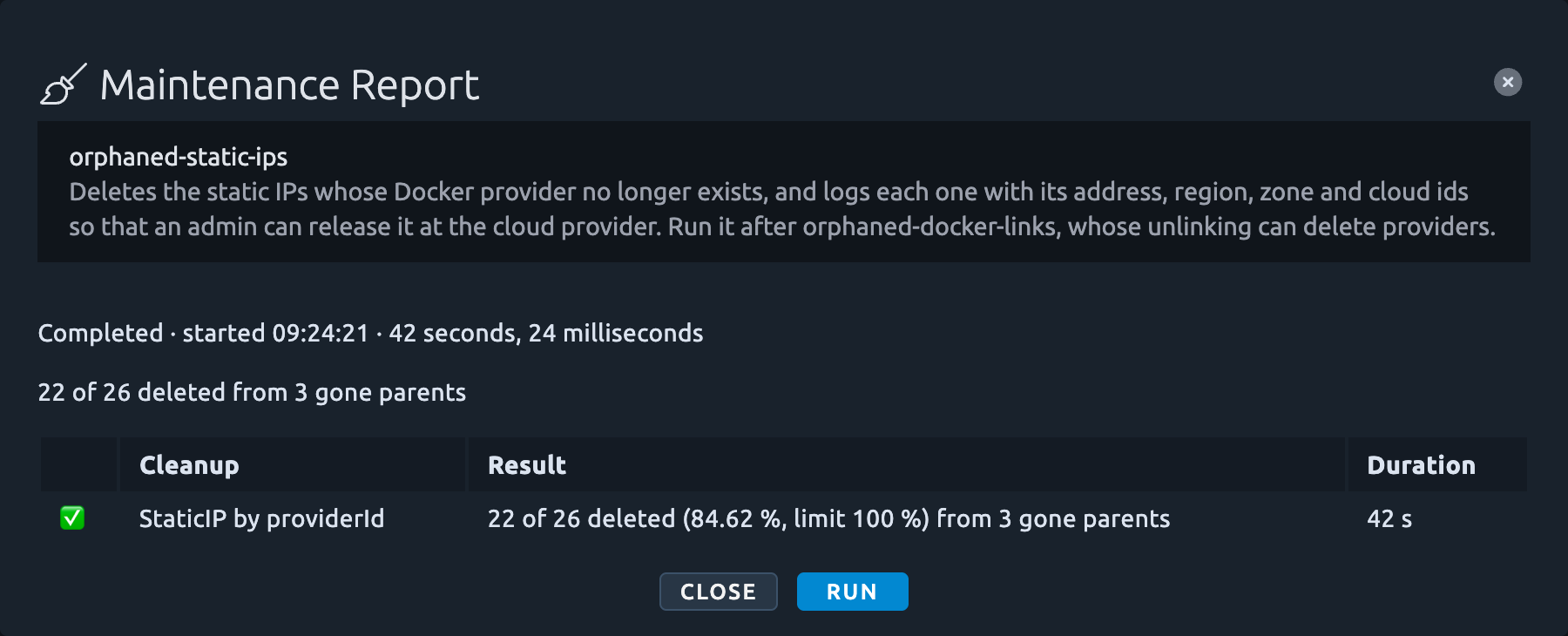
Run, at the bottom of the report, opens the dialog of a new run of the same task, filled with the safe values rather than the settings of the run you read. It is greyed out while the task is running.
Settings
The Settings panel holds the settings of the maintenance tasks. It is closed on your first visit: open it with the sliders icon at the bottom of the right toolbar, whose badge gives the number of settings. It opens at the bottom of the page, and your browser remembers whether you left it open and how high.

- Each setting shows what it changes, its Default and its Value. A value in bold differs from its default.
- Point at the name of a setting to read its key, the one the REST API and the AI agents use.
- Point at a setting and click Edit, or click anywhere on its row, to change it. The dialog shows its description and its default value. Enter the new value and click Save, or click Reset to default. A value the setting refuses keeps the dialog open, with the reason under the field.
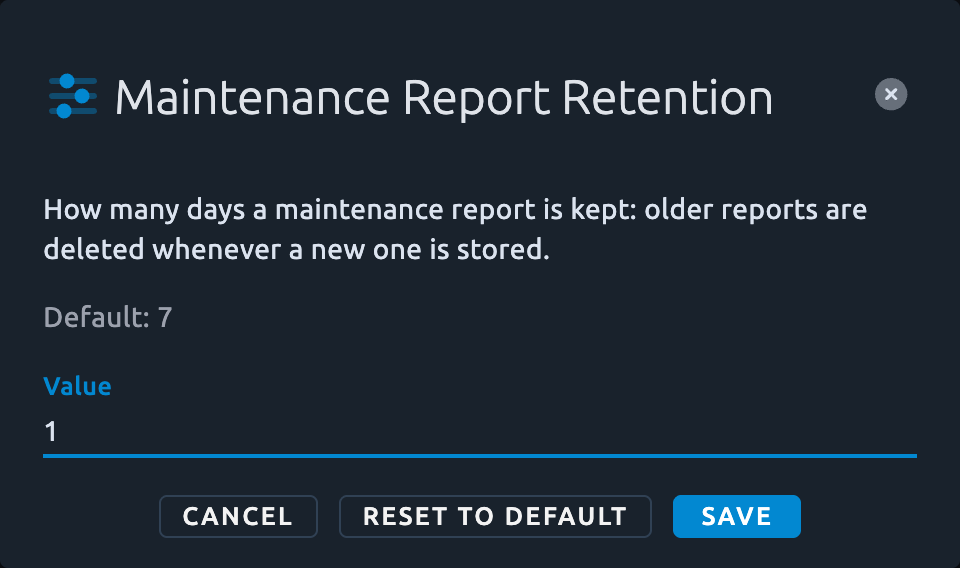
The Reset to default button is greyed out while the value is already the default one.
A new value applies at once to every server of the cluster, with no restart. It is stored by OctoPerf, not in the configuration file, so it survives a restart and an upgrade.
| Setting | What it changes |
|---|---|
| Maintenance report retention | How many days a report is kept: 7 by default, a whole number from 1 to 3650. The older reports are deleted whenever a new report is stored, so a shorter retention takes effect at the next run of a task. |
From the REST API
The same actions are available from the REST API, with the API key of a platform administrator. Any other account gets a 403 response.
| Request | What it does |
|---|---|
GET /admin/maintenance |
The maintenance tasks, each with its name, its description, the defaults a run starts from, and its run in progress, if any. |
POST /admin/maintenance/{name}/run |
Starts the task in the background with the settings in the body. Settings out of range get a 400 response, an unknown task a 404 response, and a task already running a 409 response. |
POST /admin/maintenance/{name}/stop |
Asks the run of the task to stop before its next deletion. A task that is not running gets a 409 response. |
GET /admin/maintenance/reports |
The latest reports, newest first. size sets how many, from 1 to 1000, 100 by default. |
GET /admin/maintenance/{name}/reports |
The latest reports of one task, newest first, with the same size. |
GET /admin/settings |
The settings, each with its key, label, description, value and defaultValue. The retention is maintenance-reports.retention-days. |
PUT /admin/settings/{key}?value= |
Changes one setting and returns it with its new value. A refused value gets a 400 response that says what the setting accepts, an unknown key a 404 response. |
The body of a run gives the mode, DRY_RUN or DELETE, and the max percent. Add "maxPerSecond": 2 next to them to limit the pace. For example, to run a dry run of the dedicated IP cleanup:
curl --request POST --header "Authorization: Bearer <apiKey>" \
  --header "Content-Type: application/json" \
  --data '{"@type": "CleanupSettings",
    "policy": {"mode": "DRY_RUN", "maxPercent": 1}}' \
  "https://<your server>/admin/maintenance/orphaned-static-ips/run"
A run returns at once: to follow it, read the tasks or the reports again. Each report gives the task, when it started, how long it took in milliseconds (elapsed), its status (COMPLETED, OVER_LIMIT, STOPPED or FAILED), its mode (DRY_RUN, or APPLY for a run in DELETE mode), the error of a failed run, its summary, and its details in Markdown (markdown). For example, to read the last 10 reports of the dedicated IP cleanup:
curl --get --header "Authorization: Bearer <apiKey>" \
  --data size=10 \
  "https://<your server>/admin/maintenance/orphaned-static-ips/reports"
To keep the reports 30 days:
KEY=maintenance-reports.retention-days
curl --request PUT --header "Authorization: Bearer <apiKey>" \
  --url-query value=30 \
  "https://<your server>/admin/settings/$KEY"
From an AI agent
The MCP server offers the same actions to platform administrators:
list_maintenance_taskslists the tasks, with their description, the settings a run starts from, and their run in progress,run_cleanup_taskstarts a cleanup with a mode, a max percent and an optional max per second. As a cleanup may delete data, the agent asks you to confirm first,stop_maintenance_taskstops a run,list_maintenance_reportsreads the reports,list_settingsreads the settings, with their current and default values,update_settingchanges one, for the whole cluster. The agent asks you to confirm first too.