> OctoPerf load testing - Collaboration Workspaces documentation page. How to list/create/delete Collaboration Workspaces.
Source: https://api.octoperf.com/doc/workspace/
# Collaboration Workspaces
Workspaces are used for collaboration between testers. A workspace contains several members with a role for each one:
* At least one _Admin_ (he can add other members and edit the workspace),
* _Testers_ can create new projects,
* _Viewers_ can check the Virtual Users and test results,
* _Test Executors_ can do anything in the project, except edit the virtual users.
All members of a Workspace can utilize the resources of the Workspace - be it Virtual users, Tests Reports, Scenario configuration, private injectors etc.
Workspaces are a good way to have different groups of users work in isolation.
While at the same time sharing some resources, like private injectors.
Here is an example of what you can achieve:
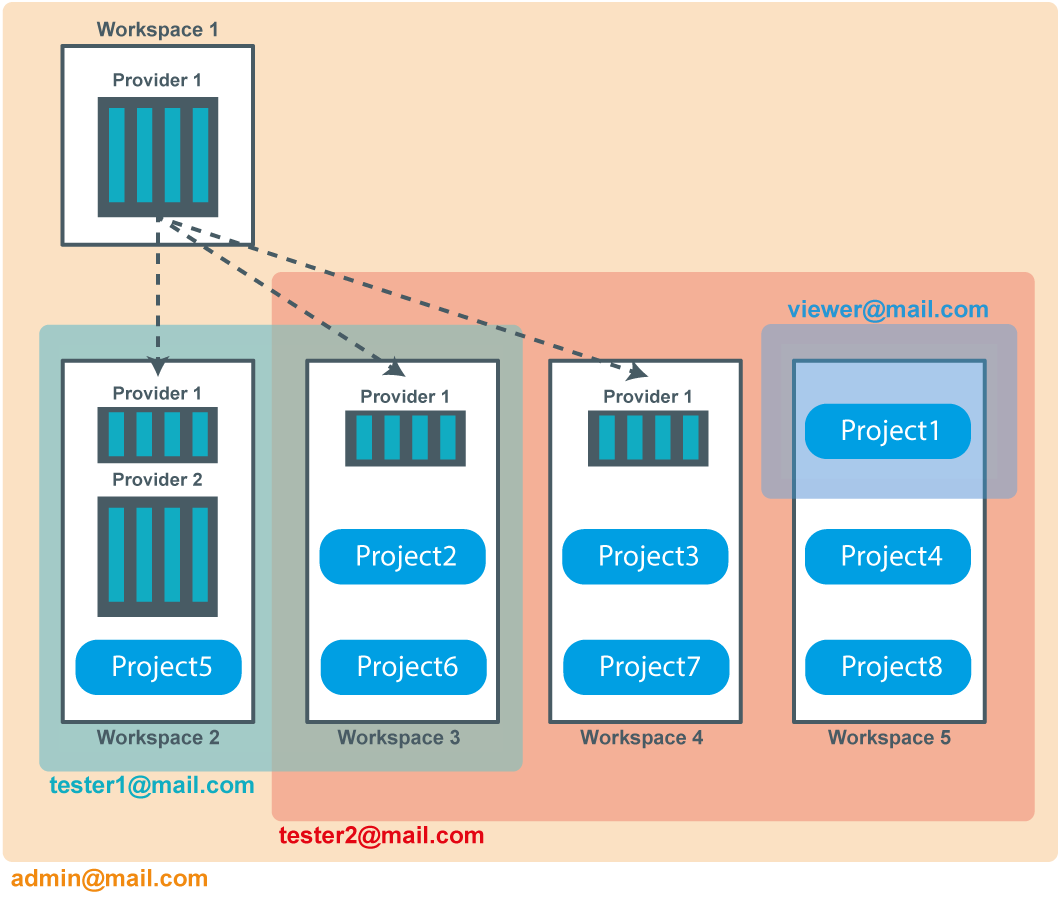
Typically `admin@mail.com` is an administrator, he doesn't have any project of its own. But he created a workspace to [share access to a group of On-Premise Agents](https://api.octoperf.com/doc/on-premise-agent/providers/#share-a-provider) with others workspaces.
That way, he is the only one to be able to edit the provider, even if other workspaces have a local administrator in them.
On the other hand `viewer@mail.com` only has specific access to one project only ; probably read only but not necessarily.
## Workspaces Administration
{ align=left }
The workspaces can be accessed from the left menu. This will open the workspace list.
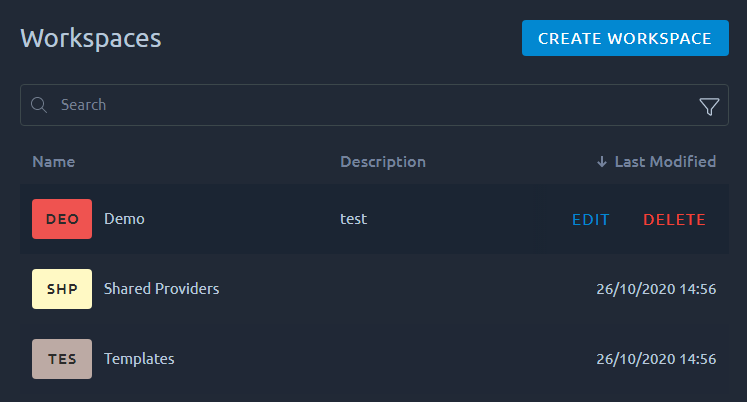
A simple click on any workspace will open it and go to the [list of projects](https://api.octoperf.com/doc/project/#project-list), other actions are available:
| Action | Description |
|----------------------------------------------|----------------------------------------------------------------------------------------------------------------------------------------------------------|
|[Create new workspace](#create-a-workspace) | This will create a new workspace with your account as its single admin. |
| [Browse Projects](https://api.octoperf.com/doc/project/) | Opens the projects list associated to the workspace. |
| [Edit Workspace](#edit-a-workspace) | Opens the edition panel to let you change the workspace name, its description and members. |
| [Delete Workspace](#remove-a-workspace) | Lets you remove a Workspace in one click. All the projects of the workspace are also removed. This operation cannot be reverted so proceed with caution. |
!!! Info
The search functions are detailed in [this section of the navigation page](https://api.octoperf.com/doc/navigation/#filters).
## Create a workspace
When you click on **create a new workspace**, you will be prompted with this menu:
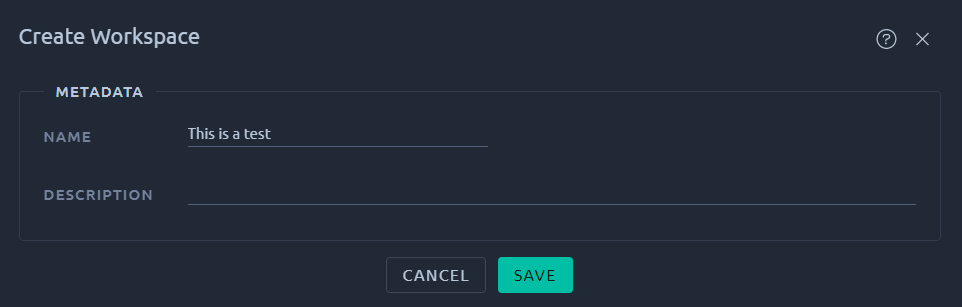
The new workspace will then be highlighted in the list with a  icon tag.
!!! info "Limits on OctoPerf SaaS"
An account can administer up to **100 workspaces**, and create at most **2 workspaces per minute**. Only the workspaces where you are an Admin count, your Default workspace included: the ones where you are a Tester, Test Executor or Viewer do not.
Beyond 2 creations in a minute, the next one is refused with the message `Too Many Requests!`: wait a minute, then try again.
Once the limit is reached, a new workspace is refused with the message `Quota reached: 100 workspaces per account`. Your existing workspaces are kept: only new ones are refused. To regroup your work, you can [move projects](https://api.octoperf.com/doc/project/#move-a-project) into a workspace you already have.
On Enterprise Edition, the administrator sets these limits: see [Quotas](https://api.octoperf.com/doc/on-premise-infra/configuration/#quotas) and [Rate Limits](https://api.octoperf.com/doc/on-premise-infra/configuration/#rate-limits).
## Edit a workspace
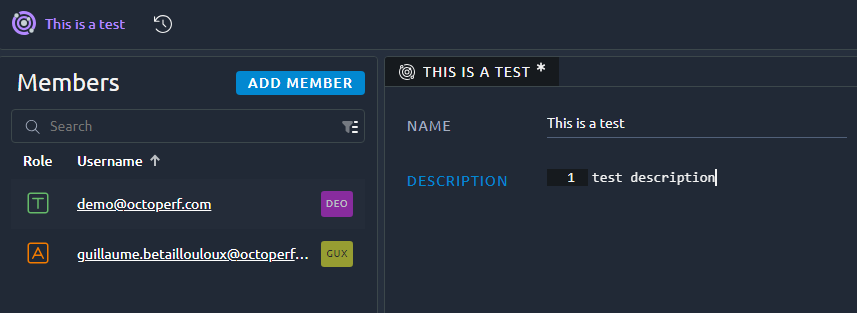
This screen allows you to edit the workspace name and description but also Add/Edit/remove members. The filters on the members list work similarly to the ones on the [workspace list](https://api.octoperf.com/doc/navigation/#simple-search).
!!! warning
To open this screen you must have administrator rights on the workspace, otherwise you'll get a 403 error:

### Members panel
| Action | Description |
|---------------|-----------------------------------------------------------------------------------------------------------|
| Add member | This will [add a new member](#add-a-member). You must enter a valid login from an existing OctoPerf user. |
| Open Member | Edit a [member role](#edit-member-role). |
| Remove member | Remove the member from this workspace. |
!!! warning
The workspace must have an administrator, if you try to remove the last administrator you will get an error message:

### Add a member
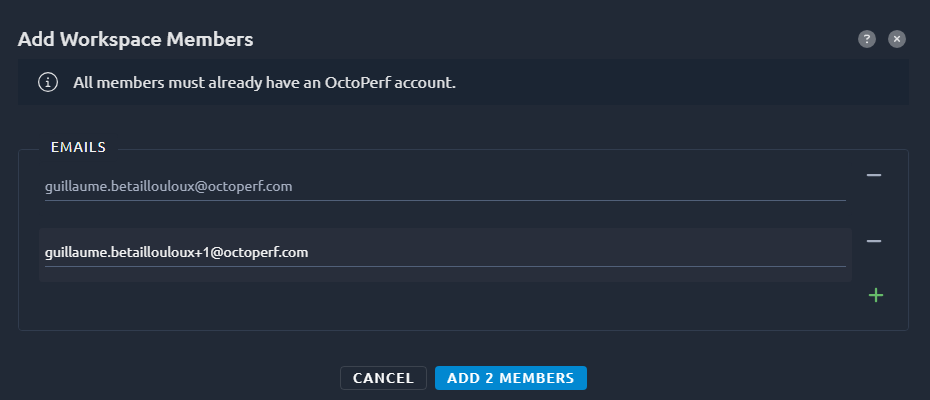
This opens a new window where you can input or copy/paste a list of emails, upon submission, those emails will be added as viewers:
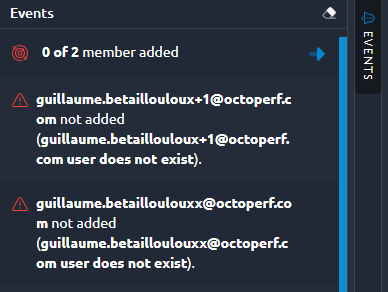
If one or several of those emails could not be added to the list you will get a notification in the [events panel](https://api.octoperf.com/doc/events/events/):
### Edit member role
#### Predefined role
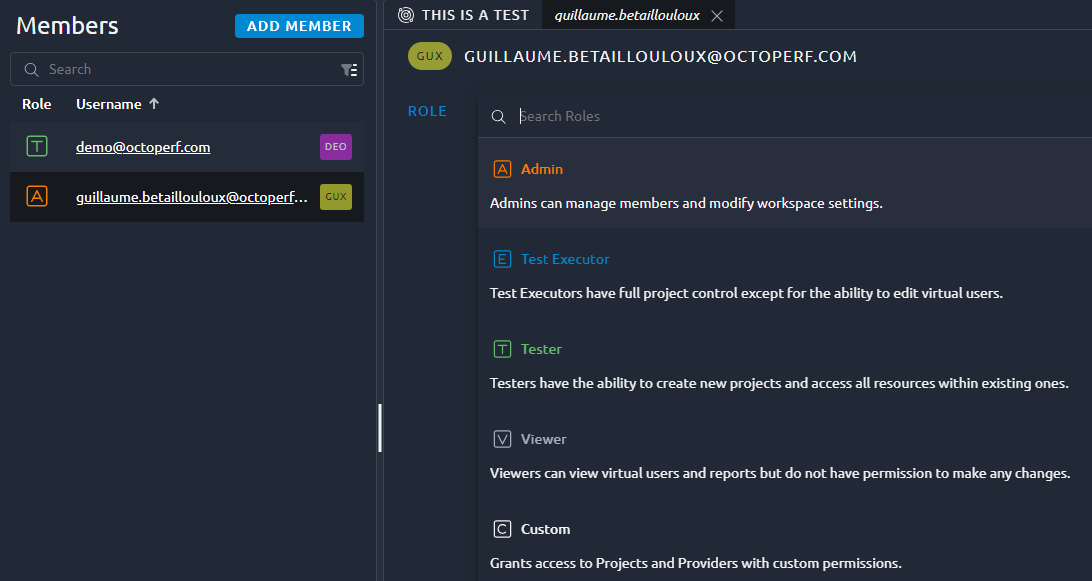
Members can have predefined roles that define what they can do in the application:
| Role | Workspace | Providers | Projects | Design | Tests |
| -------------- | ------------------------------- | --------------------- | --------------------- | --------------------- | --------------------- |
| Admin | { .off-glb } | { .off-glb } | { .off-glb } | { .off-glb } | { .off-glb } |
| Test executors | { .off-glb } | { .off-glb } | { .off-glb } | { .off-glb } | { .off-glb } |
| Testers | { .off-glb } | { .off-glb } | { .off-glb } | { .off-glb } | { .off-glb } |
| Viewers | { .off-glb } | { .off-glb } | { .off-glb } | { .off-glb } | { .off-glb } |
{ .off-glb } : This user is **unauthorized** and will get a 403 when trying to access this functionality.
{ .off-glb } : This user can **view and edit** everything related to this functionality.
{ .off-glb } : This user can only **view** information, upon trying to edit anything he will get a will get a 403 error.
!!! note
Viewers might think they can actually edit because the UI isn't locked but they will get an error from OctoPerf's API once they try to save.
#### Custom role
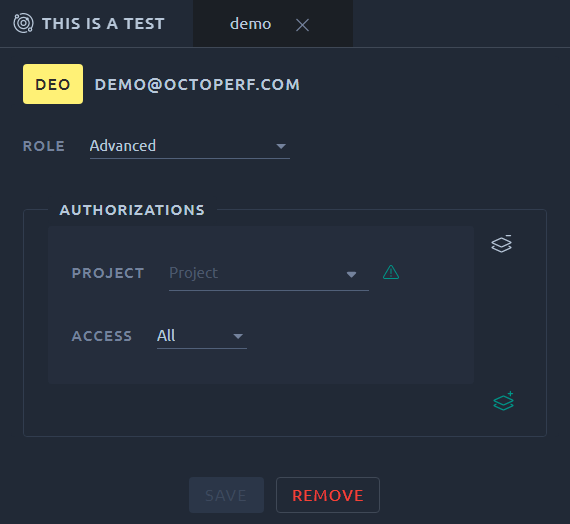
Using custom it is instead possible to give custom rights on [Projects](https://api.octoperf.com/doc/project/) and [Providers](https://api.octoperf.com/doc/on-premise-agent/providers/). You can add as many specific authorizations as you need but if new projects are created later in this workspace you will have to update the rights so that this user sees them. For this reason we recommend to use one of the predefined roles above:
## Remove a workspace
**Removing a workspace deletes all the objects it contains** - projects, virtual users, scenarios, monitored machines, test reports, private injectors etc.
{ align=right }
For that reason, **deletion of a workspace is strictly restricted to platform administrators only!**
When using the SaaS edition to have a workspace removed you must:
* Copy the name of the workspace,
* send a mail to our [Support Team](mailto:support@octoperf.com) to ask for this exact workspace name to be removed,
* if we can confirm that you are **administrator of this workspace**, we will remove it and notify you.
!!! note
Every user must have at least one Workspace. A default one is automatically created during connection if there is none.
icon tag.
!!! info "Limits on OctoPerf SaaS"
An account can administer up to **100 workspaces**, and create at most **2 workspaces per minute**. Only the workspaces where you are an Admin count, your Default workspace included: the ones where you are a Tester, Test Executor or Viewer do not.
Beyond 2 creations in a minute, the next one is refused with the message `Too Many Requests!`: wait a minute, then try again.
Once the limit is reached, a new workspace is refused with the message `Quota reached: 100 workspaces per account`. Your existing workspaces are kept: only new ones are refused. To regroup your work, you can [move projects](https://api.octoperf.com/doc/project/#move-a-project) into a workspace you already have.
On Enterprise Edition, the administrator sets these limits: see [Quotas](https://api.octoperf.com/doc/on-premise-infra/configuration/#quotas) and [Rate Limits](https://api.octoperf.com/doc/on-premise-infra/configuration/#rate-limits).
## Edit a workspace

This screen allows you to edit the workspace name and description but also Add/Edit/remove members. The filters on the members list work similarly to the ones on the [workspace list](https://api.octoperf.com/doc/navigation/#simple-search).
!!! warning
To open this screen you must have administrator rights on the workspace, otherwise you'll get a 403 error:

### Members panel
| Action | Description |
|---------------|-----------------------------------------------------------------------------------------------------------|
| Add member | This will [add a new member](#add-a-member). You must enter a valid login from an existing OctoPerf user. |
| Open Member | Edit a [member role](#edit-member-role). |
| Remove member | Remove the member from this workspace. |
!!! warning
The workspace must have an administrator, if you try to remove the last administrator you will get an error message:

### Add a member
This opens a new window where you can input or copy/paste a list of emails, upon submission, those emails will be added as viewers:

If one or several of those emails could not be added to the list you will get a notification in the [events panel](https://api.octoperf.com/doc/events/events/):

### Edit member role

#### Predefined role
Members can have predefined roles that define what they can do in the application:
| Role | Workspace | Providers | Projects | Design | Tests |
| -------------- | ------------------------------- | --------------------- | --------------------- | --------------------- | --------------------- |
| Admin | { .off-glb } | { .off-glb } | { .off-glb } | { .off-glb } | { .off-glb } |
| Test executors | { .off-glb } | { .off-glb } | { .off-glb } | { .off-glb } | { .off-glb } |
| Testers | { .off-glb } | { .off-glb } | { .off-glb } | { .off-glb } | { .off-glb } |
| Viewers | { .off-glb } | { .off-glb } | { .off-glb } | { .off-glb } | { .off-glb } |
{ .off-glb } : This user is **unauthorized** and will get a 403 when trying to access this functionality.
{ .off-glb } : This user can **view and edit** everything related to this functionality.
{ .off-glb } : This user can only **view** information, upon trying to edit anything he will get a will get a 403 error.
!!! note
Viewers might think they can actually edit because the UI isn't locked but they will get an error from OctoPerf's API once they try to save.
#### Custom role
Using custom it is instead possible to give custom rights on [Projects](https://api.octoperf.com/doc/project/) and [Providers](https://api.octoperf.com/doc/on-premise-agent/providers/). You can add as many specific authorizations as you need but if new projects are created later in this workspace you will have to update the rights so that this user sees them. For this reason we recommend to use one of the predefined roles above:

## Remove a workspace
**Removing a workspace deletes all the objects it contains** - projects, virtual users, scenarios, monitored machines, test reports, private injectors etc.
{ align=right }
For that reason, **deletion of a workspace is strictly restricted to platform administrators only!**
When using the SaaS edition to have a workspace removed you must:
* Copy the name of the workspace,
* send a mail to our [Support Team](mailto:support@octoperf.com) to ask for this exact workspace name to be removed,
* if we can confirm that you are **administrator of this workspace**, we will remove it and notify you.
!!! note
Every user must have at least one Workspace. A default one is automatically created during connection if there is none.