> How to create, edit and remove providers.
Source: https://api.octoperf.com/doc/on-premise-agent/providers/
# Providers
{ align=left }
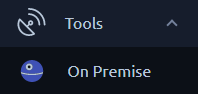
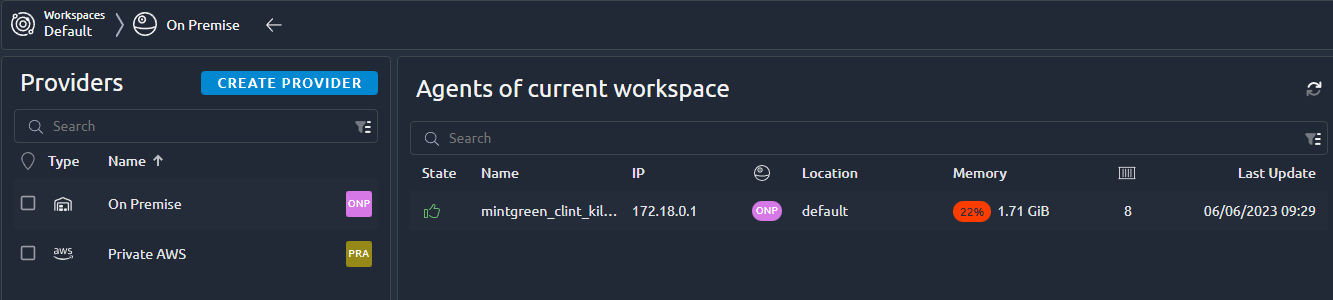
The On-Prem agents page can be accessed from the left menu under tools. On this page you will be able to [configure providers](#create-a-new-provider) and [see the agents](https://api.octoperf.com/doc/on-premise-agent/provider-type/on-premise/) running.
A provider is a group of On-prem Agents sharing similar configuration or properties (AWS, OnPremise, etc...), a provider can have any number of agents running. A provider is linked to a [workspace](https://api.octoperf.com/doc/workspace/), so this screen will only show providers from the current workspace:
!!! info
Cloud agents from other workspaces can appear in the bottom section. Especially if you have Admin rights on the OctoPerf server.
## Providers list
The provider list is available from the left panel:
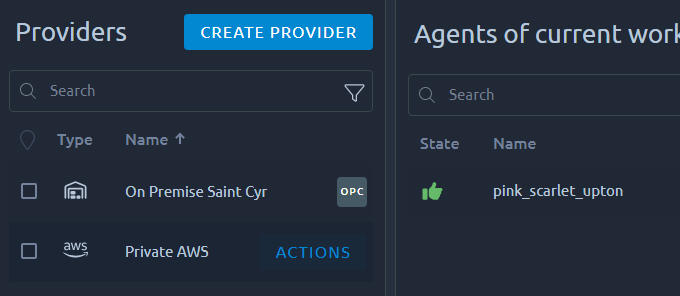
Additional actions are available when you select a provider:
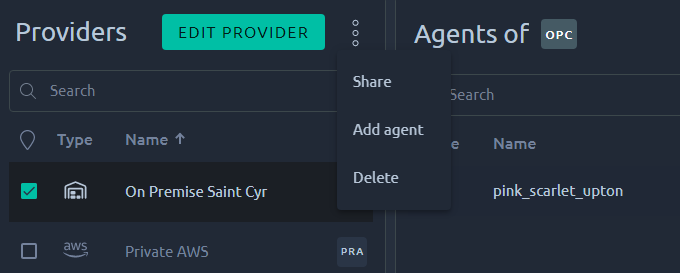
| Action | Description |
|---------------------------------------------------------|-------------------------------------------------|
| [Create new provider](#create-a-new-provider) | Create a new provider in the current workspace. |
| [Edit a Provider](#edit-an-existing-provider) | Edit an existing provider. |
| [Share a Provider](#share-a-provider) | Share this provider with other workspaces. |
| [Add agent](https://api.octoperf.com/doc/on-premise-agent/provider-type/on-premise/#start-an-agent) | Add agent(s) to this provider. |
| [Delete provider](#remove-an-existing-provider) | Delete this provider. |
### Sanity check {#sanity-check}
OctoPerf checks the configuration of the on-premise agents of the workspace, and reports two problems:
| Problem | Severity | Shows on |
|---------|----------|----------|
| [Agents sharing a machine](https://api.octoperf.com/doc/runtime/edit-scenario/scenario-check/#agents-sharing-a-machine) | :material-alert-circle-outline: Warning | The provider, and each agent of the machine |
| [Agent memory declared too low](https://api.octoperf.com/doc/runtime/edit-scenario/scenario-check/#memory-under-declared) | :material-information-outline: Info | The provider |

When the check finds a problem, the providers list and the agents table show a status column, headed by a double check mark. Each row shows the icon of its worst severity, or a discreet check mark when it has no problem. The column is hidden when the check finds nothing in the workspace.
The tooltip of the icon lists the problems by title, with their count when a problem is found several times, for example *Agents sharing a machine (2)*. Click the icon to open the **Sanity Check** dialog: like the [problem details](https://api.octoperf.com/doc/runtime/edit-scenario/scenario-check/#problem-details) of the scenario check, it explains each problem with the names and figures of your agents, lists its fixes, and goes through the problems with **Previous** and **Next**. For a memory declared too low, **Open Provider** opens the *Memory* step of the provider, if you are allowed to edit providers. Agents sharing a machine are fixed on the machine itself, so there is no button.
The check runs when the page opens, and again when you refresh the agents. The [scenario check](https://api.octoperf.com/doc/runtime/edit-scenario/scenario-check/#agents-and-capacity) reports the same problems for the user profiles that use these agents.
## Create a New Provider
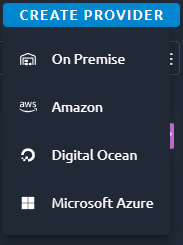{ align=left }
When you click on **Create new provider**, you are prompted with a couple of options:
- [On premise](https://api.octoperf.com/doc/on-premise-agent/provider-type/on-premise/) to setup your own docker containers,
- [AWS](https://api.octoperf.com/doc/on-premise-agent/provider-type/amazon/) to auto start agents in your own AWS account,
- [Digital Ocean](https://api.octoperf.com/doc/on-premise-agent/provider-type/digitalocean/) to auto start agents in your own DO account,
- [Azure](https://api.octoperf.com/doc/on-premise-agent/provider-type/microsoft-azure/) to auto start agents in your own Azure account.
### Configure provider
#### Name
All providers require a **Provider Name** to be used as the display name when selecting the provider for a test run.
!!! warning
Each provider type has very different configuration options, check the links above for their dedicated page.
#### Registry
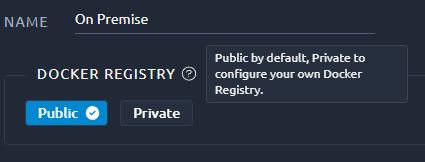
Changing the docker registry to point to a [private registry](https://docs.docker.com/registry/deploying/) of your own is a good way to have a fully offline installation process.
But it requires a private registry that can provide the proper version of the OctoPerf docker images.
!!! info
If your private registry requires credentials, you must pass them using java options in the agent command line. Otherwise new containers will not get the info from the OctoPerf docker-agent upon startup:
```bash
-e JAVA_OPTS="-Dregistry.url=https://monregistry.com/ -Dregistry.username=login -Dregistry.password=pass"
```
#### Shutdown Policy
Only cloud providers have this setting:
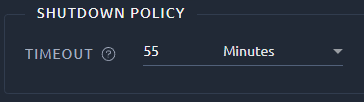{ align=left }
The shutdown policy gives the minimum amount of time for a cloud instance to be eligible for **automatic shutdown**.
!!! info
Only idle machines that have been running longer than this delay are eligible for shutdown. In other words OctoPerf waits until the test ends before shutting an instance down, and if the instance has been picked up by another test it will remain until the end of this test as well.
### Memory
#### Configuration
On-Premise providers require the following setting:
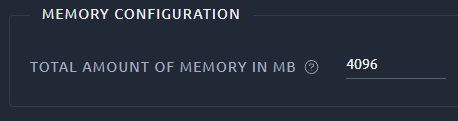
!!! warning
This value must be set to the **total amount of RAM memory on the machine**. Otherwise OctoPerf will not be able to make use of the remaining memory.
A value **higher** than the real memory of the agents makes OctoPerf size load generators for machines that do not exist: they find no room on the agents and the test fails. The [scenario check](https://api.octoperf.com/doc/runtime/edit-scenario/scenario-check/#capacity-exceeded) reports it before the launch as *Load generators too big for the agents*. When the agents differ, use the RAM of the smallest one.
A value much **lower** than the real memory of the agents splits the load into more load generators than needed. The test runs, but each load generator takes its own base memory: the [sanity check](#sanity-check) reports it as *Agent memory declared too low*.
#### Instance type
On Cloud providers you will have to select the instance size instead:
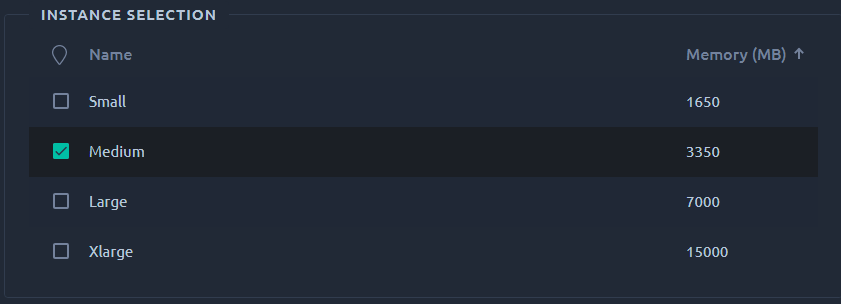
Select the instance which suits your needs. Smaller instances can simulate less concurrent users.
#### Memory usage
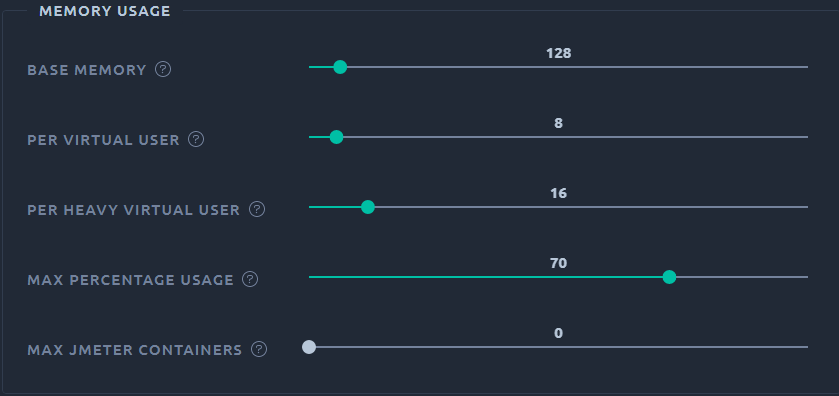
First, enter the total *RAM in MegaBytes* available for each server configured using this provider.
The information message lets you know how many virtual users you will be able to start for each load generator depending on the available memory and memory usage.
You can also **configure the memory usage** during this first step by clicking on the _Memory Usage_ button:
1. Select the `base memory`: JMeter's minimum memory in `MB`,
2. Select the `memory per Virtual User` in `MB`,
3. Select the `memory per Heavy Virtual User` in `MB`,
4. Select the `percentage of the memory` dedicated to run JMeter. Example: `70%`
5. Set the `max slots` per host (`0` means *no limit*). Defines the max number of JMeter containers the host can run simultaneously.
!!! info
We use heavy VU memory settings in the following situation:
- Automatic download of resources is enabled, this option will parse responses that are often pretty large,
- The VU contains more than 500 elements, as this can vastly increase its initial memory footprint.
Let's take an example:
- **Base Memory**: `128MB`,
- **Per User Memory**: `5MB`,
- **Percent Host Memory**: `70%`,
- **Max Slots**: `5`.
Suppose we have a `8GB` (or `8192MB`) host. The following formula applies:
`Max Virtual Users = ((PercentHostMem * HostMemMB / 100) - BaseMemoryMB) / PerUserMemoryMB`
In our example, we can use up to `5607MB` of RAM (`128MB` for JMeter deduced). That's about `1120` concurrent users per host. A maximum of `5` JMeter containers can run on a single host, regardless of the memory available.
!!! tip
Before each launch, the [scenario check](https://api.octoperf.com/doc/runtime/edit-scenario/scenario-check/#agents-and-capacity) sizes the load generators of the scenario with these settings and places them on the agents that are up, the way a test does. It tells you when no agent is up or reports its memory in a location, when the agents are too few or too small for the load, and when other tests or other programs take their memory.
### Locations
The next and last step is simple: **you just need to select one or more regions** if you need to differentiate the servers you are going to use to generate the user load. This screen uses a list to display all regions, check the dedicated page for [help on all the possibilities of lists](https://api.octoperf.com/doc/navigation/#lists).
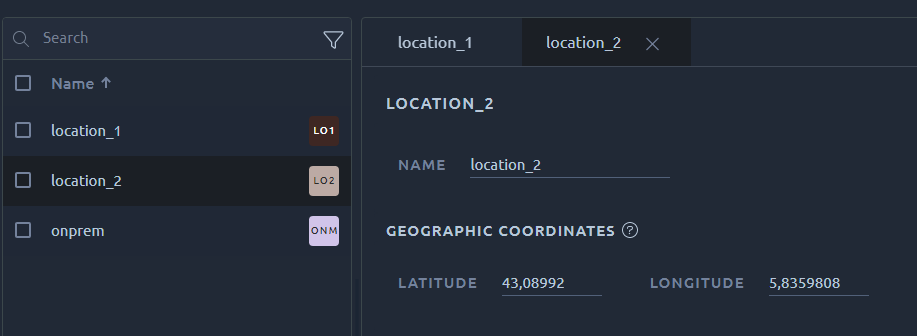
You need to enter at least one region before clicking on the _Save_ button.
The _latitude_ and _longitude_ are the GPS coordinates of the region as displayed on [the runtime map](https://api.octoperf.com/doc/runtime/edit-scenario/edit-user-profile/location/).
!!! warning
The region name will be used in a command line later on. Because of this it can only contains 'a' to 'z' characters (lowercase only) and underscores. Spaces are not allowed.
## Edit an Existing Provider
Editing a provider will prompt a different menu for each Provider type. Please refer to the documentation of each provider through the links [in the section above](#create-a-new-provider).
To edit a provider you need to be allowed on his origin workspace as:
- Workspace Admin,
- Advanced rights on this specific provider.
If you are getting a 403 error when editing the provider then make sure you have one of the above permissions.
!!! warning
Be aware that some changes can have an impact on agents that are already running. Typically changing a region name requires agent using this region to be reinstalled in order to be used again.
## Remove an Existing Provider
Removing a provider cannot be undone, make sure to only remove providers that are not used anymore.
It is recommended to you first remove all agents running or they will be orphaned. Removing orphaned agents can only be done from the [admin menu](https://api.octoperf.com/doc/administration/#agents), or by physically removing the docker container/machine running them.
!!! warning
To avoid inconsistencies, **removing a provider will also remove all runtime profiles using it**. It is recommended to modify them before doing so.
## Share a Provider
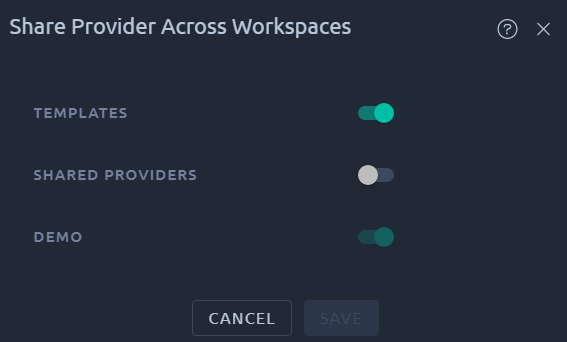{ align=left }
Sharing the provider will make **all its agent available in the destination workspace**. And at the same time, only admins of the workspace where the provider was created will be able to make any change.
That is a perfect way to give read-only access to a group of machines while retaining full control on their configuration. For example when you create an AWS provider but do not want to share its configuration.
!!! warning
Un-sharing a provider has the same consequences as removing the provider entirely, meaning **it will also remove all runtime profiles using it**. It is recommended to modify them before doing so. This is to prevent further use of this provider after it has been un-shared.