> OctoPerf load testing - Notifications documentation page.
Source: https://api.octoperf.com/doc/notifications/
# Notifications
{ align=left }
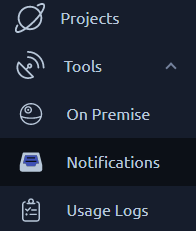
The notification page displays the list of notifications configured. It is accessible from the [left menu](https://api.octoperf.com/doc/navigation/#main-menu). A notification is a message sent to an external system when a test reaches a particular status referred to as an [Event](#events).
!!! tip
Notifications can be used along with [scheduled tests](https://api.octoperf.com/doc/runtime/scheduler/) to keep track of automated tests.
## Notifications page
{ align=left }
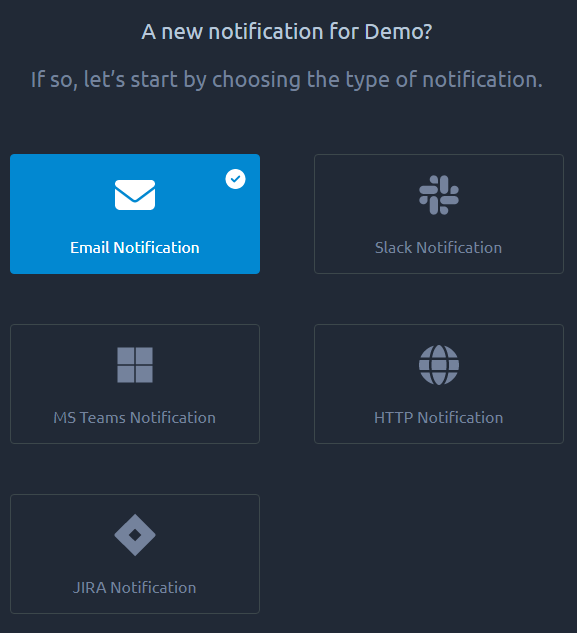
There are several types of notification available:
* [Email](#email),
* [Slack](#slack),
* [Microsoft Teams](#microsoft-teams),
* [Google Chat](#google),
* [Webex](#webex),
* [Jira](#jira),
* [Http WebHook](#http).
Here's an example notification for a test start and end:
```
demo@octoperf.com - TEST_STARTED demo, with 100 concurrent users, for 10 min, in regions Paris
demo@octoperf.com - TEST_ENDED demo ended with status: FINISHED
Hits = 36146.00 hits, Errors = 5.00 errors, % Errors = 0.01 % errors, Avg Elapsed = 1.71 sec, Total Throughput = 138.15 MB, Alarms: [WARNING]
```
As you can see you also get basic statistics along with the **TEST_ENDED** message.
## Notification list
{ align=left }
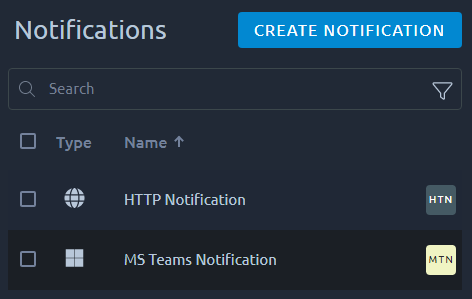
This list shows all the existing notifications in this workspace.
!!! Info
The search functions are detailed in [this section of the navigation page](https://api.octoperf.com/doc/navigation/#filters).
| Action | Description |
|------------------------------------------------|------------------------------------------------------------------------------------|
| [Add notification](#add-a-notification) | This will create a new notification in the current workspace. |
| [Delete notification](#remove-a-notification) | Removes a Notification. This operation cannot be reverted so proceed with caution. |
## Add a Notification
{ align=left }
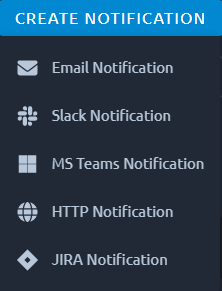
You can select the notification type from this menu. Further instructions on each notification type can be found below:
- [Email](#email)
- [Slack](#slack)
- [MS Teams](#microsoft-teams)
- [Google Chat](#google)
- [Webex](#webex)
- [Jira](#jira)
- [HTTP](#http)
!!! warning
Once selected the notification type cannot be changed.
## Edit a Notification
### Email
The email notification will simply send a direct mail on every event that triggers it.
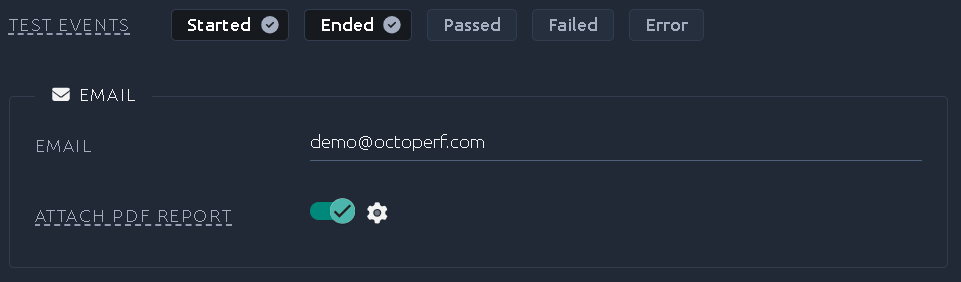
Two options attach the report of the test to the email sent when the test ends (the **Ended** event):
- **Attach PDF Report** attaches the report as a PDF file. Click the gear icon next to it to [configure the export](https://api.octoperf.com/doc/analysis/export-bench-report/#configure-export): cover page, tables, print format.
- **Attach Markdown Report** attaches the report as a [Markdown file](https://api.octoperf.com/doc/analysis/export-bench-report/#export-as-markdown), named after the report. Use it to read every value of the report as text, or to give it to an AI assistant.
You can enable both: the email then carries the two files. If a report cannot be produced, the email is sent without it.
### Slack
You will need to configure an incoming webhook in slack. The procedure can be found [in their documentation](https://api.slack.com/messaging/webhooks).
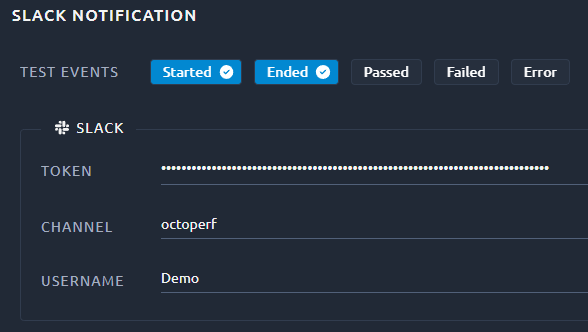
For this example we have:
- The Token given by slack during the [webhook creation](https://api.slack.com/messaging/webhooks#create_a_webhook) `T00000000/B00000000/XXXXXXXXXXXXXXXXXXXXXXXX`,
- The user that created the webhook is named `Demo`,
- Has an `#octoperf` channel and `Demo` can post into it.
!!! note
The token is considered a secret and as such is not displayed in our UI.
### Microsoft Teams
You need to configure an incoming webhook in Microsoft Teams. The procedure can be found [in their documentation](https://docs.microsoft.com/en-us/microsoftteams/platform/webhooks-and-connectors/how-to/connectors-using#setting-up-a-custom-incoming-webhook).
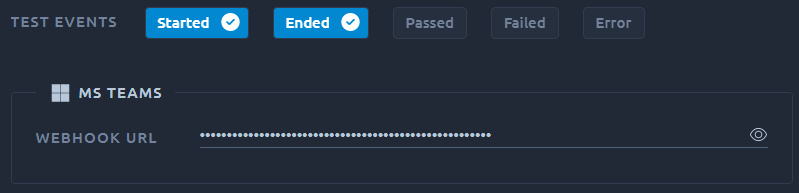
To create the notification in OctoPerf, simply provide the Teams Webhook URL.
### Google
You need to configure an incoming webhook in Google Chat. The procedure can be found [in their documentation](https://developers.google.com/workspace/chat/quickstart/webhooks?hl=en).
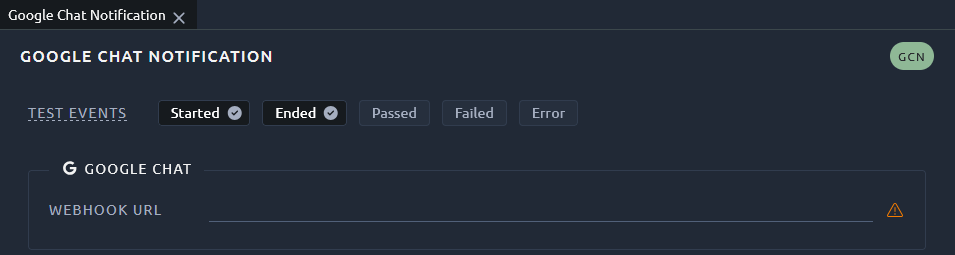
To create the notification in OctoPerf, simply provide the Google chat Webhook URL.
### Webex
You need to configure an incoming webhook in Webex using the [Incoming Webhooks app](https://apphub.webex.com/applications/incoming-webhooks-cisco-systems-38054-23307-75252). Once created, Webex gives you a webhook URL in the following form:
```
https://webexapis.com/v1/webhooks/incoming/
```
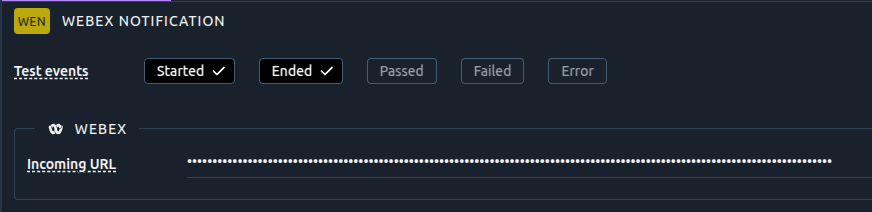
To create the notification in OctoPerf, copy the `` part at the end of that address into the **Incoming URL** field. This value identifies the Webex space that will receive your notifications.
!!! note
The Incoming URL is considered a secret and as such is not displayed in our UI.
### Jira
A Jira notification keeps your board in sync with your load tests by **commenting on** and **moving** issues as tests run. It works with both **Jira Cloud** and **Jira Data Center**.
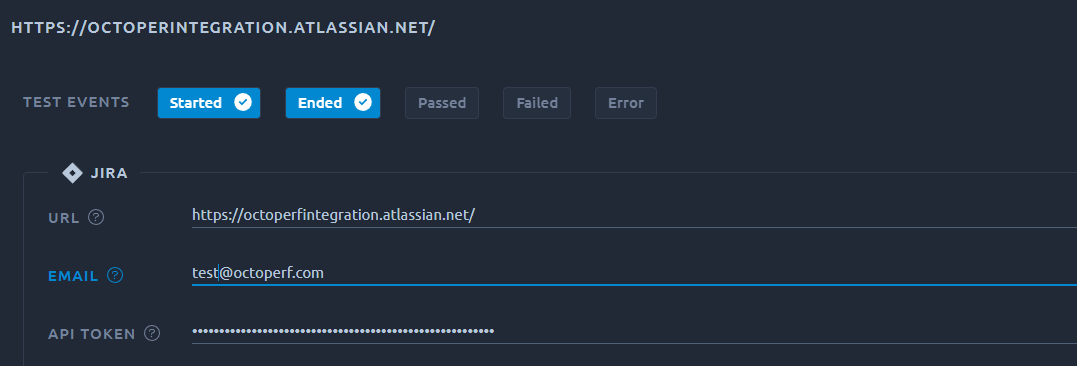
Configuring Jira involves two steps: connecting to your Jira instance, then choosing which board and issues are involved. Because there are several options, this is covered in its own guide:
- [Jira notifications overview](https://api.octoperf.com/doc/notifications/jira/): what it does and which platforms are supported,
- [Connecting to Jira](https://api.octoperf.com/doc/notifications/jira/connection/): Jira Cloud and Jira Data Center connection types and credentials,
- [Configuring the board and issue workflow](https://api.octoperf.com/doc/notifications/jira/board/): board, column, issue filtering and issue moving.
### HTTP
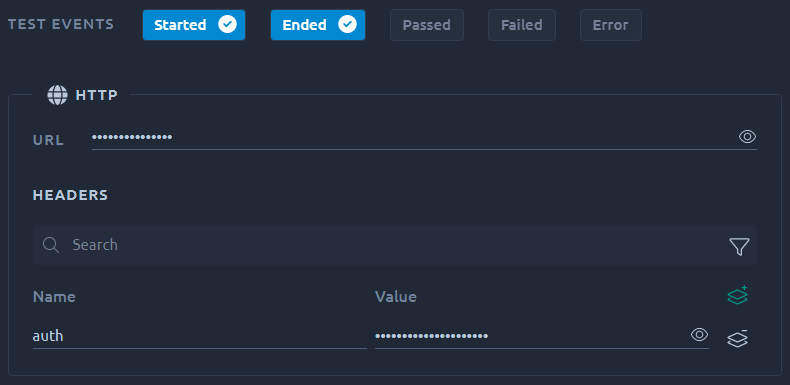
The HTTP Notification allows you to send the notification to any API or compatible Webhook. It is possible to pass custom headers in order to send authentication information.
### Events
The events define what events are sent for each configuration:
| Event | Description |
| ------------ | ------------------------------------------------------------ |
| Test started | The test has been launched. Note that this event only logs that a test has been queued for startup, not that is successfully started. |
| Test ended | The test has stopped. There can be a number of reasons for a test to stop, [check our dedicated Test status page](https://api.octoperf.com/doc/analysis/test-status/#test-aborted) for more info. |
| Test error | The test was unable to launch, usually because an on premise load generator is down. Check the [test logs](https://api.octoperf.com/doc/analysis/edit-bench-report/test-logs/) for more info. |
| Test passed | The test has finished with no critical alert. |
| Test failed | The test has finished but a monitoring alert triggered, an SLA triggered or the error rate was higher than [octoperf.notifications.max-percent-errors](https://api.octoperf.com/doc/on-premise-infra/configuration/#notifications) (5% is the default on the SaaS platform). |
### Filters
{ align=left }
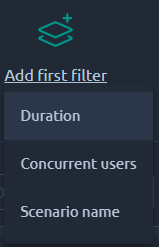
Filter the tests that will trigger notifications based on:
- Test duration,
- Number of concurrent users,
- Scenario name.
This setting is a good way to target notifications on a specific type of test.
## Remove a notification
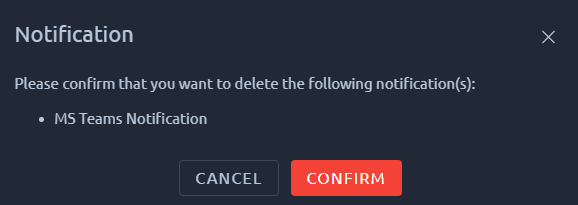
You can remove one or several notifications using the list.
!!! warning
Notifications cannot be restored, be careful when removing them.
## Test notification
When you click the test button, a dummy notification is sent:
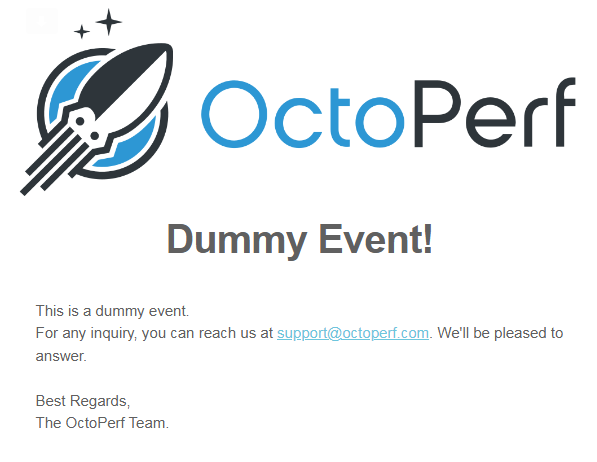
If you do not receive it, double check your [notification configuration](#edit-a-notification).