> OctoPerf load testing - Navigation documentation page. This page describes the left handed menu and the
Source: https://api.octoperf.com/doc/navigation/
# Navigation
breadcrumbs links.
# Navigation
## Main menu

The main menu allows you to access every page of OctoPerf.
As you navigate, you will notice that it updates according to where you stand in the application and in order to reflect
the options available to you at all time.
### Mega menus
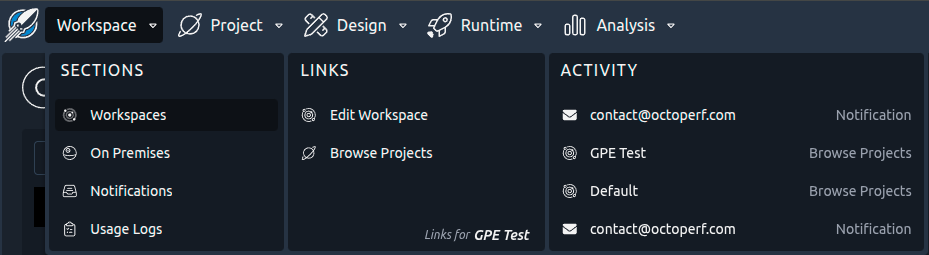
Each menu gives to access to:
* **Sections**: Global links for the current object,
* **Links**: Useful links related to the current object (displayed in the menu column footer),
* **Activity**: Navigation history that allows you to navigate back to previously visited objects.
### Menu items description
Each menu item will bring you to a different page, this section lists them all **with links to each individual page in
this documentation**:
#### Workspace
| Menu item | Description |
|--------------------------|-----------------------------------------------------------------------------|
| Sections - Workspaces | List of [workspaces](https://api.octoperf.com/doc/workspace/) you have access to. |
| Sections - On Premises | Manage your [On-Premise agents](https://api.octoperf.com/doc/on-premise-agent/). |
| Sections - Notifications | Configure [notifications](https://api.octoperf.com/doc/notifications/). |
| Sections - Usage Logs | The tests launched and the changes made to the workspace: [usage logs](https://api.octoperf.com/doc/usage-logs/). |
| Links - Edit Workspace | Edit the current [workspace](https://api.octoperf.com/doc/workspace/#edit-a-workspace). |
| Links - Browse Projects | List of available [projects](https://api.octoperf.com/doc/project/) in the current workspace. |
#### Project
| Menu item | Description |
|------------------------------|-------------------------------------------------------------------------------|
| Sections - Projects | List of [projects](https://api.octoperf.com/doc/project/) you have access to. |
| Links - Edit Project | Edit the current [project](https://api.octoperf.com/doc/project/#edit-a-project). |
| Links - Browse Virtual Users | List of available [virtual users](https://api.octoperf.com/doc/design/) in the current project. |
| Links - Browse Scenarios | List of available [scenarios](https://api.octoperf.com/doc/runtime/) in the current project. |
| Links - Browse Monitor Connections | List of available [monitor connections](https://api.octoperf.com/doc/monitoring/) in the current project. |
| Links - Browse Reports | List of available [reports](https://api.octoperf.com/doc/analysis/) in the current project. |
| Toggle - All / Project tags | When the current project has tags, pre-filters the *Browse* links above with the [project tags](https://api.octoperf.com/doc/project/#tags). |
#### Design
| Menu item | Description |
|------------------------------|----------------------------------------------------------------------------------------------------------------------------|
| Sections - Virtual Users | List of [virtual users](https://api.octoperf.com/doc/design/) for the current project. |
| Sections - Files | List of [files](https://api.octoperf.com/doc/design/edit-virtual-user/configuration/files/) for the current project. |
| Sections - Variables | List of [variables](https://api.octoperf.com/doc/design/edit-virtual-user/configuration/variables/) for the current project. |
| Sections - Servers | List of [servers](https://api.octoperf.com/doc/design/edit-virtual-user/configuration/servers/) for the current project. |
| Sections - Correlation Rules | List of [correlations rules](https://api.octoperf.com/doc/design/edit-virtual-user/configuration/auto-correlation/) for the current project. |
| Sections - SLA Profiles | List of [SLA Profiles](https://api.octoperf.com/doc/design/edit-virtual-user/configuration/sla-profiles/) for the current project. |
| Links - Edit VU | Edit the current [virtual user](https://api.octoperf.com/doc/design/edit-virtual-user/). |
| Links - Related Servers | List of [servers](https://api.octoperf.com/doc/design/edit-virtual-user/configuration/servers/) used in the current VU. |
| Links - Related SLA Profiles | List of [SLA profiles](https://api.octoperf.com/doc/design/edit-virtual-user/configuration/sla-profiles/) used in the current VU. |
| Links - Related Scenarios | List of [scenarios](https://api.octoperf.com/doc/runtime/) that uses the current VU. |
| Links - Related Reports | List of [reports](https://api.octoperf.com/doc/analysis/) related to the current VU. |
#### Runtime
| Menu item | Description |
|-------------------------|----------------------------------------------------------------------------------------------|
| Sections - Scenarios | List of [scenarios](https://api.octoperf.com/doc/runtime/) for the current project. |
| Sections - Scheduler | List of [scheduled jobs](https://api.octoperf.com/doc/runtime/scheduler/) for the current project. |
| Sections - Monitoring | List of [monitoring connections](https://api.octoperf.com/doc/monitoring/list-connections/) for the current project. |
| Links - Edit Scenario | Edit the current [scenario](https://api.octoperf.com/doc/runtime/edit-scenario/). |
| Links - Launch Scenario | Launch the current [scenario](https://api.octoperf.com/doc/runtime/edit-scenario/launch-test/). |
| Links - Related Jobs | List of [scheduled jobs](https://api.octoperf.com/doc/runtime/scheduler/) for the current scenario. |
| Links - Related Reports | List of [reports](https://api.octoperf.com/doc/analysis/) related to the current scenario. |
#### Analysis
| Menu item | Description |
|-----------------------|-------------------------------------------------------------------------------------------------|
| Sections - Reports | List of [reports](https://api.octoperf.com/doc/analysis/) for the current project. |
| Sections - Templates | List of [report templates](https://api.octoperf.com/doc/analysis/edit-bench-report/templates/) for the current project. |
| Sections - Import JTL | Import a [JTL file](https://api.octoperf.com/doc/analysis/import-jtl/) in the current project. |
| Links - Edit Report | Edit the current [report](https://api.octoperf.com/doc/analysis/edit-bench-report/). |
| Links - Export Report | Export the current [report](https://api.octoperf.com/doc/analysis/export-bench-report/). |
#### User Menu
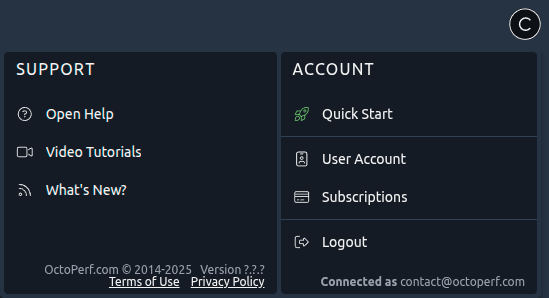
Located in the upper right corner of the application, the user menu gives you access to:
| Menu item | Description |
|-------------------------|-----------------------------------------------------------------|
| Account - User Account | Edit your [user account](https://api.octoperf.com/doc/account/profile/). |
| Account - Subscriptions | Manage your [subscriptions](https://api.octoperf.com/doc/account/subscriptions/). |
## Lists
{ align=left }
Many screens in OctoPerf feature lists of items that you can interact with. The purpose of this section is to walk you
through all the possible interactions:
- [Sorting](#sorting)
- [Global actions](#global-actions)
- [Contextual actions](#contextual-actions)
- [Filters](#filters)
!!! warning
Actions performed inside lists cannot be reverted, in particular some of the bulk actions can have consequences all over your test project.
### Sorting
A single click on any column name will activate it as a sorting criteria over the previous one or cycle through the
possible orders:
1. Ascending order
2. Descending order
3. No order
The available criteria depend on the nature of the list.
The date column has a selector in its header to choose which date is displayed and sorted: **Last Activity** or **Last Updated**, plus **Last Executed** in the [reports list](https://api.octoperf.com/doc/analysis/#reports-list).
Each list remembers its own sort and date choice, in your browser, between visits.
!!! info
Sorting can be combined with [Filters](#filters) to further enhance the readability.
### Global Actions

Next to the list name you will find actions that are not tied to a particular element of the list, such as **creating a
new item**, or **bulk removal/edition**. If there is more than one action it will be presented in a drop down menu like
the above screenshot. Please refer to each list documentation page for more information on what these actions do.
### Contextual actions
{ align=right }
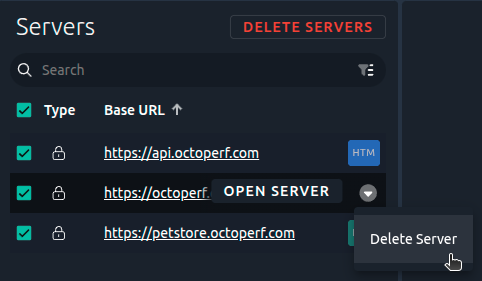
If you hover your mouse on an element of the list you can see its contextual actions. These usually involve
editing/removing said element.
Selecting one or several elements will also show the contextual actions that can be applied to all of them on top of the
list. This is especially useful to bulk remove elements.
!!! info
Right-clicking on a table row also opens the contextual menu.
!!! warning
Holding the CTRL key while performing actions will bypass the confirmation messages, use it at your own risks.
### Filters
A lot of the various views or panels in OctoPerf present lists that can be filtered in several ways. This section is a
general guide on how to use simple or advanced search features.
#### Simple Search
Simply **type some text** to check if **one of the objects in the list** contains your search string.
Use this icon to switch to [advanced mode](#advanced-search).
!!! warning
The search is done on the entire objects, to avoid false positives try to use distinctive search terms.
#### Advanced Search
Click on **+ Add filter** to select the metadata you want to use for your filter. The metadatas nature and number varies
depending on the type of objects being displayed in the list.
Use this icon to clear all existing filters and switch back to [simple mode](#simple-search).
Next you need to configure the filter with one of the following options:
* **Starts with**: The metadata starts with the specified value.
* **Equals**: The metadata is equal to the specified value.
* **Contains**: The metadata contains the specified value.

Use **ignore case** for a [case insensitive](https://en.wikipedia.org/wiki/Case_sensitivity) matching.
#### Related Search
{ align=left }
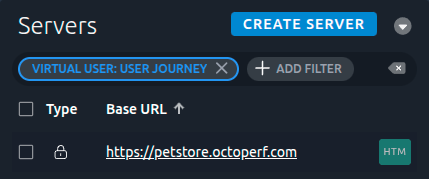
Related filters are accessible directly fron the [main menu](#main-menu) or in the advanced filters.
These special filters are displayed using a bright color to differentiate them from other filters.
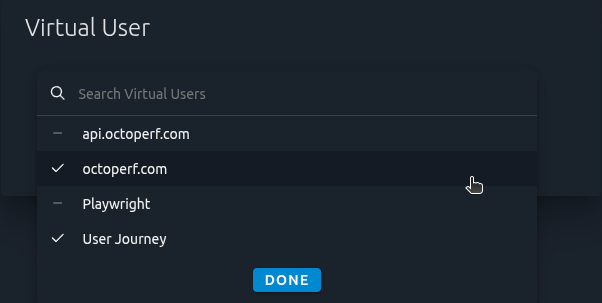
They are used to filter objects based on their relation to other objects. For example, you can filter servers used in a specific virtual users.
!!! info
You can edit related filters and select multiple objects.
 Use this icon to switch to [advanced mode](#advanced-search).
!!! warning
The search is done on the entire objects, to avoid false positives try to use distinctive search terms.
#### Advanced Search
Click on **+ Add filter** to select the metadata you want to use for your filter. The metadatas nature and number varies
depending on the type of objects being displayed in the list.
 Use this icon to clear all existing filters and switch back to [simple mode](#simple-search).
Next you need to configure the filter with one of the following options:
* **Starts with**: The metadata starts with the specified value.
* **Equals**: The metadata is equal to the specified value.
* **Contains**: The metadata contains the specified value.

Use **ignore case** for a [case insensitive](https://en.wikipedia.org/wiki/Case_sensitivity) matching.
#### Related Search
{ align=left }
Related filters are accessible directly fron the [main menu](#main-menu) or in the advanced filters.
These special filters are displayed using a bright color to differentiate them from other filters.
They are used to filter objects based on their relation to other objects. For example, you can filter servers used in a specific virtual users.
!!! info
You can edit related filters and select multiple objects.
