> OctoPerf load testing - Virtual User tree documentation page. The Virtual User tree is a visual representation of the Virtual User behavior.
Source: https://api.octoperf.com/doc/design/edit-virtual-user/virtual-user-tree/
# Virtual User Tree
The virtual user tree is a visual representation of the content of your virtual user. It is structured as a tree view that you can navigate by folding/unfolding nodes.
The tree view allows you to create elements with the right click menu or from the actions panel. You can also move existing elements with a drag and drop.
!!! info
Multiple elements can be selected at once through a **CTRL** or **SHIFT + Click**. This way you can move or remove multiple elements in one go.
!!! info
The tree of a [K6 Virtual User](https://api.octoperf.com/doc/design/create-virtual-user/import-k6-scripts/) holds its files only, one [K6 Script action](https://api.octoperf.com/doc/design/edit-virtual-user/action-types/k6-actions/k6-script-action/) each: the `group` blocks and the requests of a K6 script live in its code, and show in the reports.
## Drag and drop
### Drop inside
While holding the left mouse button, hover your mouse on a container to drop the selected element inside it.
!!! tip
A green highlight is shown on the container in which you are currently dropping.
### Drop after
While holding the left mouse button, hover your mouse under any other element to drop the selected element after it.
!!! tip
The green highlight appears smaller than when you are dropping inside a container.
### Tree rules
Not all elements can be stacked into one another. There are a few rules that you must respect:
- Containers can contain anything, including other containers,
- Requests can only contain extractors or processors,
- Extractors or processors cannot contain any other element.
A more visual representation of this would be:
`Container >> ... >> Container >> Request >> Extractor/Processor`
!!! warning
Some processors or extractors can be placed anywhere, in which case they apply to all elements at the same level.
This can have undesired consequences, like repeating a delay for each request or a lot of overhead because of a script processor.
If you try to drag and drop invalid elements on top of each other you will get a red highlight. If you drop the element, the action will be canceled.
## Multiple selection
### Ctrl clic
While holding the CTRL key, you can select multiple non-sequential elements from the tree, if you drag and drop them or use the right click menu to perform an action, it will be applied to all of them.
!!! warning
When you drag and drop elements that are non-sequential, they will be dropped at their destination in the order they appear in the tree. Since this action cannot be reversed you will lose their original place in the tree in the process.
This is especially important if you select elements that are at different depth levels in the tree.
### Shift click
While holding the SHIFT key, you can select multiple sequential elements from the tree, if you drag and drop them or use the right click menu to perform an action, it will be applied to all of them.
!!! warning
Be careful when you select elements that are at different depth levels in the tree and move them, this can lead to counter intuitive behavior.
## Right click menu
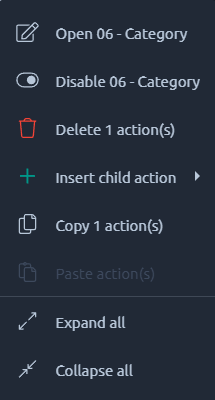{ align=left }
Upon right-clicking anywhere in the tree, a contextual menu will appear.
In this menu you will have access to a variety of actions depending on where you opened it from. Each one of them is detailed below.
!!! info
The scope of this menu's actions is usually the element you right-clicked on but in case of a multiple selection or a click on empty space it can vary.
### Menu actions
| Menu action | Description |
|-----------------------------|--------------------------------------------------------------------------------------------------------------------------------------------------------------------------------------------------------------------------|
| Open | Open selected elements in the [main panel](https://api.octoperf.com/doc/design/edit-virtual-user/#main-panel). |
| Rename | Rename selected element. You can use keyboard shortcuts: F2 or Shift + Alt + R. |
| Disable | Disable selected elements. Disabled elements will not be executed during [validation](https://api.octoperf.com/doc/design/edit-virtual-user/validation/) or [runtime](https://api.octoperf.com/doc/runtime/). |
| Delete | Send selected elements to the [trash panel](https://api.octoperf.com/doc/design/edit-virtual-user/#trash), effectively removing them from your virtual user. |
| Insert | Add a child action. Only actions that conform to the [tree rules](#tree-rules) will be available. For a complete list of actions, check the [Actions panel](https://api.octoperf.com/doc/design/edit-virtual-user/actions/). |
| Convert to correlation rule | Only available on variable extractors like the [regex extractor](https://api.octoperf.com/doc/design/edit-virtual-user/action-types/post-processors/regexp-variable-extractor/). Transforms the extractor into a [correlation rule](https://api.octoperf.com/doc/design/edit-virtual-user/configuration/auto-correlation/). |
| Copy | Copy selected elements. |
| Paste | Paste inside the selected element. [Tree rules](#tree-rules) apply here as well. To paste at the end of the tree, right click in empty space at the bottom. |
| Expand | Expand all selected elements. To expand everything, right click in empty space at the bottom. |
| Collapse | Collapse all selected elements. To collapse everything, right click in empty space at the bottom. |