> OctoPerf load testing - Regexp Variable Extractor documentation page. Regexp Variable Extractors lets you extract variables from server responses using regular expressions.
Source: https://api.octoperf.com/doc/design/edit-virtual-user/action-types/post-processors/regexp-variable-extractor/
# Regexp Variable Extractor
Regular Expression Extractors lets you **extract values from HTTP responses**, using [regular expressions](https://regex101.com/).
Extracting variables from HTTP responses helps you make Virtual Users dynamic. Extracted variables can be injected in Logic Actions or HTTP Request Actions.
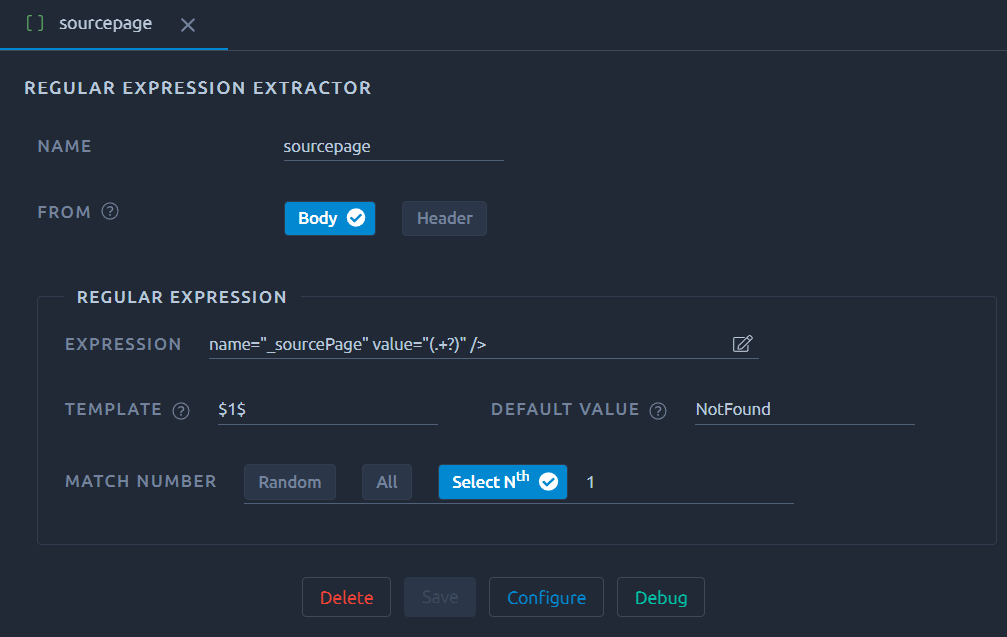
| Field | Description |
| ------------- | ------------------------------------------------------------ |
| Name | Name of the variable created by this processor. Can be used with the `${...}` syntax like any other variable. |
| From | Extract from **Response Headers** or **Response body**. |
| Expression | The regular expression to be used. We recommend creating it with the [configure button](#configure). It is possible to configure several extraction groups so that you extract several values at once, see [the dedicated section](#multiple-extraction-groups) for more details. |
| Template | Mostly used when you have several extraction groups. You can specify [how the groups are organized](#template) in the main variable. |
| Default value | If no value is found, the variable will be equal to this. With match number **All**, you get the default value if you do not provide an index number. |
| Match number | Lets you choose how to deal with the regex having several results (or occurrences). Selecting **All** will change the behavior of your regex processor, see [the dedicated section](#multiple-occurrences) for more details. |
## Configure
The { .off-glb } button or the { .off-glb } icon opens a new window in which you can use our regex creator:
You can use **CTRL+F** to search for the value to extract, or simply **select the value on screen**.
We automatically place **offsets** around the selected value, make sure to adapt the offsets to create a relevant regex.
## Debug
### Simple
The debug panel allows you to quickly see the result of your regex. Make sure to check it every time you make a significant change:

### Read and copy a value
The table shows one line per variable, and a value too long for its line ends with `…`. The selected variable is shown in full under the table, so you can check a long value, such as a token or a JSON body, without leaving the panel. Its text keeps its line breaks, scrolls when it is long, and can be selected.
- By default, the variable of the extractor is selected. Click another line to select it.
- When you edit the extractor, the result refreshes and the variable you selected stays selected.
- **Copy value** copies the whole value, from the detail under the table, or from the buttons shown when you hover a line.
- **Copy name** copies the variable with its `${...}` syntax, ready to paste in another action, e.g. `${sourcepage}`.
Each copy also appears in the [Events panel](https://api.octoperf.com/doc/events/events/), where **Copy again** copies the whole text once more.
### Multiple occurrences
When the match number is set to all, the behavior of your regex processor changes.
Instead of a single variable, a lot of variables are created:
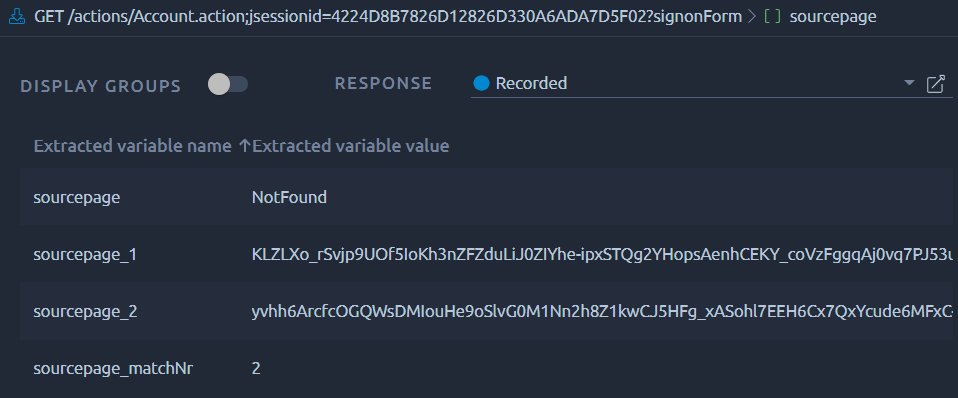
Even if there is only one occurrence, the general structure of multiple occurrences extractions will always be:
* `sourcepage` : always has the default value,
* `sourcepage_matchNr` : the number of values extracted, e.g. 2,
* `sourcepage_N` : the Nth value extracted,
This means that you will have to provide an index when using this variable, typically the [Foreach action](https://api.octoperf.com/doc/design/edit-virtual-user/action-types/logic-actions/foreach-action/) or [some functions](https://api.octoperf.com/doc/design/edit-virtual-user/functions/#__v) are a good way to deal with this in a dynamic context.
!!! warning
Never use the main variable name when working with multiple occurrences or you will get the default value.
### Multiple extraction groups
#### Example
The concept behind extraction groups is to use a single regex to extract several values.
For instance in a situation like this you might want to get `_sourcePage` and `__fp` in one go:
```HTML
```
This way you can be sure that the values for these two parameters are the ones next to each other, instead of having an occurrence that might be in a different location in the response.
To that end we can use a regex like this one:
```html
name="_sourcePage" value="(.+?)" />
```
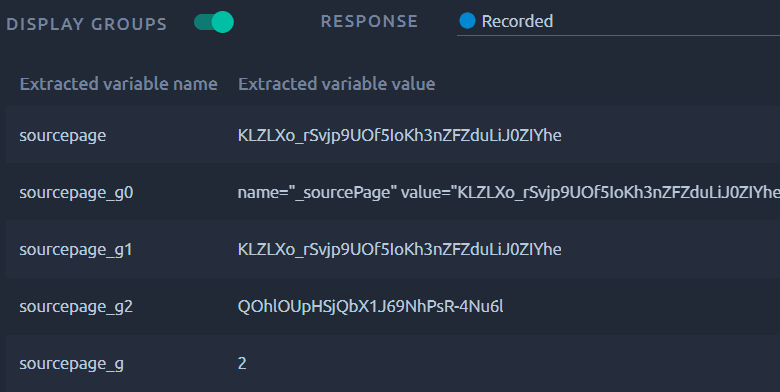
The two parenthesis groups represent the values we want to extract, and they are called **Extraction Groups**. The result will look like this:
!!! note
Groups are not visible in the [debug panel](#debug) by default, make sure to activate **DISPLAY GROUPS**.
Groups work similarly to [multiple occurrences](#multiple-occurrences), with a count and several indexes:
* `sourcepage` : the base variable, it contains the extracted value (or the default value), e.g. `FISH`
* `sourcepage_g` : the count of groups used in the regexp,
* `sourcepage_g0` : the whole extraction, regex included, e.g. `categoryId=FISH"` for `categoryId=(.*?)"`,
* `sourcepage_gn` : where n=0,1,2 - the groups values.
!!! warning
Groups can be used along with [multiple occurrences](#multiple-occurrences), in which case your regex processor will extract a two dimensional array. In that case variable names like *sourcepage_1_g2* or *sourcepage_3_g0* will be created and visible in the [debug panel](#debug).
#### Template
The template field offers you a way to concatenate groups in the base variable. Instead of using `sourcepage_g0`, simply use `$0$`. It is a good way to concatenate values with a custom separator.
In this example we used `_sourcePage" value="(.+?)" />.*fp" value="(.+?)"` as the regexp and `////` as a separator, and as you can see it shows in `sourcepage`:

!!! note
Groups are not visible in the [debug panel](#debug) by default, make sure to activate **DISPLAY GROUPS**.