> OctoPerf's load testing - Test Logs documentation page. How to view and download load test initialization, JMeter and K6 logs when running a performance test with OctoPerf.
Source: https://api.octoperf.com/doc/analysis/edit-bench-report/test-logs/
# Test Logs
The logs panel is available from the bottom of the screen. It displays the [test initialization logs](#test-initialization-logs) and the logs of the load generators, [JMeter](#jmeter-logs) or [K6](#k6-logs).
## Test Initialization Logs
OctoPerf lets you review the process of initializing the load generators via a Test Initialization Logs panel:
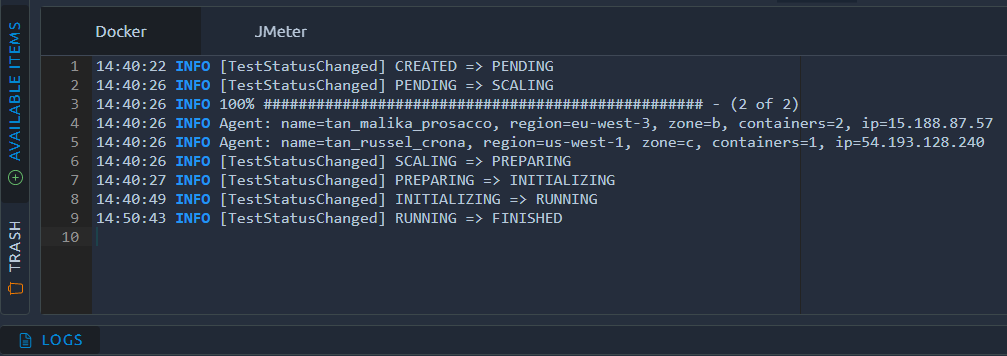
The test status goes through a number of steps. You can find more details on the [test status page](https://api.octoperf.com/doc/analysis/test-status/). This log also shows the IPs of the load generators, this can be useful if you want to filter these calls from your statistics or logs.
## JMeter Logs
**OctoPerf lets you view JMeter logs** after executing a [Virtual User validation](https://api.octoperf.com/doc/design/edit-virtual-user/validation/) or a [load test](https://api.octoperf.com/doc/analysis/edit-bench-report/). To view the 1000 first lines of a log file, simply select it on the left-hand menu:

The load generators upload their files when they stop, a few seconds after the end of the test or of the validation. Until the first file arrives, the list shows *Waiting for files*. The list updates on its own during one minute after the end: the files appear without reloading the page.
{ align=left }
You can also **download the full log file** by clicking on the _Download_ button, or *Download all* to get all log files at once.
This will download a _.log.gz_ file that you can open with a free file compression tool like [7Zip](http://www.7-zip.org/).
!!! warning
The list waits for the files during one minute after the end of the test or of the validation. If it still shows *No data* after that minute, the log files are not available, for one of these reasons:
* The zipped log file size is > 200 Mb. Try disabling some logging and launch the test again,
* The virtual user validation or the load test failed to start,
* The virtual user validation occurred too long ago, the log files are erased after you leave the design screen or after 7 days.
## K6 Logs
A load generator running [K6 virtual users](https://api.octoperf.com/doc/design/create-virtual-user/import-k6-scripts/) uploads `.k6.log.gz`, listed and downloaded like a JMeter log. It holds, in the order they happened:
- the output of `k6 archive`, which checks the scripts before the test starts: a script that does not start says why here, with its file, line and column,
- the output of `k6 run`: the messages of K6, the `console.log` of the scripts, and the errors thrown during an iteration, with their stack trace,
- the messages of the OctoPerf agent that runs next to K6.
When the user profile has [Upload raw CSV output](https://api.octoperf.com/doc/runtime/edit-scenario/edit-user-profile/options/k6/#script) on, a standard test also uploads `.k6.csv.gz`: the raw output of K6, one line per value it measured, for processing outside OctoPerf. It can be large: a line per metric of every request.