> OctoPerf load testing - Administration documentation page. What the admin menu allows you to do and how.
Source: https://api.octoperf.com/doc/administration/
# Administration
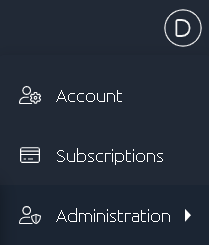
The administration menu is only available to platform admins. To access it you must have your own [On-Premise Infra](https://api.octoperf.com/doc/on-premise-infra/) of OctoPerf.
Then please refer to the procedure to add an administrator in the On-Premise Infra [advanced documentation](https://api.octoperf.com/doc/on-premise-infra/configuration/#user-management).
{ align=left }
This administration menu allows you to perform the following actions:
* Add/edit the [correlation rules](https://api.octoperf.com/doc/design/edit-virtual-user/configuration/auto-correlation/#import-a-correlation-rules-framework) frameworks,
* View/manage all the [On-Premise Agents](https://api.octoperf.com/doc/on-premise-agent/) running at the moment,
* View/manage all users registered to your OctoPerf server,
* View/manage all active [user sessions](https://api.octoperf.com/doc/administration/user-sessions/) across the platform,
* Access all [workspaces](https://api.octoperf.com/doc/workspace/) on the platform.
## Frameworks
The frameworks menu allows you to add/edit to the [frameworks](https://api.octoperf.com/doc/design/edit-virtual-user/configuration/auto-correlation/#import-a-correlation-rules-framework) available in the correlation rules menu:
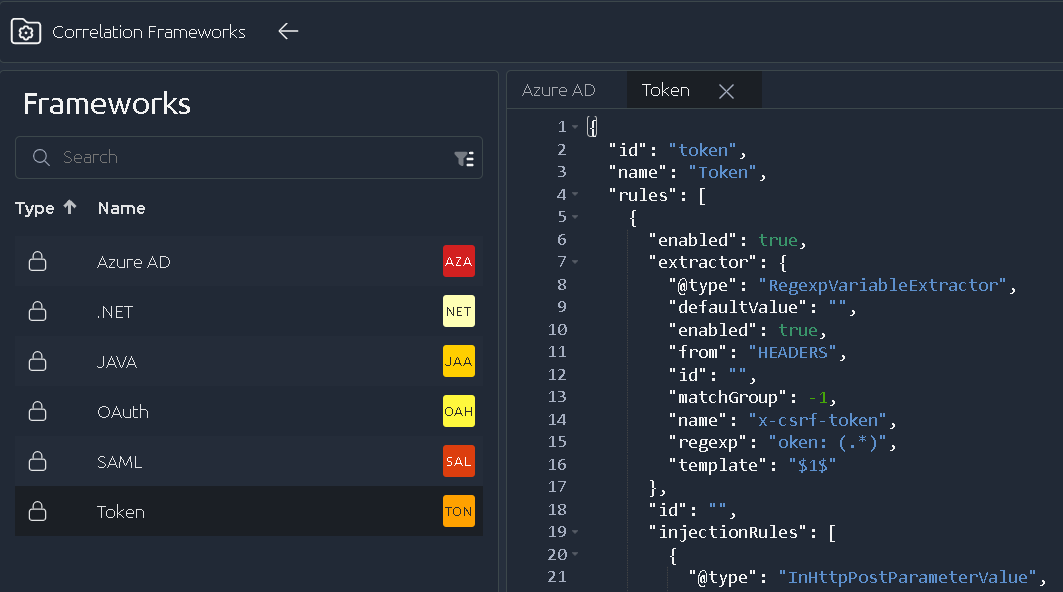
Use the Duplicate button on an existing framework in order to create a new one. Make sure to edit its name and id before saving otherwise you'll be blocked by the duplicate check.
!!! warning
**The default frameworks are hard coded** and thus can't be edited/removed but you can add/edit your own.
## Agents
This page lists all agents running on the platform at this time:
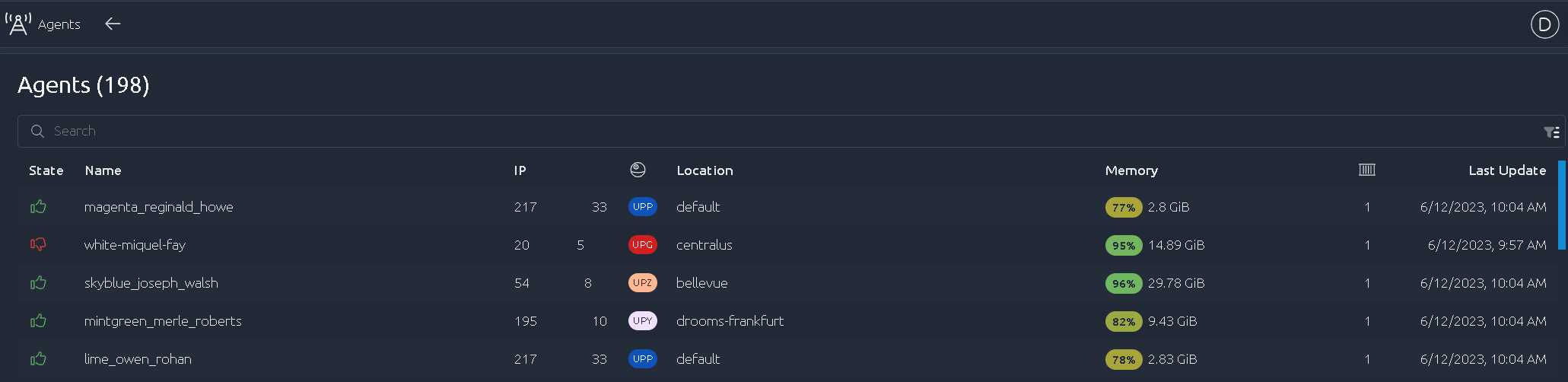
It is a good way to keep watch on **all agents started across different workspaces**.
In particular if you use a [cloud integration](https://api.octoperf.com/doc/on-premise-agent/provider-type/amazon/) to autostart them on the fly.
In terms of functionalities, this page works exactly the same as the [On-Premise Agents configuration screen](https://api.octoperf.com/doc/on-premise-agent/provider-type/on-premise/).
## Users
{ align=left }
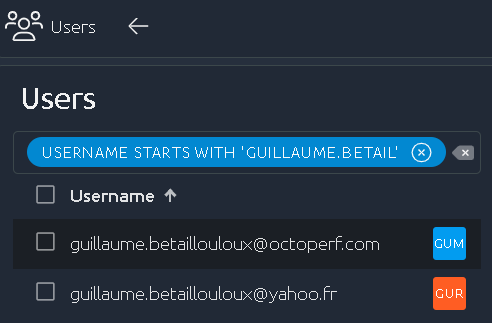
This page allows you to see all the accounts registered to this OctoPerf platform. Use [filters](https://api.octoperf.com/doc/navigation/#filters) to see a particular user or select "**All administrators**" to filter only on Admin roles.
You can then edit users with a single click in the list.
It is possible to :
- Change the status of any user to Enabled, Disabled or Unverified (so that they need to go through [email verification](https://api.octoperf.com/doc/account/#sign-up) again),
- Appoint a user as administrator in order to give him rights to access the administration menu, exactly as the users [manually declared in the configuration files](https://api.octoperf.com/doc/on-premise-infra/configuration/#user-management),
- Permanently remove a user along with all its workspaces and resources.
!!! warning
Be very careful when removing user account since **orphaned workspaces are automatically removed in the process!**
It is strongly recommended to **disable users** only instead.
### Two-factor authentication
When editing a user, the **Two-factor** field shows whether that user has enabled [two-factor authentication (2FA)](https://api.octoperf.com/doc/account/profile/two-factor/) on their account.
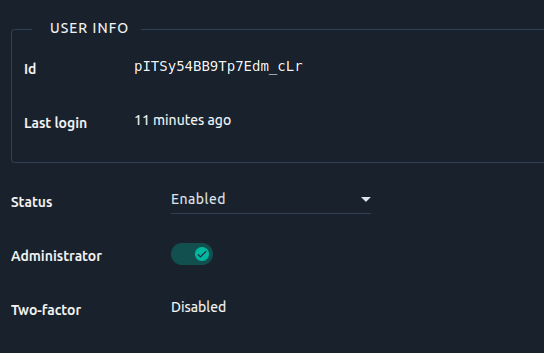
If the user has **not** enabled 2FA, the field simply displays **Disabled**. As an administrator you cannot turn 2FA on for someone else. Only the user can enable it from their own account.
If the user **has** enabled 2FA, a toggle appears and lets you disable it for them.
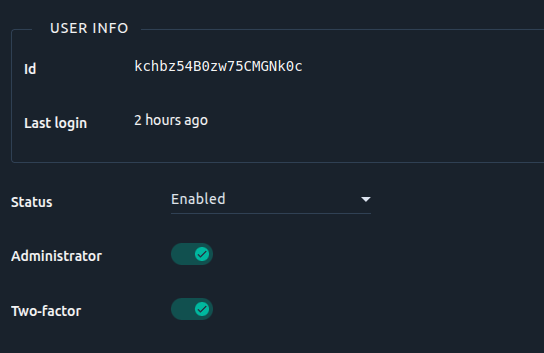
This is useful when a user is **locked out of their account**, for example after they lost access to their authenticator app and no longer have their recovery codes. Disabling 2FA lets them sign in again with just their password (and set up 2FA again afterwards if they wish).
!!! warning
Only disable 2FA once you are confident the request is legitimate, as it lowers the security of that user's account.
To prevent accidental changes, turning the toggle off opens a confirmation dialog. You must type the user's name to confirm before the change is applied.
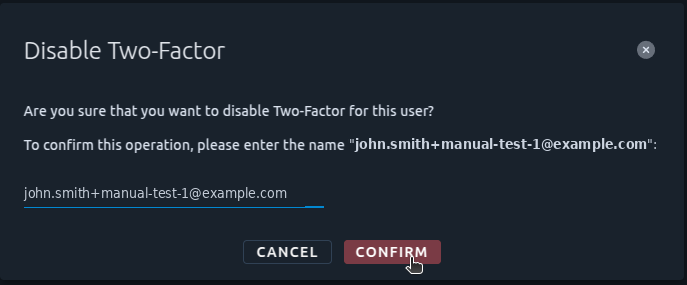
Once confirmed, the user's 2FA is disabled and the field goes back to displaying **Disabled**.
## Users Activity
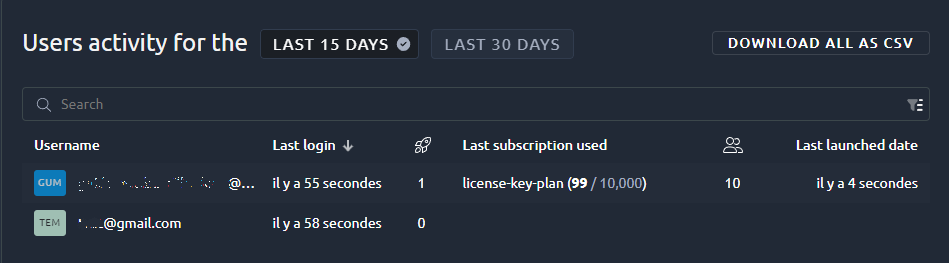
This screen displays the recent activity log for all users registered on the platform.
### Global filtering
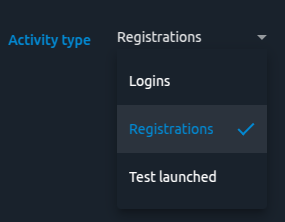
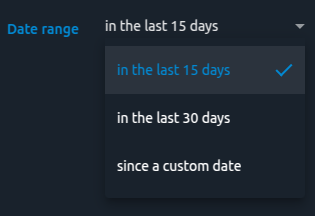
User activity can be filtered by **Activity Type**, with results limited by the **Date Range** filter.
Available activity types:
- **Logins**: last login date of the user.
- **Registrations**: registration date of the user.
- **Test launched**: last test start date of the user.
!!! Info
Default sorting depends on the selected _Activity Type_.
When Activity Type is **Tests launched**, results are sorted **in descending order** by the **Last Test Start Time** column.
### Global Action
If you want to analyze user activity in external tools, you can export the results as a CSV file.
!!! Info
The CSV export only applies to **Global Filters**.
[Table Filters](https://api.octoperf.com/doc/navigation/#filters) **are not included** in the exported data.
### Last test Information
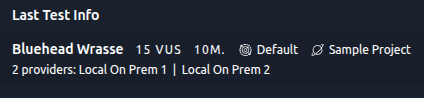
The Last Test Info column provides key details about the most recent test launched by each user.
Displayed information includes:
- **Scenario name**: _Bluehead Wrasse_
- **Maximum load**: _15 VUS_
- **User Workspace**: _Default_
- **User Project**: _Sample Project_
- **Providers used**: _2 providers_ (_Local On Prem 1_ and _Local On Prem2_)
!!! Tip
Since this data can be extensive, you can use the **Inspect Last Test Activity** action (see below) to view all details clearly.
### Row actions

Each user entry includes two available actions:
- See Subscriptions and Shares
Navigates to the **Subscriptions and Shares** administration page, with the selected user automatically preloaded.
- Inspect Last Test Activity
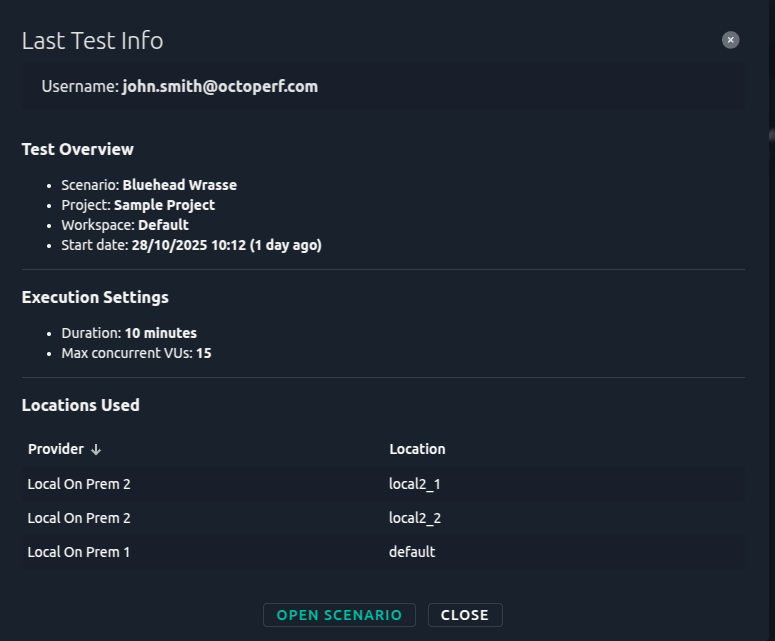
Opens the Last Test Info dialog, which:
- Displays full test details without text truncation.
- Lists all **providers** in a table, including **locations**.
- Provides an **”Open Scenario”** button in the dialog footer for direct access.
## User Sessions
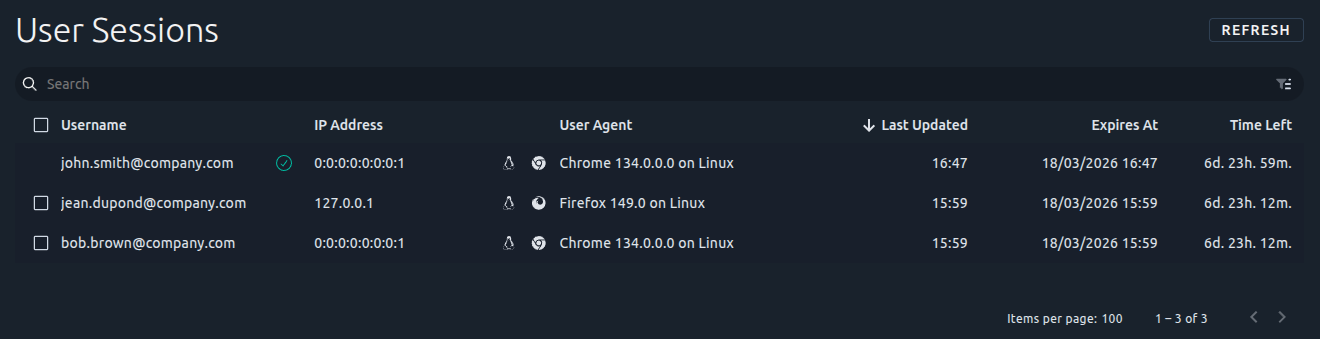
This page allows you to view and manage all active login sessions across all users on the platform. See the [User Sessions Management](https://api.octoperf.com/doc/administration/user-sessions/) documentation for detailed information on monitoring sessions, investigating suspicious activity, and enforcing security policies.
Key capabilities:
- View all active sessions with device, browser, and IP information
- Filter sessions by username or other criteria
- Terminate individual or multiple sessions immediately
- Monitor login activity for security and compliance purposes
- Investigate unauthorized access attempts
## Workspace
This page will allow you to access all the workspaces in this platform. You can use "Download all as CSV" to export the content of the list.
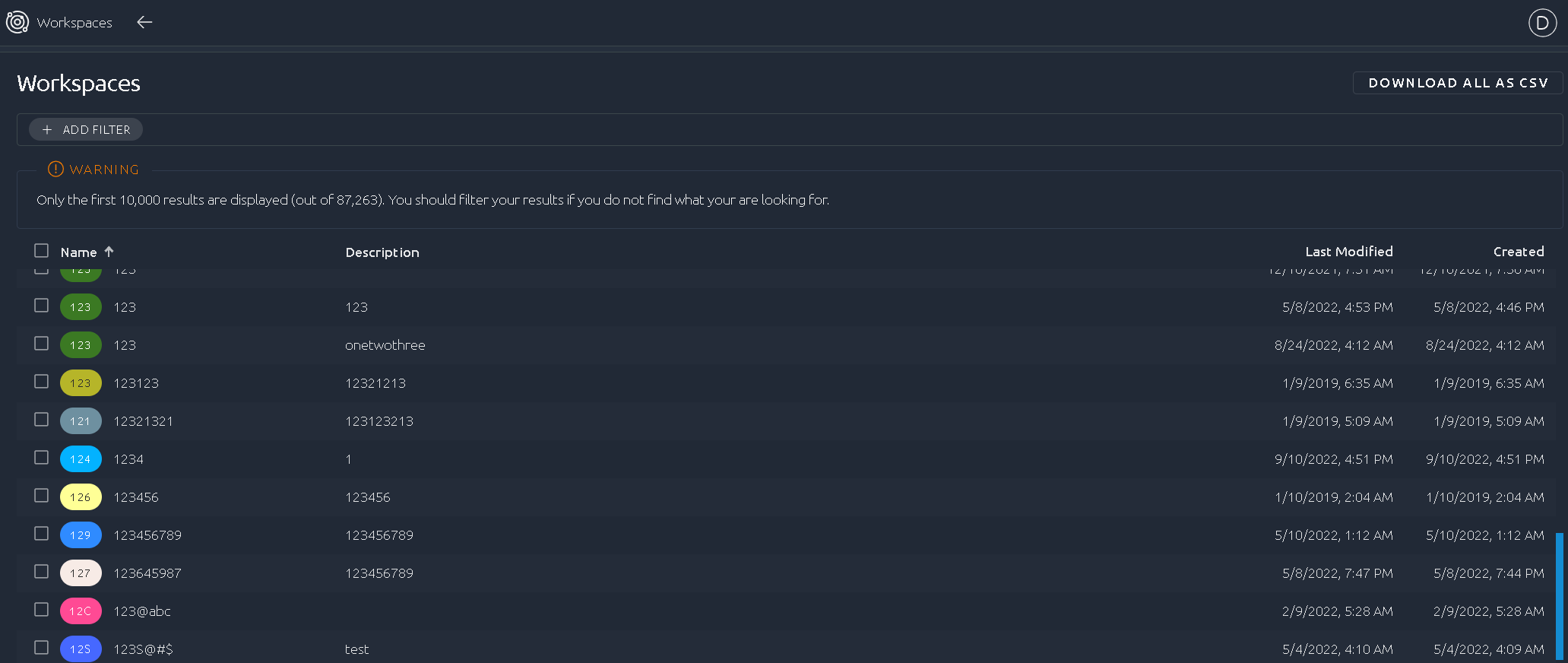
| Action | Description |
| ------------| --- |
| Edit | Edit this workspace |
| View owner | Copy owner email to clipboard |
| Open owner | Opens the [user admin screen](#users) filtered on the owner |
| Delete | Permanently remove this workspace |
!!! warning
**Removing a workspace will remove all its projects/providers and cannot be reversed**.
## SSO
Here, you can configure an [SSO login page](https://en.wikipedia.org/wiki/Single_sign-on) where users can access the application using pre-existing credentials:
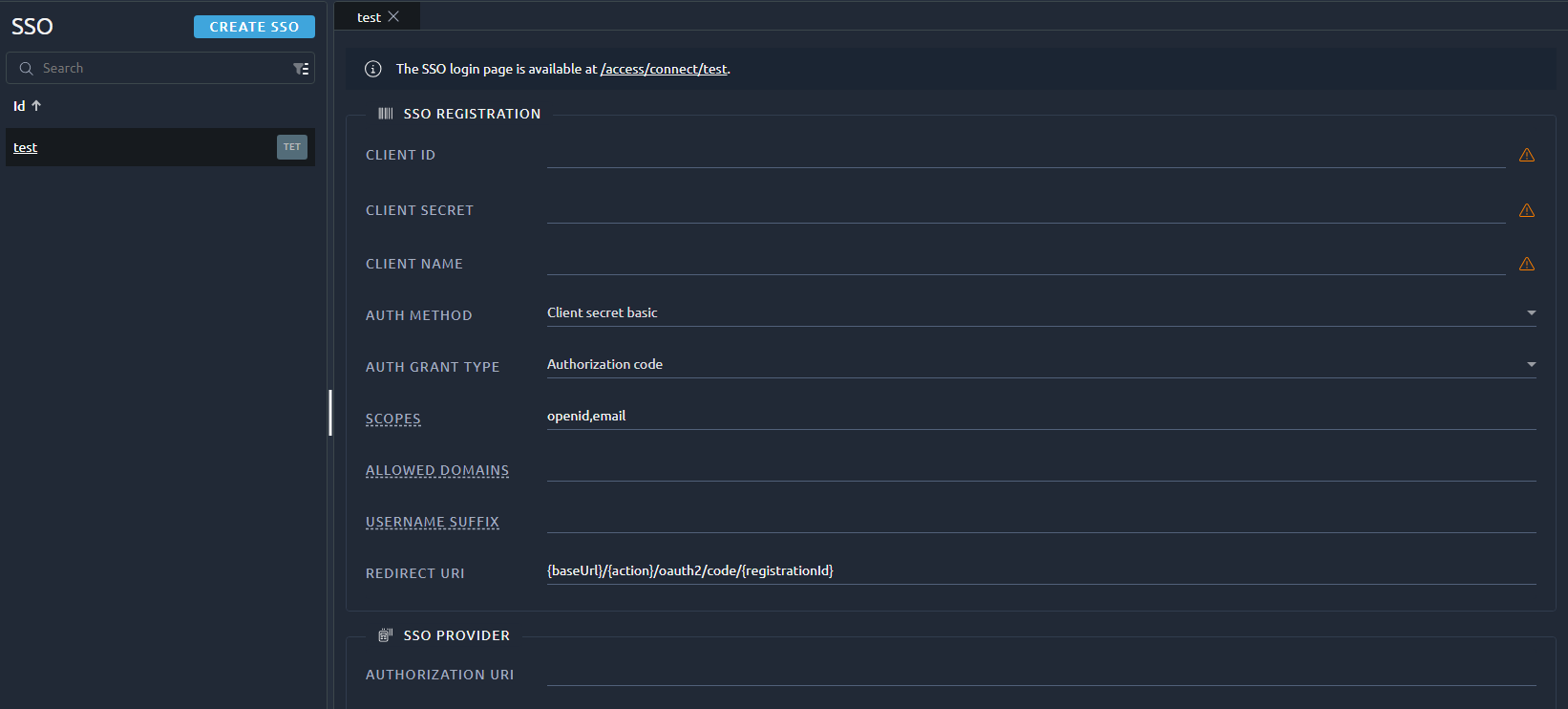
Details of the SSO configuration can be found on the [enterprise configuration page](https://api.octoperf.com/doc/on-premise-infra/configuration/#single-sign-on).
!!! warning
If your `application.yml` file already has an SSO configured, it will overwrite the one defined in this menu.